How to Use find Command in Linux: Search Files Like a Pro
Learn how to use the find command in Linux to search files by name, type, size, permissions, and time — with real sysadmin examples and exec tricks.


In this article
If you’ve ever stared at a terminal wondering where that one config file disappeared to, learning how to use the find command in Linux will change your life. I’m not being dramatic. The first time I ran find on my homelab server and watched it pull up every stale log file eating my disk space, I felt like I’d been given x-ray vision for my filesystem. Whether you’re hunting down a misplaced script or auditing permissions across an entire server, find is the tool that does it all. Pair it with the grep command and you’ve got the most powerful search combo in Linux.

In this guide, I’ll walk you through everything from basic name searches to advanced sysadmin workflows. We’ll cover real examples you can copy and paste, along with tricks that most tutorials skip entirely.
What Is the find Command in Linux?
The find command is part of GNU Findutils, and it ships on virtually every Linux distribution out of the box. Ubuntu, Debian, Arch, Fedora, RHEL, you name it.
The basic syntax looks like this:
find [path] [options] [expression]- path: Where to start searching (defaults to current directory if omitted)
- options: Control behavior like symlink handling (
-L,-P,-H) - expression: The filters and actions you want to apply
Unlike locate, which searches a pre-built database that can be hours or days stale, find searches the live filesystem in real time. Every single time you run it, you get current results. That distinction matters more than you’d think, especially in production environments where files change constantly.
I remember early in my sysadmin days, a coworker kept insisting locate was faster and therefore better. It is faster, but “fast and wrong” isn’t a great look when you’re troubleshooting a downed service at 2 AM.
Search Files by Name
Case-sensitive search with -name
The most common use case. Find every .conf file under /etc:
find /etc -name '*.conf'This is case-sensitive, so *.conf won’t match Apache.CONF. Always wrap your pattern in single quotes to prevent the shell from expanding the glob before find sees it.
Case-insensitive search with -iname
When you’re not sure about casing (which happens more often than anyone admits):
find /etc -iname '*.conf'This catches httpd.conf, MyApp.CONF, and everything in between.
Using wildcards and glob patterns
You can get creative with patterns. Find all files starting with “backup”:
find /home -name 'backup*'Need to match against the full path instead of just the filename? Use -path:
find / -path '*/nginx/*.conf'That finds any .conf file inside any directory named nginx, regardless of where it sits in the tree.
Filter by File Type, Size, and Modification Time
Search by file type (-type)
The -type flag narrows your search to specific kinds of filesystem objects:
-type fregular files-type ddirectories-type lsymbolic links-type bblock devices-type ssockets
For example, find only directories named “config”:
find / -type d -name 'config'Search by size (-size)
This one is a lifesaver when your disk fills up. Find files larger than 100MB:
find / -type f -size +100MSize units include c (bytes), k (kilobytes), M (megabytes), and G (gigabytes). The + means “greater than” and - means “less than.” If you manage storage and haven’t paired this with LVM, you’re missing out on a smooth workflow for tracking down disk hogs and managing volumes.
Search by time (-mtime, -mmin, -newer)
Find files modified in the last 7 days:
find /var -type f -mtime -7Need minute-level precision? Use -mmin:
find /tmp -type f -mmin -60That finds everything modified in the last hour. For incremental backups, -newer compares against a reference file:
find /etc -newer /tmp/last-backup-timestampThere’s also -atime (access time) and -ctime (inode change time), though -mtime is the one you’ll reach for 90% of the time.
Search by Permissions and Ownership
Find files by permissions (-perm)
This is where find becomes a security tool. Understanding Linux file permissions is essential here. Find all world-writable files on your system:
find / -perm -o+w -type f 2>/dev/nullWorld-writable files are a major security risk. If an attacker can write to a file that root executes, you’ve got a privilege escalation waiting to happen.
Audit SUID and SGID binaries
Security Tip: Post-Install SUID Audit
After a fresh install, run this and save the output as your clean baseline:
find / -perm /4000 -type f 2>/dev/null > /root/suid-baseline.txtPeriodically re-run and diff command the results against your baseline. Any new SUID binary that wasn’t there before deserves investigation.
SGID binaries get the same treatment:
find / -perm /2000 -type f 2>/dev/nullFind by owner or group (-user, -group)
Track down every file owned by a specific user:
find /home -user alex -type fI’ve used this when offboarding users from shared servers. Quick way to locate everything that needs reassignment. You can also find orphaned files (where the owner UID doesn’t map to any user), which is common after deleting user accounts.
Execute Commands on Found Files
Finding files is only half the battle. Acting on them is where find really shines, but there’s a gotcha here that catches almost everyone. I’ll get to it in a moment.
Using -exec (one process per file)
find /tmp -name '*.log' -exec rm {} \;This works, but it forks a new rm process for every single file. With 10,000 log files, that’s 10,000 fork calls. On a busy server, you’ll feel the overhead.
Batch execution with -exec {} + (the fast way)
find /tmp -name '*.log' -exec rm {} +The + at the end batches all matched files into a single command invocation. Same result, dramatically faster. This is the version you should use by default.
Piping safely to xargs with -print0
For filenames with spaces, newlines, or special characters (and yes, they exist in the wild), the null-separation pattern is your friend:
find /data -name '*.csv' -print0 | xargs -0 wc -lThe -print0 flag separates output with null bytes instead of newlines. Combined with xargs -0, it handles even the most cursed filenames safely. For CPU-heavy batch operations, add -P 4 to xargs for parallel processing across 4 cores.
The shell-exec gotcha most tutorials miss
Warning: -exec Doesn’t Use Your Shell
The -exec flag runs commands via the exec() system call directly. That means no aliases, no shell functions, no builtins. If you try to use a bash function inside -exec, it will silently fail.
The fix? Wrap it in an explicit shell:
find /var -name '*.log' -exec bash -c 'echo "Processing: $0"' {} \;I spent an embarrassing amount of time debugging this one back when I was still learning. My alias for a custom cleanup function just would not fire. Turns out -exec had no idea my .bashrc aliases even existed. One of those “well, of course” moments after you learn the underlying mechanism.
Also worth noting: -execdir is the safer cousin of -exec. It runs the command from the directory containing the matched file, which avoids TOCTOU (time-of-check/time-of-use) race conditions in untrusted directory trees. Use it when security matters.
Real-World Sysadmin Examples
Here’s where we leave tutorial-land and enter the real world. These are commands I’ve actually used on production servers.
Delete old log files automatically
find /var/log -name '*.log' -mtime +30 -deleteThis removes log files older than 30 days. Schedule it with cron jobs and you’ll never manually clean logs again. For a more structured approach to log management, check out logrotate, which handles rotation, compression, and retention policies.
Safety First
Always test destructive commands with -print before swapping in -delete:
find /var/log -name '*.log' -mtime +30 -printReview the output. Then replace -print with -delete.
Find the largest files eating your disk
find / -xdev -type f -size +500M 2>/dev/null | head -20The -xdev flag prevents crossing into mounted filesystems. Without it, you might wander into NFS mounts and wait forever for results (or worse, trigger a hang on a stale mount). I learned that one the hard way on a server with a flaky NFS share.
Back up recently modified config files
find /etc -mtime -1 -name '*.conf' -exec cp {} /backup/configs/ \;Grab every config changed in the last 24 hours. For transferring those backups to a remote server, combine this with rsync or the scp command. If you want a full automatic backups strategy, I wrote a whole guide on that.
Find and fix broken symbolic links
find /usr/local -xtype lThe -xtype l flag checks the target of the symlink rather than the link itself. If the target is missing, it matches. Broken symlinks accumulate silently and can cause confusing errors in applications that depend on them.
find vs locate vs whereis: Which One Should You Use?
| Tool | Speed | Search Type | Freshness | Can Act on Results |
|---|---|---|---|---|
find |
Moderate | Multi-criteria | Always current | Yes (-exec, -delete) |
locate |
Very fast | Name only | Can be stale | No |
whereis |
Instant | Binary/man/source | N/A | No |
find is a POSIX specification for find standard, meaning it works the same across any compliant Unix system. locate is not POSIX, and relies on updatedb running daily via cron to build its database.
One thing worth noting: modern distros are moving from mlocate to plocate, which uses trigram indexing for much faster lookups. Ubuntu 20.10+ and Fedora 33+ already ship with it. But even a fast locate can’t filter by size, permissions, or time, and it can’t act on results.
My rule of thumb: use locate for quick “does this file exist?” checks. Use find for everything that actually matters.
Pro Tips to Make find Faster and Safer
- Limit depth with -maxdepth:
find / -maxdepth 3 -name '*.log'saves massive I/O on deep directory trees. If you know the file isn’t deeply nested, there’s no reason to recurse 20 levels deep. - Order your predicates wisely:
findevaluates expressions left to right. Put cheap tests like-typeand-nameearly so expensive tests (like-exec) only run on matches. - Use the optimizer flags:
find -O3 / -name '*.conf'enables cost-based query optimization. The-O3flag automatically reorders predicates by execution cost. Almost no tutorial mentions this, but it’s documented right there in the GNU find man page. - Suppress noise: Append
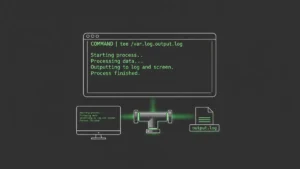
2>/dev/nullto system-wide searches. This filters out “Permission denied” messages that clutter your output. If you want to learn more about how that works, check out my guide on how to redirect output in Linux. - Log your results: Pipe through the tee command to save output while still viewing it live:
find / -name '*.conf' | tee /tmp/results.txt - Script it: Wrap find pipelines in bash scripts for repeatability. A one-liner you run once is useful. A script you schedule with cron is automation.
“Mastering the find command will undoubtedly enhance your productivity on the command line.” — Linuxize Editorial Team
I can’t argue with that. Once you get comfortable with find, you’ll wonder how you ever managed without it.
Frequently Asked Questions
Is find slow on large filesystems?
It can be, since it traverses the filesystem in real time. Use -maxdepth, -xdev, and the -O3 optimizer to keep it fast. For quick name-only lookups, locate is faster but less capable.
How do I find files modified today?
Use find /path -mtime 0. The 0 means “within the last 24 hours.” For finer control, -mmin -60 finds files changed in the last 60 minutes.
Can find search inside files?
Not directly. find locates files by metadata (name, size, time, permissions). To search inside files, combine it with grep: find /src -name '*.py' -exec grep -l 'TODO' {} +
Start Using find Like a Pro
The find command is one of those tools that rewards every minute you invest in learning it. From hunting down rogue files to automating security audits, it’s the Swiss Army knife of the Linux filesystem. I’ve been using it daily for years, and I still discover new tricks.
If you’re just starting your Linux journey, spend an afternoon experimenting with the examples in this guide. Break things in a test environment. That’s how the knowledge sticks. And if you want to find systemd unit files that systemctl can’t quite surface, find has your back there too.
For more hands-on Linux guides, explore our full collection of bash scripting tutorials and automation guides. The terminal is yours to master.