How to Use diff Command in Linux: Compare Files and Configs
Learn how to use the Linux diff command to compare files and configs. Covers output reading, key flags, directory comparison, and the diff+patch workflow.

In this article
If you’ve ever stared at two versions of a config file wondering what changed, learning how to use the diff command in Linux will save you hours of squinting. The diff command compares two files line by line and tells you exactly what’s different between them. It’s one of those tools that feels cryptic for about five minutes, then becomes something you reach for almost daily.
I still remember the first time I actually needed diff. I was troubleshooting a broken Nginx configuration on a staging server at 11 PM. Something had changed, the service wouldn’t restart, and I had no idea what went wrong. A quick diff -u nginx.conf.orig nginx.conf showed me a single misplaced semicolon on line 47. Five-second fix. That moment sold me on diff forever.
The diff utility has been around since the 1970s (check out the history of the diff utility if you’re curious). It ships with the GNU diffutils package, which means it’s pre-installed on virtually every Linux distribution. No setup required.
What Does the diff Command Do?
At its core, diff compares two files and outputs their differences as “hunks.” Each hunk is a chunk that describes what changed between the old and new version of a file. No changes? No output. That silence is actually useful in scripts.
Think of diff like a translator. You hand it two documents and it tells you: “Here’s exactly how to turn document A into document B.” That’s why it pairs so naturally with the patch command, which we’ll cover later.
Basic diff Syntax
The basic syntax is straightforward:
diff [options] file1 file2By convention, file1 is the old version and file2 is the new version. This matters because the output describes changes from file1 to file2.
Quick Tip: Exit Codes
- Exit code 0: Files are identical
- Exit code 1: Files differ
- Exit code 2: An error occurred
These exit codes make diff highly scriptable. You can use them directly in bash scripts for automated checks.
How to Read diff Output (The Part That Trips Everyone Up)
Here’s the thing most tutorials skip over: they show you the flags but don’t teach you how to read the output. The default output format looks like hieroglyphics if nobody explains it. Let me fix that.
The a, c, d Change Commands Explained
In normal (default) diff output, you’ll see notations like 3c3, 5a6,7, or 8d7. These are change commands:
- a (add): Lines were added.
5a6,7means “after line 5 of file1, add lines 6-7 from file2” - c (change): Lines were changed.
3c3means “line 3 in file1 was replaced by line 3 in file2” - d (delete): Lines were deleted.
8d7means “line 8 in file1 was deleted”
The < and > Symbols
Once you know the change command, the rest follows:
- < (less-than): Lines from file1 (the old file)
- > (greater-than): Lines from file2 (the new file)
- — separator between old and new lines in a changed hunk
A Full Walkthrough Example
Say you have two simple config files. Running diff config.old config.new gives you:
2c2
< server_port=8080
---
> server_port=9090
4a5
> enable_logging=true
Reading this: Line 2 was changed from server_port=8080 to server_port=9090. After line 4, a new line (enable_logging=true) was added. That’s it. Once you see the pattern, it clicks.
The Unified Format: diff -u (The One You’ll Use Most)
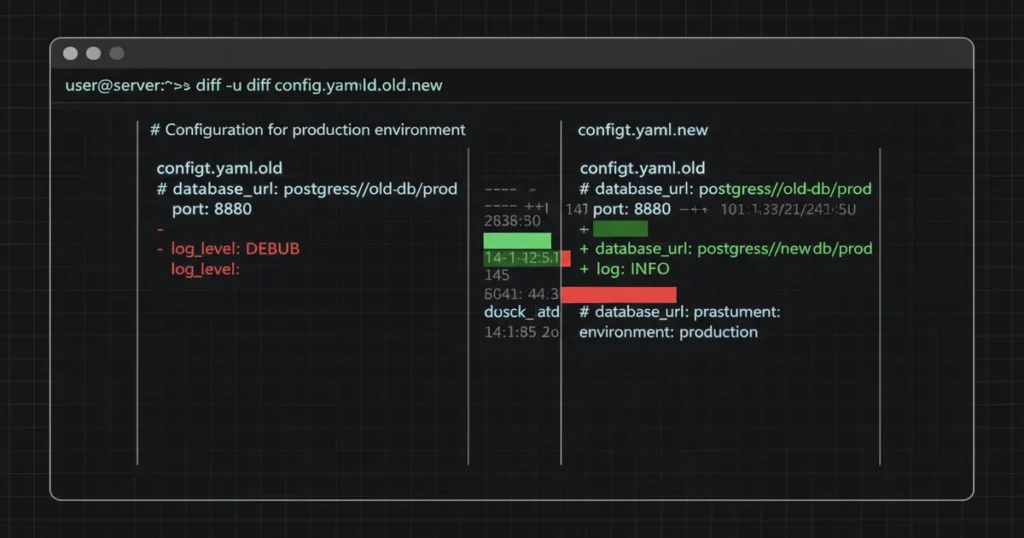
The normal format works, but the unified format is what professionals actually use. It’s the format behind git diff, Linux kernel patch submissions, and pretty much every code review tool out there.
diff -u old_file new_fileReading Unified Output
Unified output is more readable once you learn the markers:
--- config.old  2025-01-15 10:30:00
+++ config.new  2025-01-15 11:45:00
@@ -1,4 +1,5 @@
 server_name=myapp
-server_port=8080
+server_port=9090
 max_connections=100
 timeout=30
+enable_logging=true- — and +++: Header lines showing filenames and timestamps
- @@ -1,4 +1,5 @@: The hunk header. Old file starts at line 1, spans 4 lines. New file starts at line 1, spans 5 lines.
- – prefix: Line removed from old file
- + prefix: Line added in new file
- No prefix: Unchanged context lines (default 3 lines of context)
See how much easier that is to scan? Everything’s in one view instead of jumping between < and > symbols.
Generating a Patch File
This is where diff becomes a collaboration tool. You can redirect output in Linux to create a portable patch file:
diff -u original.py modified.py > bugfix.patchThen apply it anywhere:
patch original.py < bugfix.patchThis diff+patch workflow is how Linux kernel contributions have been submitted for decades. It’s fundamental to open source collaboration.
Side-by-Side Comparison with diff -y
Sometimes you just want to see both files next to each other. That’s what -y does:
diff -y file1 file2This shows two columns with a | symbol marking lines that differ. It’s great for quick visual scans on short config files.
A couple of useful additions:
- –suppress-common-lines: Only shows the lines that actually differ (cuts the noise)
- -W 180: Sets the column width. The default is 130 characters, which can feel cramped in a narrow terminal
I use diff -y --suppress-common-lines when I’m comparing two similar config files and just want to see what’s different at a glance. Fast and visual.
Comparing Directories Recursively with diff -r
Comparing individual files is useful, but comparing entire directory trees is where diff really flexes. Use the -r flag for recursive comparison:
diff -r /etc/nginx/ /backup/nginx/This walks both directories and reports any file differences. For large directories, combine it with -q for a summary view:
diff -rq /var/www/html/ /backup/www_backup/The -q (brief) flag only reports which files differ, not the actual content differences. Much faster and cleaner for verifying automatic backup scripts.
You can also exclude certain files from the comparison:
diff -r --exclude='*.log' --exclude='*.tmp' dir1/ dir2/If you’re syncing directories, you might also want to look at rsync, which handles the actual file transfers where diff shows the differences.
Essential diff Options You Need to Know
Ignore Whitespace Differences
Whitespace changes are the bane of clean diffs. Here’s how to filter them out:
- -b (–ignore-space-change): Ignores changes in the amount of whitespace. Two spaces vs. one space? Ignored.
- -w (–ignore-all-space): Ignores ALL whitespace differences. Tabs vs. spaces? Gone.
- -B (–ignore-blank-lines): Ignores changes that only add or remove blank lines
The distinction between -b and -w matters. If someone reformatted a file with different indentation, -w strips that noise so you can focus on real content changes.
Ignore Case
Use -i when case doesn’t matter:
diff -i file1 file2Handy for comparing configuration values where True and true mean the same thing.
Brief Output
The -q flag is a scripting workhorse. It only tells you whether files differ, not what changed:
if diff -q file1 file2 > /dev/null; then
    echo "Files match"
else
    echo "Files differ"
fi
This pattern shows up constantly in backup verification scripts and automated monitoring. Combined with cron jobs, you can build a simple config drift detector that alerts you when files change unexpectedly.
Color Output
Modern versions of GNU diffutils support colorized output:
diff --color=auto file1 file2Red for removed, green for added. Makes scanning output much faster. If your version doesn’t support --color, the colordiff package is a drop-in wrapper that adds the same thing.
Real-World Use Cases Every Admin Should Know
Tracking Config File Changes
This is the use case that made diff part of my daily routine. Before editing any critical config, I copy the original:
cp /etc/nginx/nginx.conf /etc/nginx/nginx.conf.origAfter making changes, I review what actually changed before restarting the service:
diff -u /etc/nginx/nginx.conf.orig /etc/nginx/nginx.confThis takes three seconds and has saved me from pushing broken configs to production more times than I can count. Understanding Linux file permissions matters here too, since some config files require root access to read.
Verifying Backups
A backup is only useful if it actually matches your live data. Quick verification:
diff -rq /var/www/html/ /backup/www_latest/No output? Your backup is an exact match. Any differences get listed immediately. I run a version of this in my homelab’s nightly backup script, and it emails me if anything looks off.
The diff + patch Workflow
This is one of the most powerful patterns in Linux. Say you’ve fixed a bug in a Python script and want to share just the fix:
The Patch Workflow
Step 1: Generate the patch
diff -u buggy_script.py fixed_script.py > bugfix.patchStep 2: Send the patch file to a colleague (or apply it on another server)
Step 3: Apply the patch
patch buggy_script.py < bugfix.patchThis workflow is how the Linux kernel was developed for years before git existed. Linus Torvalds received patches via email, reviewed the diff output, and applied them. Even today, kernel contributors submit patches in unified diff format. It’s the backbone of open source collaboration, as noted in the GNU Diffutils official documentation.
Beyond Basic diff: Related Tools Worth Knowing
The diff command is part of a broader ecosystem of Linux file comparison and text processing tools. Here are the ones I use alongside it:
- vimdiff: Launches Vim editor in diff mode. Run
vimdiff file1 file2for an interactive split-pane view with syntax highlighting. Perfect when you want to edit while comparing. - colordiff: A wrapper around diff that adds automatic color coding. Install with your package manager and use it as a drop-in replacement.
- diff3: Compares three files at once. Useful for merge conflict resolution when two people changed the same file independently.
- meld: A GUI diff and merge tool for desktop Linux environments. Great if you prefer visual tools over the terminal.
When should you use which? For quick CLI checks, diff -u is king. For interactive editing, reach for vimdiff. For GUI-based reviews, meld is excellent. And for searching within files rather than between them, that’s where the grep command comes in.
These tools also pair well with sed command and awk command for more complex text processing workflows. The tail command is another useful companion when you’re inspecting logs alongside diff output.
Quick Reference: Most Used diff Flags
| Flag | Purpose | Example |
|---|---|---|
-u |
Unified format (recommended) | diff -u old new |
-y |
Side-by-side view | diff -y old new |
-r |
Recursive (directories) | diff -r dir1 dir2 |
-q |
Brief (yes/no only) | diff -q file1 file2 |
-i |
Ignore case | diff -i file1 file2 |
-w |
Ignore all whitespace | diff -w file1 file2 |
-B |
Ignore blank lines | diff -B file1 file2 |
--color |
Colorized output | diff --color file1 file2 |
For the complete list of every option, the diff man page on man7.org has you covered.
Start Using diff Today
The diff command is one of those Linux tools that pays for itself the first time you use it. Whether you’re tracking config changes, verifying backups, or collaborating on code, it gives you precise control over understanding what changed and why.
My recommendation? Start with diff -u for everything. It’s the most readable format and the one you’ll encounter in git output, code reviews, and patch files. Build the habit of diffing configs before restarting services, and you’ll catch mistakes before they become incidents.
If you’re building up your Linux command-line skills, check out these related guides next:
- How to use the grep command for searching within files
- How to write bash scripts to automate your diff workflows
- How to use rsync for syncing files after identifying differences