How to Use grep Command in Linux: The Text Search Tool Every Admin Needs
Master the grep command in Linux with practical examples. Learn essential flags, regex patterns, recursive search, and real-world sysadmin use cases.

In this article
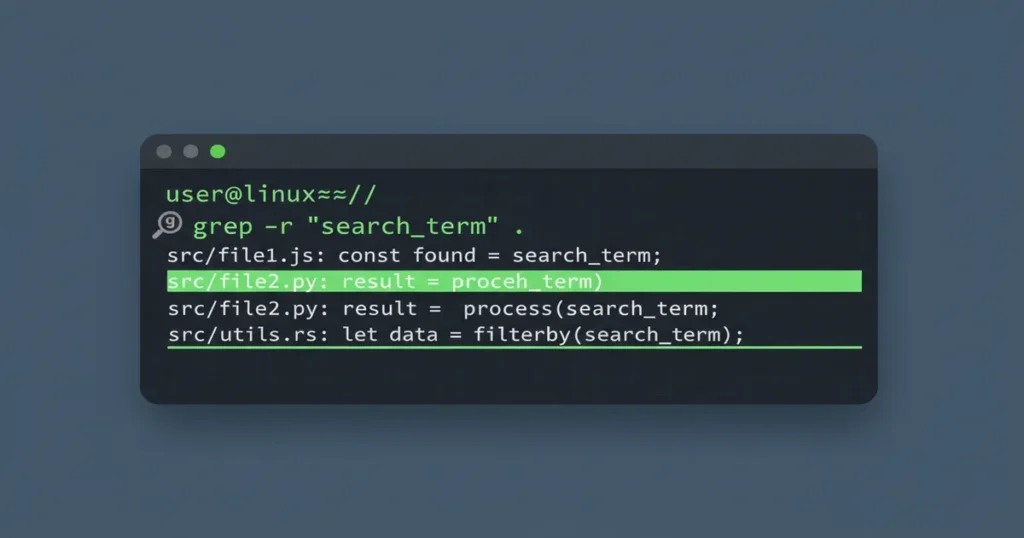
If you want to learn how to use grep command in Linux, you’re picking up one of the most essential tools in any sysadmin’s toolkit. I’ve been working with Linux systems for over a decade, and I can honestly say that grep is the command I type most often. Whether you’re digging through log files at 2am or searching a massive codebase for a deprecated function call, grep is the utility that makes it possible.
In this guide, I’ll walk you through everything from basic syntax to advanced regex patterns and real-world power combos. By the end, you’ll be using grep like it’s second nature.
What Is grep and Why Every Linux Admin Relies On It
grep stands for Global Regular Expression Print. The name comes from a command in the old ed text editor: g/re/p, which searched globally for a regular expression and printed matching lines. Ken Thompson, one of the original Unix creators, wrote it as a standalone tool because he needed that search capability everywhere.
“The grep program was originally written by Ken Thompson, then at Bell Labs. It was named after the g/re/p command in the ed text editor, which performs the same function: search globally for regular expression, and print matching lines.” — GNU grep official manual
I still remember the first time grep saved my neck. I was maybe six months into my first sysadmin role, staring at an Nginx server that had stopped responding around midnight. The log file was thousands of lines long. I was scrolling through it manually like a complete rookie until a senior colleague walked over and typed grep -i 'error' /var/log/nginx/error.log. The relevant lines just appeared. That moment rewired my brain. I went home the next day and started learning every flag grep had to offer.
At its core, grep does one thing: it searches text for lines matching a pattern and prints them. Simple concept, incredibly powerful in practice.
Basic grep Syntax
The basic structure of a grep command looks like this:
grep [options] 'pattern' file(s)Here are a few simple examples to get you started:
# Search for the word 'error' in syslog
grep 'error' /var/log/syslog

# Search across multiple files
grep 'timeout' access.log error.log

# Read from stdin using a pipe
cat config.conf | grep 'port'
Quick Tip: Always Quote Your Patterns
Wrap your search pattern in single quotes. This prevents the shell from expanding special characters like *, ?, or $ before grep even sees them. Double quotes work too, but single quotes are safer for regex.
Essential grep Flags Every Admin Uses Daily
The real power of the grep command in Linux comes from its flags. Here are the ones I reach for every single day.
Case-Insensitive Search: -i
Log files are inconsistent. Sometimes it’s “ERROR,” sometimes “error,” sometimes “Error.” The -i flag catches them all:
grep -i 'error' /var/log/syslogShow Line Numbers: -n
When you need to know where a match lives in the file, -n adds line numbers:
grep -n 'failed' /var/log/auth.logThis is a lifesaver when you’re about to edit a config file and need the exact line number.
Count Matching Lines: -c
Don’t need the actual lines? Just want the count? Use -c:
grep -c 'ERROR' /var/log/app.logInvert the Match: -v
The -v flag shows every line that does not match. This is incredibly useful for filtering out noise:
# Show config lines without comments
grep -v '#' /etc/nginx/nginx.conf
I use this constantly to strip comments out of config files so I can see just the active settings.
Show Only Filenames: -l
When searching many files, -l prints only the filenames that contain a match:
grep -rl 'TODO' ./srcWhole Word Matching: -w
Searching for a short word like “id” or “port”? Without -w, you’ll match “invalid” and “transport” too:
grep -w 'root' /etc/passwdThis matches “root” but skips “rootdir” or “chroot.”
Context Lines: See What Surrounds Your Match
Finding a match is only half the battle. You usually need to see what’s happening around it. These three flags give you context:
-A N: Show N lines after the match-B N: Show N lines before the match-C N: Show N lines on both sides (context)
# Show 3 lines of context around critical errors
grep -C 3 'CRITICAL' /var/log/nginx/error.log
This is essential for log analysis. An error line alone rarely tells the full story. The lines before it often reveal what triggered the problem, and the lines after show the fallout.
Recursive Search: Hunt Across Entire Directories
Need to search every file inside a directory tree? Use the recursive flags:
# Recursive search (doesn't follow all symlinks)
grep -r 'PasswordAuthentication' /etc/ssh/

# Recursive search (follows all symlinks - use with care)
grep -R 'PasswordAuthentication' /etc/ssh/
You can combine recursive search with --include to filter by file type. This is something I do almost daily when bash scripts start growing across a project:
# Only search .conf files
grep -r --include='*.conf' 'Listen' /etc/

# Find all files with TODO comments
grep -rl 'TODO' /home/alexa/projects/
Warning: Don’t Grep the Root Directory
Running grep -r 'pattern' / will crawl your entire filesystem, including /proc, /dev, and mounted drives. It will take forever and may cause I/O performance issues. Always target a specific directory.
Using grep with Regular Expressions
This is where grep gets seriously powerful. Regular expressions let you search for patterns, not just fixed strings. grep supports three regex modes, and knowing the differences will save you a lot of frustration.
Basic Regex (BRE): grep Default Mode
By default, grep uses Basic Regular Expressions. In BRE, characters like +, ?, and | are treated as literal characters. You need to escape them with a backslash to use them as regex operators:
# Match phone number pattern in BRE
grep '[0-9]\{3\}-[0-9]\{4\}' contacts.txt
Extended Regex (ERE): grep -E for Cleaner Syntax
Extended regex mode, activated with -E, flips the behavior. Now +, ?, |, and {} work as regex operators without escaping. The same pattern becomes much cleaner:
# Same phone number pattern with ERE
grep -E '[0-9]{3}-[0-9]{4}' contacts.txt

# Search for multiple patterns at once
grep -E 'error|warning|critical' /var/log/syslog
I almost always use grep -E instead of plain grep. It’s just easier to read and write. For reference, the full flag documentation is available at the grep Linux man page.
Anchors, Character Classes, and Quantifiers
These building blocks work in both BRE and ERE:
^: Match the start of a line$: Match the end of a line[abc]: Match any character in the set[^abc]: Match any character not in the set.: Match any single character
# Lines starting with 'root'
grep '^root' /etc/passwd

# Lines ending with 'nologin'
grep 'nologin$' /etc/passwd
Perl-Compatible Regex: -P Flag for Advanced Patterns
The -P flag unlocks PCRE (Perl-Compatible Regular Expressions). This gives you lookaheads, lookbehinds, and non-greedy matching:
# Extract usernames using lookbehind
grep -P '(?<=user=)\w+' auth.log

# Show only the matched portion with -o
grep -oP '(?<=user=)\w+' auth.log
The -o flag here is key. It prints only the matching portion of the line, not the whole thing. Combine -o with -P and you have a lightweight data extraction tool.
Power Combos: Piping grep with Other Linux Commands
grep shines brightest when combined with other commands through pipes. This is the Unix philosophy at work: small tools chained together. If you want to learn more about how piping works under the hood, check out my guide on how to redirect output in Linux.
Real-Time Log Monitoring
Pair the tail command in Linux with grep for live log filtering:
tail -f /var/log/syslog | grep --line-buffered 'error'The --line-buffered flag is critical here. Without it, grep buffers its output and you won’t see matches in real time. This is one of those details that almost nobody covers, but it makes a huge difference when you’re troubleshooting a live issue. I like running these in separate tmux panes so I can monitor multiple log streams at once.
Finding Running Processes
Use the ps command with grep to find specific processes:
ps aux | grep 'nginx'
# Filter out the grep process itself (classic trick)
ps aux | grep 'nginx' | grep -v grep
Find and Replace Across Files
Combine grep with the xargs command for batch operations:
grep -rl 'old_function' ./src | xargs sed -i 's/old_function/new_function/g'Filter systemd Journal Output
Pipe journalctl output through grep for targeted log searches:
journalctl -u nginx | grep 'failed'Count Unique Matches
Chain grep with the sort command and uniq for frequency analysis:
grep 'Failed password' /var/log/auth.log | grep -oP 'from \K[\d.]+' | sort | uniq -c | sort -rnThat one-liner extracts IP addresses from failed SSH login attempts, counts them, and sorts by frequency. It’s one of my go-to commands when investigating suspicious login activity.
grep Variants: egrep, fgrep, and Modern Alternatives
You’ll see egrep and fgrep mentioned in older tutorials and scripts. Here’s the deal:
egrepis the same asgrep -E(extended regex). It’s deprecated per POSIX.fgrepis the same asgrep -F(fixed strings, no regex). Also deprecated.
Both still work on most systems, but you should use grep -E and grep -F in new scripts. The -F flag is worth knowing about: it’s noticeably faster for literal string searches because it skips regex parsing entirely and uses the Aho-Corasick algorithm internally.
# Faster literal string search
grep -F 'exact.string.with.dots' logfile.txt
As for modern alternatives, ripgrep on GitHub (the rg command) is a Rust-based tool that’s genuinely faster for searching codebases. It respects .gitignore rules automatically and has sensible defaults. I use ripgrep on my development machines. But grep is available on every Linux server without installing anything extra, which is why it remains the tool I reach for first on production systems.
Real-World Use Cases Every Sysadmin Should Know
Let me share the grep patterns I actually use in my day-to-day work. These aren’t textbook examples. These are the commands I’ve built up from years of managing Linux servers.
Log File Analysis
# Find errors, warnings, and denials in auth log
grep -iE 'failed|error|denied' /var/log/auth.log | tail -20

# Count failed login attempts from invalid users
grep 'Failed password' /var/log/auth.log | grep -c 'invalid user'
When working with systemd-based systems, I often prefer piping from journalctl rather than reading log files directly.
Searching Configuration Files
# Check critical SSH settings at a glance
grep -n 'Port\|PermitRoot\|PasswordAuth' /etc/ssh/sshd_config
I run a version of this after every SSH config change. It’s the fastest way to verify your settings before restarting the service.
Finding Patterns in Code
# Find deprecated function calls in PHP code
grep -rn 'mysql_query' ./src --include='*.php'
For heavier code searches, grep pairs well with text processing tools like the awk command, the sed command, and the cut command. grep finds the lines, then awk, sed, or the tr command can transform them.
Common grep Mistakes (And How to Avoid Them)
I’ve made every one of these mistakes myself. Here’s how to avoid them:
- Not quoting patterns: Running
grep error *can break if the shell expands*before grep sees it. Always quote:grep 'error' * - Forgetting
-ifor log searches: Logs mix “ERROR,” “error,” and “Error.” Always use-iunless you specifically need case sensitivity. - Piping without
--line-buffered: When usingtail -f | grep, output appears in delayed chunks instead of real time. Add--line-buffered. - Recursive grep on
/: This crawls your entire filesystem. Target a specific directory instead. - Grepping binary files: You’ll get garbage output. Use
-Ito skip binaries, or--includeto target specific file types. - Not using
-wfor short words: Searching for “id” without-wmatches “invalid,” “guide,” “provider,” and dozens of other words.
My personal most embarrassing grep moment was early in my career when I ran a recursive grep starting from / on a production server. The I/O spike was enough to slow down the application for a solid minute before I killed it. Lesson learned the hard way: always scope your searches.
Start Using grep Like a Pro
The grep command in Linux is one of those tools where a small investment in learning pays off massively over time. Start with the basics: grep -i, grep -n, grep -v. Build up to regex patterns and pipeline combos. Before long, you’ll wonder how you ever managed without it.
If you’re looking to level up your Linux text processing skills further, check out my guides on the awk command for structured data extraction and the sed command for stream editing. Together with grep, these three tools form the foundation of text processing on Linux.
And if you want to put grep to work inside automation scripts, my guide on writing bash scripts covers how to build reliable scripts that use tools like grep, awk, and sed together.
Happy grepping.