How to Use tr Command in Linux: The Text Transform Tool Every Admin Needs
Master the tr command in Linux with practical examples, common mistakes to avoid, and real-world use cases. Learn when to use tr vs sed vs awk for text processing.

In this article
The tr command in Linux is one of those utilities you stumble across once and wonder how you ever lived without it. I remember my first real encounter with tr vividly. I was knee-deep in server logs, trying to normalize some messy data for a monitoring script. Sed felt like overkill. Awk was too much firepower. Then I discovered tr, and suddenly a 15-line script became a one-liner.
If you’re writing bash scripts or working with text processing pipelines, tr deserves a permanent spot in your toolkit. Let’s break down exactly how to use it.
What is the tr Command in Linux?
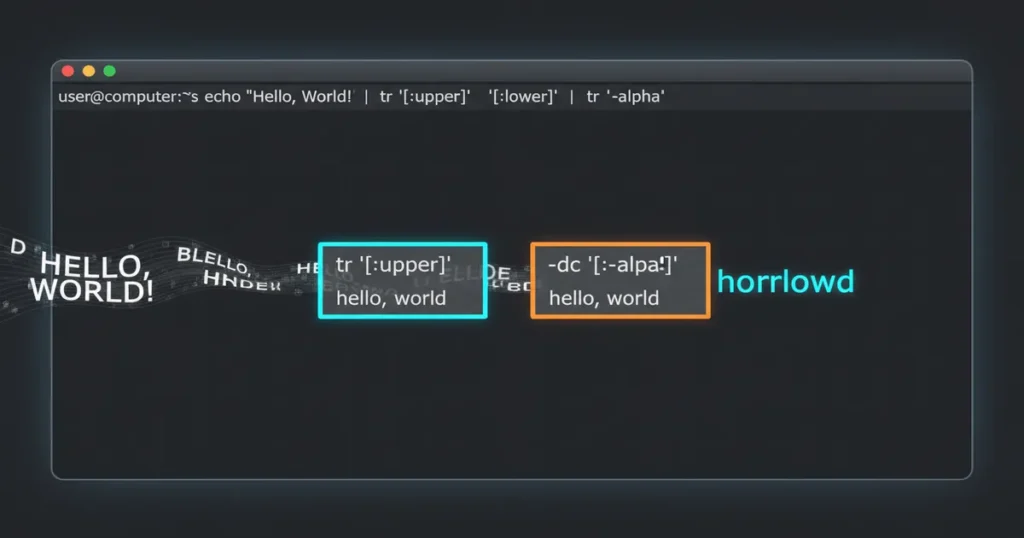
The tr command stands for “translate” or “transliterate.” It transforms, squeezes, or deletes characters from standard input. Unlike sed or awk, tr operates strictly on individual characters, not strings or patterns.
Why does this still matter in 2025? Because sometimes you need a fast, focused tool that does one thing well. When you’re processing gigabytes of log files or cleaning up data in a pipeline, tr’s simplicity becomes a strength. It doesn’t load extra features you won’t use. It just transforms characters, blazingly fast.
tr Command Syntax and Basic Usage
Here’s the basic syntax:
tr [options] SET1 [SET2]SET1 contains the characters you want to match. SET2 contains the characters to replace them with. The command reads from stdin and writes to stdout. You cannot pass a filename directly as an argument.
Here’s a simple example that converts lowercase to uppercase:
echo "hello world" | tr 'a-z' 'A-Z'
# Output: HELLO WORLD
Notice I piped the text into tr. This is how tr always works. It reads from stdin, transforms, and outputs to stdout. For reading files, use input redirection:
tr 'a-z' 'A-Z' < myfile.txtFor complete technical details, check the official tr man page.
Essential tr Command Options
The tr command has three core options that unlock most of its power. Let me walk you through each one.
The -d Option (Delete Characters)
The -d flag deletes every occurrence of specified characters:
echo "Hello 123 World 456" | tr -d '0-9'
# Output: Hello  World
This removed all digits. Notice the extra spaces remain. You can delete those too:
echo "Hello 123 World 456" | tr -d '0-9 '
# Output: HelloWorld
The -s Option (Squeeze Repeats)
The -s flag squeezes consecutive repeated characters into a single occurrence:
echo "hello     world" | tr -s ' '
# Output: hello world
This is incredibly useful for cleaning up messy data with inconsistent spacing.
The -c Option (Complement)
The -c flag works on the complement of SET1. Instead of matching the specified characters, it matches everything else:
echo "Hello123World" | tr -cd '0-9'
# Output: 123
Here, -cd deletes everything except digits. The complement flipped our target set.
Combining Options for Advanced Use
You can combine options for powerful one-liners:
# Keep only alphanumeric characters and squeeze spaces
echo "Hello!!!   World???   123" | tr -cs '[:alnum:]' ' '
# Output: Hello World 123
This combination deletes non-alphanumeric characters and squeezes the results.
Common Use Cases for tr Command
Let me share the scenarios where I reach for tr most often.
Case Conversion (Upper to Lower and Vice Versa)
Converting case is probably the most common tr use case:
# Lowercase to uppercase
echo "linux" | tr '[:lower:]' '[:upper:]'
# Output: LINUX

# Uppercase to lowercase
echo "LINUX" | tr '[:upper:]' '[:lower:]'
# Output: linux
I prefer the [:lower:] and [:upper:] character classes over a-z and A-Z. They’re more portable across different locales.
Removing Specific Characters
Need to strip certain characters from input? The -d flag handles it:
# Remove all vowels
echo "hello world" | tr -d 'aeiou'
# Output: hll wrld
Deleting All Digits or Non-Digits
Data sanitization often requires extracting or removing numbers:
# Extract only digits
echo "Order ID: 78234-A" | tr -cd '[:digit:]'
# Output: 78234

# Remove all digits
echo "Invoice2024-001" | tr -d '[:digit:]'
# Output: Invoice-
I once used that first command to sanitize transaction logs at a previous job. What started as a 20-line Python script became a simple tr one-liner piped with grep.
Converting Windows Line Endings to Unix
This comes up constantly when working with files created on Windows:
tr -d '\r' unix_file.txtWindows uses \r\n (CRLF) for line endings. Unix uses \n (LF). Deleting the carriage return fixes the conversion.
Squeezing Repeated Spaces or Characters
Messy data often has inconsistent whitespace. Fix it with squeeze:
echo "too    many      spaces" | tr -s ' '
# Output: too many spaces
This pairs nicely with the cut command when processing delimited data.
Translating Characters in Path Variables
Need to view your PATH variable in a readable format?
echo $PATH | tr ':' '\n'This converts colons to newlines, showing each path on its own line. Much easier to scan.
Real-World tr Command Examples for System Administrators
Here’s where tr really shines in production environments.
Quick Admin Examples
- Log file cleanup:
cat access.log | tr -s ' ' | cut -d' ' -f1,7 - Sanitize user input:
echo "$user_input" | tr -cd '[:alnum:]_-' - CSV to TSV conversion:
tr ',' '\t' data.tsv - Remove non-printable characters:
tr -cd '[:print:]' < messy_file.txt
I learned the hard way about sanitizing input. Early in my sysadmin days, I had a script that processed filenames from user uploads. No sanitization. One creative user uploaded a file with semicolons in the name. You can guess how that ended. Now I pipe everything through tr before it touches anything important.
For ETL pipelines, tr excels at quick data normalization before passing to more complex tools. I often chain it with sort and other utilities:
cat data.txt | tr '[:upper:]' '[:lower:]' | tr -s ' ' | sort -uCommon tr Command Mistakes and How to Avoid Them
After years of using tr, I’ve made most of these mistakes myself. Let me save you the debugging time.
Watch Out For These Pitfalls
- Not quoting character ranges:
tr [A-Z] [a-z]without quotes causes shell globbing. Always usetr '[A-Z]' '[a-z]'or better yet,tr '[:upper:]' '[:lower:]'. - Forgetting tr works on characters, not strings: You cannot replace “foo” with “bar” using tr. Each character maps individually.
- Passing filenames as arguments:
tr 'a' 'b' myfile.txttreats “myfile.txt” as a character set. Usetr 'a' 'b' < myfile.txtinstead. - Expecting \n to work like in other tools: tr doesn’t interpret
\nas newline in all contexts. Use$'\n'in bash or the literal character. - Locale and encoding issues: The dreaded “Illegal byte sequence” error usually means encoding mismatch. Try
LC_ALL=C tr ...to force C locale.
That locale error haunted me for an entire afternoon once. I was processing some exported data and kept getting “Illegal byte sequence.” Turns out the file had some Windows-1252 encoded characters mixed with UTF-8. Setting LC_ALL=C fixed it instantly.
tr vs sed vs awk: When to Use Which
This question comes up constantly. Here’s my decision framework after years of text wrangling.
Use tr when you need character-level operations. Case conversion, character deletion, squeezing repeats. It’s fast and specialized. According to a performance comparison study, the right tool choice can save significant processing time on large datasets.
Use sed for line-based search and replace. When you need pattern matching or string replacement, sed is your tool. It handles regular expressions and can modify specific lines.
Use awk for structured data with fields. If you’re processing CSVs, logs with columns, or need conditional logic, awk provides the power you need.
Quick Decision Guide
- Single character operations? Use tr
- String pattern replacement? Use sed
- Column-based data or logic? Use awk
- Not sure? Start with tr if possible. It’s fastest for simple tasks.
Practical tr Command Cheat Sheet
Keep this reference handy for your daily work. For even more examples, check out this tr command reference.
| Task | Command |
|---|---|
| Lowercase to uppercase | tr '[:lower:]' '[:upper:]' |
| Uppercase to lowercase | tr '[:upper:]' '[:lower:]' |
| Delete all digits | tr -d '[:digit:]' |
| Keep only digits | tr -cd '[:digit:]' |
| Squeeze multiple spaces | tr -s ' ' |
| Remove carriage returns | tr -d '\r' |
| Replace colons with newlines | tr ':' '\n' |
| Remove non-printable chars | tr -cd '[:print:]' |
Wrapping Up
The tr command might not be flashy, but it’s earned its place in my daily toolkit. For character-level text transformation, nothing beats its speed and simplicity. I still remember that late-night debugging session where tr saved me hours of work. Sometimes the best tool is the simplest one.
Start with the basics. Practice case conversion and character deletion. Then explore the options combinations. Before long, you’ll reach for tr instinctively when the task fits.
Ready to level up your command line skills? Check out our guides on the sed command for pattern-based text processing and the awk command for structured data manipulation. Together with tr, they form the holy trinity of Linux text processing.