sar Command in Linux: Monitor Historical System Performance Like a Pro
Monitor CPU, memory, disk I/O, and network—historically. Learn how to install sysstat and use the sar command in Linux to analyze past performance.

In this article
A few months back, a friend pinged me at 9am: “My server was crawling at 3am, but it’s fine now. What gives?” If you’ve ever tried to debug a ghost—a slowdown that vanished before you logged in—you already know why the sar command in Linux is one of my favorite tools. Real-time monitors like htop or the top command only show you right now. sar shows you the past, hour by hour, going back weeks.
In this guide, I’ll walk you through installing sysstat, running sar against historical data, and—the part most tutorials skip—what the numbers actually mean. There’s one threshold I learned the hard way that we’ll get to in section 4. Stick with me.
/var/log/sa/ for 28 days. Install with sudo apt install sysstat (or your distro’s equivalent), then read historical data with sar -u -f /var/log/sa/saDD.
What Is sar (and Why It’s Different from htop or top)
sar stands for System Activity Reporter. It ships as part of the open-source sysstat project on GitHub, which has been maintained for over two decades. The tool itself does two things: it samples your system performance at regular intervals, and it lets you read those samples back later.
That second part is the magic. htop and top are real-time only—the moment you close them, the data is gone. sar writes everything to /var/log/sa/ every 10 minutes by default and keeps 28 days of history. If vmstat command gives you a real-time snapshot, sar gives you the full movie.
The killer use case? Diagnosing “the server was slow at 2am last night.” You can’t reproduce a ghost, but you can read its tracks.
“SAR is a very good monitoring package whose capabilities are usually severely underutilized. Very few system administrators have a habit of weekly looking at SAR logs. Moreover, it often provides more reliable information than commercial packages that cost considerable money.” — Softpanorama
I learned this lesson on a Proxmox node in my homelab. I’d kept getting random “internet feels slow” complaints from my partner around 3am (don’t ask why she was online at 3am—the heart wants what it wants). htop showed nothing during the day. After 45 minutes of head-scratching, I finally ran sar -d -f /var/log/sa/sa12 and saw a tps spike at 3:02am that didn’t match anything I’d scheduled. Turns out, an rsync backup job I’d forgotten about was hammering disk I/O for 18 minutes straight. Without sar, I’d still be guessing.
Installing and Enabling sysstat
Here’s the gotcha that catches almost every Ubuntu user: sysstat installs fine, but data collection is disabled by default. You have to flip a switch.
Ubuntu/Debian
sudo apt install sysstat
sudo sed -i 's/ENABLED="false"/ENABLED="true"/' /etc/default/sysstat
sudo systemctl enable --now sysstat
sudo systemctl restart sysstat
If you skip the ENABLED="true" edit, you’ll come back in three days expecting data and find an empty /var/log/sa/. Ask me how I know.
RHEL/CentOS/Fedora
sudo dnf install sysstat
sudo systemctl enable --now sysstat
Red Hat-family distros enable collection out of the box. One less thing to forget.
Arch Linux
sudo pacman -S sysstat
sudo systemctl enable --now sysstat
Heads up: on Arch, data files sometimes land in /var/log/sysstat/ instead of /var/log/sa/. Check both. (BTW I use Arch, so this one bit me personally.)
On modern distros, sysstat collects data via a systemd timers setup—not a raw cron job. Verify collection is working after 10–15 minutes:
ls /var/log/sa/You should see files named saDD where DD is the day of the month.
sar Syntax and Reading Historical Files
The basic syntax is consistent across every flag:
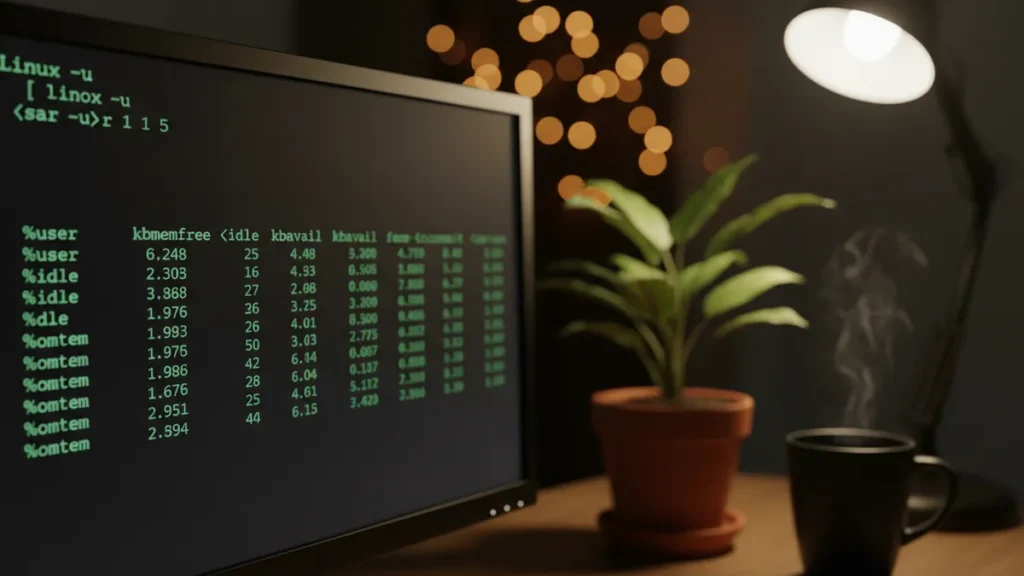
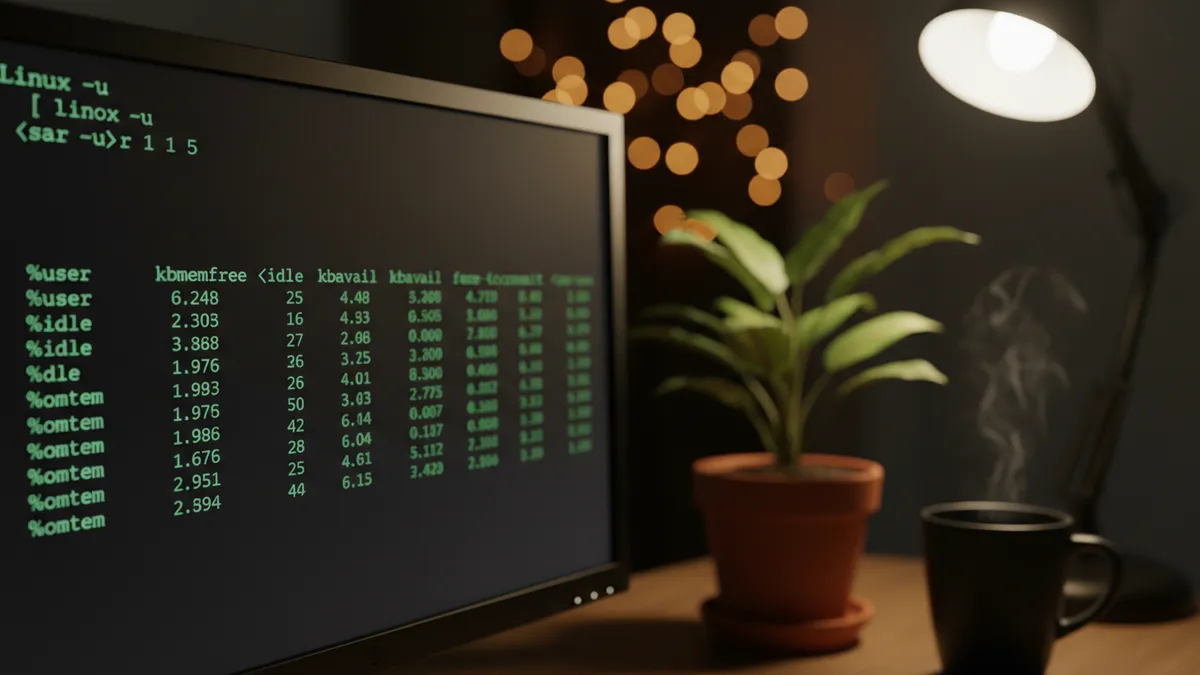
sar [options] [interval] [count]So sar -u 1 5 means “show CPU stats, sample every 1 second, give me 5 samples.” Easy.
For historical access, swap the interval/count for the -f flag and a file path:
sar -u -f /var/log/sa/sa14That reads day 14 of the current month. To zoom into a time window:
sar -u -s 09:00:00 -e 17:00:00 -f /var/log/sa/sa14I use this pattern probably twice a week. For the full flag list, the official sar man page is your friend.
Monitor CPU Usage with sar -u
CPU monitoring is where most folks start. The basic call:
sar -u 1 5You’ll see columns like %user, %system, %iowait, and %idle. Here’s where most tutorials drop the ball—they tell you the columns exist but never tell you what to worry about.
- %idle consistently below 10%: CPU is saturated. Time to find the hungry process.
- %iowait above 10% sustained: This is the one I promised in the intro. It’s NOT a CPU problem—it’s a disk bottleneck. The CPU is idle waiting for I/O. Misdiagnosing this costs hours.
- %system above 30%: Kernel work is high—often network drivers, NFS, or runaway containers.
For multi-core systems, use -P ALL to see each core individually:
sar -u -P ALL 1 5This is critical for single-threaded apps that pin one core while the rest sit idle. Average CPU might look fine; one core might be melting. For real-time exploration, also see our guide on check CPU usage in Linux.
Historical CPU is the same call with -f:
sar -u -f /var/log/sa/sa13Monitor Memory and Swap with sar -r and -S
Memory output trips people up because Linux caches aggressively. Run:
sar -r 1 5Key columns are kbmemfree, kbmemused, %memused, kbbuffers, and kbcached. High kbcached is normal—the kernel uses free RAM for disk cache and gives it back when apps need it. Don’t panic when %memused shows 92%. Panic when swap usage starts climbing.
For swap, use:
sar -S 1 5If %swpused is rising and you see active swap I/O (check vmstat for pswpin/pswpout), you’ve got real memory pressure. For a quick one-shot check, the free command works great; sar -r gives you the trend over time. There’s also a deeper companion piece on check memory usage in Linux if you want more tooling options.
Want extended memory stats including huge pages? Use sar -r ALL.
Monitor Disk I/O with sar -d
This is the section that’s saved my bacon more than any other. Run:
sar -d -p 1 5The -p flag is doing real work there—without it, you get device names like dev8-0 instead of sda. Always use -p.
Key columns: tps (transactions per second), rkB/s, wkB/s, await, and svctm.
“If you’re in a support role, being able to review historical data is a great way to start digging into an issue that gets reported to you today but actually happened yesterday or last week.” — OneUptime Blog
- await > 20ms: Latency worth investigating. On SSDs, anything over 5ms is unusual.
- High tps with low rkB/s + wkB/s: Lots of small random I/O. Often a database doing index scans or a noisy log writer.
- tps near zero but await high: Storage hardware is struggling. Check SMART data.
Worth noting: sar -d shows I/O throughput, not capacity. For capacity, see check disk usage in Linux—different problem, different tool.
Monitor Network with sar -n DEV
Network monitoring with sar splits into two flavors. For per-interface throughput:
sar -n DEV 1 5You’ll see rxpck/s, txpck/s, rxkB/s, and txkB/s for every interface. Saturation shows up when rxkB/s or txkB/s creeps near the theoretical max (125,000 kB/s for gigabit, give or take).
For drops and errors:
sar -n EDEV 1 5EDEV reports rxerr/s, txerr/s, rxdrop/s, txdrop/s. If you see consistent non-zero values, you’ve got a bad cable, a misconfigured driver, or genuine packet loss. To compare against live throughput, check our check network speed in Linux guide.
Combining with -f and time filters is how you correlate a “the website was slow last Tuesday at 2pm” report with actual network data.
Dig Into Historical Data: The Feature That Sets sar Apart
Here’s where sar pulls ahead of every real-time tool. The pattern looks like this:
sar -u -f /var/log/sa/sa01    # 1st of the month
sar -u -s 14:00:00 -e 16:00:00 -f /var/log/sa/sa12   # 2-hour window
sar -r -s 02:00:00 -e 03:00:00 -f /var/log/sa/sa12   # memory at 2-3am
You can stack any flags together. Need to track Linux load average from last Thursday between 9 and 10am? sar -q -s 09:00:00 -e 10:00:00 -f /var/log/sa/sa07.
The files in /var/log/sa/ are binary, so don’t try to cat them—they’ll print garbage. Only sar and sadf can read them. Default retention is 28 days, configurable in /etc/sysstat/sysstat via the HISTORY variable. The mechanism is similar to how logrotate handles log file rotation—sysstat just does its own thing internally.
Export sar Data with sadf (CSV, JSON, XML)
This is the section competitors barely touch. sadf is sar’s export buddy. It reads the same binary files and outputs structured data you can pipe into spreadsheets, databases, or Grafana.
- CSV-style (semicolon-delimited):
sadf -d /var/log/sa/sa14 -- -u - JSON:
sadf -j /var/log/sa/sa14 -- -u | jq '.' - XML:
sadf -x /var/log/sa/sa14 -- -u
The everything-after--- bit is just sar flags passed through. So -- -r gives you memory data as JSON, -- -n DEV gives network, and so on. I pipe JSON into a small Python script that flags anomalies and pings me on Discord. Took maybe 40 lines of code. Full options live in the sadf manual page.
Quick Reference: Most Useful sar Flags
- -u — CPU utilization
- -r — Memory stats
- -S — Swap usage
- -d — Disk I/O per device (pair with -p)
- -b — Overall I/O and transfer rates
- -n DEV — Network per interface
- -n EDEV — Network error stats
- -q — Run queue and load average
- -A — Everything at once (verbose; great for full snapshots)
- -f — Read from historical file
- -s / -e — Start and end time filters
- -P ALL — Per-core CPU breakdown
Wrapping Up
The sar command in Linux is one of those tools that sits quietly in the background—until the day you need it, and then it becomes irreplaceable. Real-time monitors are great for the present moment. sar gives you the timeline.
If you’ve enjoyed this deep dive, you’ll probably also like our walkthrough of the vmstat command for real-time virtual memory analysis, and our roundup of the best Linux monitoring tools for when you’re ready to graduate from CLI to a full observability stack.
Got a server mystery sar helped you solve? I’d love to hear about it. Drop me a note through the contact page, and if you want more guides like this delivered to your inbox, the newsletter signup is on the homepage. Happy monitoring.