How to Use htop Command in Linux: The Interactive Monitor Every Admin Needs
Learn how to use htop command in Linux with this complete guide. Master process monitoring, function keys, and troubleshooting with real-world examples.

In this article
The first time I used the htop command in Linux, I was three hours into debugging a production server at 2 AM. I’d been staring at top’s monochrome output, trying to figure out which process was eating all my CPU. Then a coworker said, “Just use htop.” Within thirty seconds, I could actually see what was happening. Color-coded bars. Per-core CPU usage. A process I could click on and kill. That moment changed my entire monitoring workflow.
If you’re still relying solely on top for process monitoring, you’re working harder than you need to. Let me show you why htop has become the go-to interactive monitor for Linux administrators everywhere.
What is htop (And Why It’s Better Than top)
htop is an interactive process viewer for Unix systems. Think of it as the top command but with a serious upgrade. While top has been the default process monitor since forever, htop brings a modern, colorful interface that makes system monitoring actually enjoyable.
The key differences come down to usability. htop shows you individual CPU cores as separate bars instead of one confusing aggregate number. You can scroll horizontally and vertically through the process list. Mouse support means you can click to sort columns or select processes. And killing a runaway process takes one keystroke instead of memorizing PIDs.
- top: Pre-installed, basic interface, keyboard-only
- htop: Requires installation, color-coded, mouse support, tree view
Installing htop on Different Linux Distributions
htop isn’t installed by default on most distributions, but it’s available in every major package repository. Here’s how to get it:
# Debian/Ubuntu
sudo apt install htop

# RHEL/CentOS/Fedora
sudo yum install htop
# or
sudo dnf install htop

# Arch Linux
sudo pacman -S htop

# openSUSE
sudo zypper install htop
For the latest features, you can also grab the source from the official htop GitHub repository. But for most users, the version in your distro’s repos works perfectly.
When to Use htop vs top
Here’s my honest take: I use htop for almost everything interactive. When I’m SSH’d into a server troubleshooting a slowdown, htop’s visual interface helps me spot problems faster. The color coding alone saves mental energy.
But top still has its place. It’s everywhere by default, so I don’t need to install anything on a fresh server. For quick one-off checks or scripting, top’s simpler output can be easier to parse. And if you’re on an extremely resource-constrained system, top uses marginally less memory.
Understanding the htop Interface
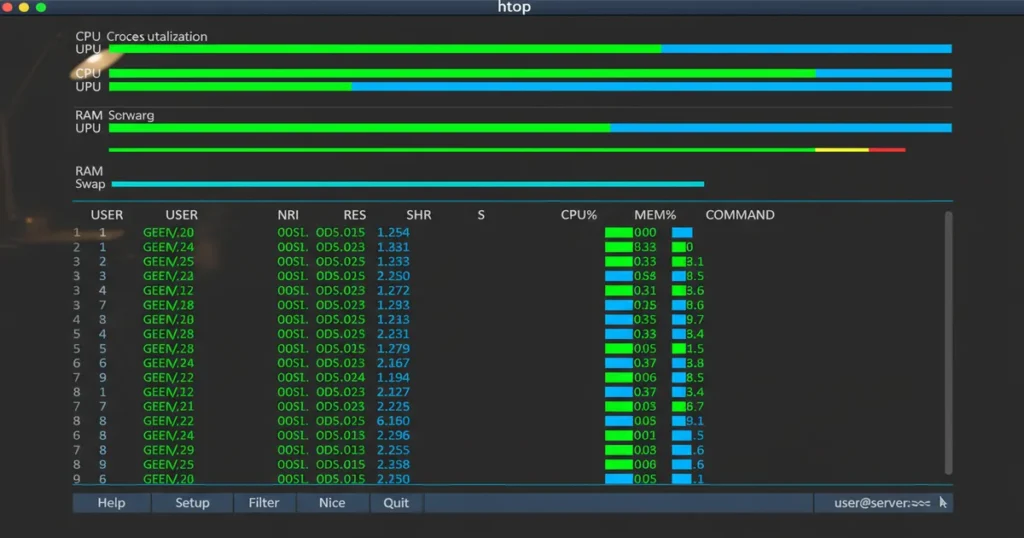
When you first launch htop, you’ll see three main areas. The header at the top shows system-wide metrics. The process list fills the middle. And the footer displays available function keys. Let me break down what you’re actually looking at.
Reading the Header Display (CPU, Memory, Swap)
The header is where htop immediately proves its value. Instead of a single CPU percentage, you get individual bars for each core. On my homelab server with 8 cores, I can instantly see if a process is hammering one core while others sit idle.
If you want to check CPU usage in Linux at a glance, htop’s visual bars are unmatched.
Below the CPU bars, you’ll find:
- Mem: Physical RAM usage as a visual bar with numbers
- Swp: Swap usage (if you see this filling up, you might have memory problems)
- Tasks: Total processes, running, sleeping
- Load average: System load over 1, 5, and 15 minutes
- Uptime: How long since last reboot
Understanding check memory usage metrics helps you interpret whether your system is actually struggling or just using available RAM efficiently.
The Process List Columns Explained
The main table shows all running processes. By default, you’ll see these columns:
- PID: Process ID (unique identifier)
- USER: Which user owns the process
- PRI/NI: Priority and nice value
- VIRT: Virtual memory size
- RES: Resident memory (actual RAM used)
- SHR: Shared memory
- S: Process state (R=running, S=sleeping, Z=zombie)
- CPU%: CPU usage percentage
- MEM%: Memory usage percentage
- TIME+: Total CPU time consumed
- Command: The full command that started the process
htop reads all this data from the Linux kernel’s /proc filesystem documentation, translating raw system data into something human-readable.
Color Coding in htop
The colors aren’t just pretty. They communicate real information:
- Green (CPU bars): Normal user processes
- Red (CPU bars): Kernel/system processes
- Blue (CPU bars): Low priority (nice) processes
- Cyan/Teal: Virtualized/guest processes
- Yellow (Memory): Buffers
- Orange (Memory): Cache
Once you internalize these colors, you can glance at htop and immediately understand your system’s state. That’s the real power.
Essential htop Keyboard Shortcuts and Function Keys
htop’s function keys are your primary interface. The bottom of the screen shows them, but muscle memory develops faster than you’d expect.
Navigation and Search (F1-F4)
- F1 (Help): Opens the help screen with all shortcuts
- F2 (Setup): Configuration menu for customizing htop
- F3 (Search): Search for a process by name
- F4 (Filter): Show only processes matching your filter
F3 and F4 sound similar but work differently. F3 Search highlights the first matching process but shows everything. F4 Filter hides non-matching processes entirely. I use F4 constantly when tracking down what a specific application is doing.
View Modes and Sorting (F5-F6)
- F5 (Tree): Toggle tree view showing parent/child relationships
- F6 (Sort): Open column selection for sorting
Tree view is one of htop’s killer features. When you’re wondering why Apache has spawned 47 child processes, F5 shows the hierarchy instantly.
For quick sorting without F6, use these shortcuts:
- P: Sort by CPU percentage
- M: Sort by memory percentage
- T: Sort by time
Process Management (F9-F10)
- F9 (Kill): Send a signal to selected process
- F10 (Quit): Exit htop
The F9 kill menu is more nuanced than just “kill this process.” You get to choose which signal to send: SIGTERM (15) for graceful shutdown, SIGKILL (9) for forceful termination, SIGHUP (1) to reload configuration, and more.
For a deeper dive into killing processes in Linux, understanding these signals matters.
Real-World htop Use Cases
Theory is nice, but htop’s value shows up in actual troubleshooting scenarios. Here’s how I use it regularly.
Finding and Killing Runaway Processes
I once wrote a shell script that accidentally spawned infinite subprocesses. Classic mistake. By the time I noticed, my homelab server was crawling. htop saved me here.
I pressed P to sort by CPU. The culprits jumped to the top immediately. Hit F5 for tree view and saw my script spawning children faster than I could track. Selected the parent process, F9, SIGKILL, done. Server recovered in seconds.
For more complex performance issues, check out troubleshooting CPU usage with htop.
“Regular monitoring and tuning are essential actions for anyone serious about maintaining an efficient Linux system.” — Linux Journal
Monitoring Specific Users
In multi-user environments, you often need to see what one particular user is doing. Press u in htop and select a username from the list. htop will filter to show only that user’s processes.
This is invaluable on shared servers. When someone complains about slowness, I filter by their username first. Usually finds the problem in under a minute.
Tree View for Process Relationships
Press F5 and htop reorganizes processes into a tree structure. Parent processes sit at the top with their children indented below.
This matters for understanding how services work. A web server spawns worker processes. A terminal spawns shells that spawn commands. When something goes wrong in a complex application, tree view shows you the chain of execution that led to the problem.
Advanced htop Configuration
htop works great out of the box, but customization takes it further.
Customizing the Display (F2 Setup)
Press F2 to enter the setup menu. Here you can:
- Add or remove meters from the header (want network stats? add them)
- Choose which columns appear in the process list
- Change the color scheme (useful for different terminal backgrounds)
- Adjust display options like showing threads or kernel processes
My personal setup includes a clock in the header and hides kernel threads by default. The configuration saves to ~/.config/htop/htoprc and persists between sessions.
Using htop in Batch Mode for Logging
Need to capture system state over time without sitting there watching? Batch mode has you covered:
# Output htop data every 10 seconds, 6 times
htop -b -d 100 -n 6 > system_log.txt

# Or for continuous logging
htop -b -d 50 >> /var/log/system_metrics.log
The -b flag disables the interactive interface. -d sets the delay in tenths of a second. -n limits the number of iterations.
Combine this with the lsof command for comprehensive system analysis.
Common htop Troubleshooting Scenarios
htop Command Not Found
If you get “command not found,” htop isn’t installed. Use your package manager (apt, yum, pacman) as shown above. For reference, check the htop manual page for installation options.
htop Shows Different CPU % Than top
This confuses newcomers. htop shows per-process CPU percentage relative to a single core. top shows it relative to total CPU power. On an 8-core system, a process using 100% of one core shows as 100% in htop but 12.5% in top.
Neither is wrong. They’re just different representations.
Memory Numbers Look Wrong
Linux uses free RAM for disk cache. htop’s memory bar includes this cache. If you see high memory usage but the system runs fine, that’s normal. Linux is using available RAM efficiently rather than letting it sit idle.
When to Use Other Monitoring Tools
htop is excellent for interactive troubleshooting, but it’s not the only tool. Consider ss command for socket monitoring when network connections are involved. Tools like atop provide historical data. btop offers an even prettier interface if aesthetics matter to you.
“Proactive system performance management identifies issues before they can impact the end user and resolves them quickly.” — Linux Performance Monitoring Guide
Start Using htop Today
htop transformed how I troubleshoot Linux systems. What used to require memorizing PIDs and decoding cryptic top output now takes a glance at colored bars and a few keystrokes. Install it on every server you manage. Build the muscle memory for those function keys. Once you do, you’ll wonder how you ever diagnosed problems without it.
Want to expand your Linux monitoring toolkit? Explore the official documentation at htop.dev, or dive into more system administration guides here on the site. Understanding your system’s resource usage is the foundation of effective administration.