How to Use cut Command in Linux: The Text Extraction Tool Every Admin Needs
Master the Linux cut command to extract fields, columns, and characters from files. Learn syntax, practical examples, common mistakes, and when to use cut vs awk.

In this article
There’s a moment every Linux admin knows well. You’re staring at a massive CSV export, a dense log file, or the output of some command that spits out way more information than you need. You just want one column. That’s where the cut command in Linux becomes your best friend.
I’ve lost count of how many times I’ve reached for cut when processing text files on remote servers. It’s fast, it’s predictable, and it does exactly one thing extremely well: extracting specific sections from each line of text. Let’s dig into how it works and when you should use it.
What is the cut Command in Linux?
The cut command extracts specific sections from each line of a file or input stream. Think of it like a pair of scissors for text. You tell it where to cut, and it gives you back only the pieces you asked for.
It’s part of GNU Coreutils, which means it comes pre-installed on virtually every Linux distribution. No package managers needed. Just open your terminal and start cutting.
Understanding Field-Based Text Extraction
The most common way to use cut is with fields. Fields are chunks of text separated by a delimiter character. In a CSV file, the comma is your delimiter. Each value between commas is a field.
Consider this simple line:
john,smith,developer,engineeringField 1 is “john”. Field 2 is “smith”. Field 3 is “developer”. You get the idea. The cut command lets you grab whichever fields you need.
How cut Reads Delimited Data
By default, cut uses the TAB character as its delimiter. That catches a lot of people off guard. If you’re working with comma-separated or colon-separated files, you need to explicitly tell cut what delimiter to use.
The command reads input line by line, splits each line at the delimiter, and outputs only the fields you specified. Simple and efficient.
When You Need cut Instead of Other Tools
Linux gives you multiple ways to process text. You’ve got grep command for searching, sed for text transformation, and awk command for more complex text processing. So when should you reach for cut?
Use cut when you have structured data with consistent, single-character delimiters. It’s faster than awk for basic field extraction. If you just need column 3 from a CSV, cut is your tool.
Basic cut Command Syntax and Options
The basic syntax looks like this:
cut [OPTIONS] [FILE]If you don’t specify a file, cut reads from standard input. This makes it perfect for pipelines.
Understanding the Three Main Options
The cut command has three mutually exclusive modes. You must choose one:
- -f (fields): Extract fields separated by a delimiter
- -c (characters): Extract by character position
- -b (bytes): Extract by byte position
You can’t combine these. Trying to use -f and -c together will throw an error. Pick one approach based on your data.
Using -f for Field Selection
Field mode is what you’ll use most often. Here’s how to grab the first field from a tab-separated file:
cut -f1 data.txtNeed multiple fields? Separate them with commas:
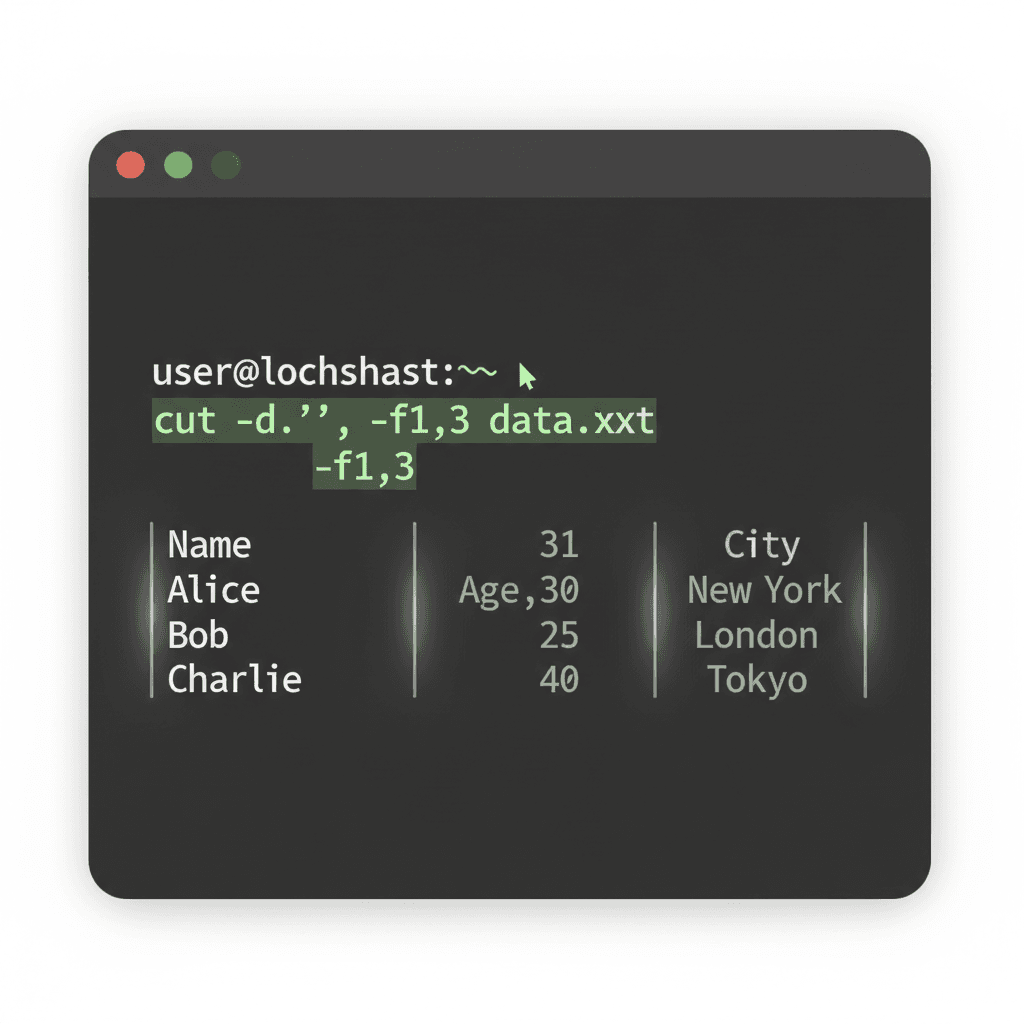
cut -f1,3,5 data.txtWant a range of fields? Use a hyphen:
cut -f1-3 data.txtYou can also grab from a field to the end of the line:
cut -f3- data.txtImportant note: fields are numbered starting at 1, not 0. This trips up programmers who are used to zero-indexed arrays. The GNU Coreutils cut documentation confirms this behavior.
Specifying Custom Delimiters with -d
To work with comma-separated values, add the -d option:
cut -d',' -f2 data.csvFor colon-separated files like /etc/passwd:
cut -d':' -f1 /etc/passwdThe delimiter must be a single character. This is a key limitation we’ll discuss later.
Practical cut Examples You’ll Actually Use
Theory is nice, but let’s get practical. Here are real scenarios where cut shines.
Extracting Columns from CSV Files
Say you have an employee export with names, departments, and salaries. You just need names and departments:
cut -d',' -f1,2 employees.csvWorking with a sales report and need only the revenue column (field 4)?
cut -d',' -f4 sales_report.csvProcessing /etc/passwd and System Files
System administrators use cut constantly on configuration files. The /etc/passwd file uses colons as delimiters:
cut -d':' -f1 /etc/passwdThis extracts all usernames. Need the home directories instead? They’re in field 6:
cut -d':' -f6 /etc/passwdWant usernames and their shells? Grab fields 1 and 7:
cut -d':' -f1,7 /etc/passwdCombining cut with Pipelines
The real power comes from combining cut with other commands. Here’s extracting just the process names from the ps command output:
ps aux | cut -c66-Find running processes and extract their PIDs:
ps aux | grep nginx | cut -c10-15Combine with sort command to analyze unique values:
cut -d',' -f3 data.csv | sort | uniq -cExtracting Multiple Fields and Ranges
You can mix individual fields and ranges:
cut -d':' -f1,3-5,7 /etc/passwdThis grabs field 1, fields 3 through 5, and field 7. Flexible and powerful for complex extractions.
Common cut Command Mistakes and How to Avoid Them
I’ve seen these trip up even experienced admins. Let’s prevent you from hitting the same walls.
The Single-Character Delimiter Limitation
This is the big one. The cut command only accepts single-character delimiters. Trying to use :: or || won’t work:
cut -d'::' -f1 file.txt # ERROR: delimiter must be a single characterFor multi-character delimiters, you’ll need awk or to preprocess your data with sed for text transformation.
Handling Whitespace and Multiple Delimiters
Here’s a scenario that frustrates people. You have output with irregular spacing:
john smith developerYou try cut -d' ' -f2 expecting “smith”. Instead you get an empty field because there are multiple spaces.
Solution: Collapse multiple spaces first with tr:
echo "john smith developer" | tr -s ' ' | cut -d' ' -f2The tr -s ' ' squeezes consecutive spaces into one.
UTF-8 and Multibyte Character Issues
Modern systems use UTF-8 encoding, where some characters take multiple bytes. The -b (bytes) and -c (characters) options behave differently with UTF-8.
If you’re working with text containing international characters or emoji, use -c for character positions, not -b. The cut man page has more details on this behavior.
cut vs awk: When to Use Which
This comparison comes up constantly. Both tools extract text, but they serve different purposes.
When cut is the Right Choice
Reach for cut when:
- Simple field extraction: You just need column X from delimited data
- Consistent delimiters: Every line uses the same single-character separator
- Speed matters: Processing huge files where milliseconds count
- Quick one-liners: You want minimal syntax for simple tasks
When awk is Better
Switch to awk command for more complex text processing when you need:
- Whitespace handling: awk automatically treats any whitespace as a delimiter
- Multiple or regex delimiters: When your separator is more than one character
- Calculations: Adding, averaging, or manipulating values
- Conditional logic: Only processing lines that match certain criteria
- Pattern matching: Extracting data based on content, not just position
Performance Considerations
For simple field extraction, cut is typically faster than awk. It has less overhead because it does less. But the difference only matters at scale with massive files or tight loops.
On a file with 10,000 lines? You won’t notice. On 10 million lines in a time-critical script? cut might save you seconds.
Advanced cut Techniques for System Administration
Let’s push beyond basics into territory where cut becomes genuinely powerful.
Analyzing Log Files with cut
Log files often have predictable formats. Apache access logs, for instance, have timestamps and IPs in consistent positions. When analyzing system logs, you can extract just what you need.
Extract timestamps from a standard log format:
cut -d' ' -f1,2 /var/log/messagesPull IP addresses from access logs:
cut -d' ' -f1 /var/log/nginx/access.log | sort | uniq -c | sort -rn | head -10This gives you the top 10 IP addresses hitting your server. Useful for spotting unusual traffic.
Automating cut in Shell Scripts
The cut command integrates seamlessly into shell scripts. Here’s a pattern for processing files line by line:
while read line; do
    name=$(echo "$line" | cut -d',' -f1)
    email=$(echo "$line" | cut -d',' -f3)
    echo "Processing: $name ($email)"
done < users.csv
You can set this up as a monitoring job when automating with cron jobs.
Combining cut with Other Text Processing Tools
The most powerful technique chains multiple tools. Here’s analyzing which shells are used on a system:
cut -d':' -f7 /etc/passwd | sort | uniq -c | sort -rnProcessing a CSV to find unique departments:
cut -d',' -f3 employees.csv | grep -v "Department" | sort -uFinding specific data and extracting one column:
grep "ERROR" application.log | cut -d' ' -f4The official cut command reference covers additional options for edge cases.
Quick Reference – Essential cut Commands:
cut -f1 file– First field (tab-delimited)cut -d',' -f1,3 file– Fields 1 and 3 (comma-delimited)cut -d':' -f1-3 file– Fields 1 through 3 (colon-delimited)cut -c1-10 file– Characters 1 through 10command | cut -d' ' -f2– Second field from command output
Wrapping Up
The cut command in Linux is one of those tools that seems simple until you realize how often you need it. Once you build the muscle memory for -d and -f, extracting columns and fields becomes second nature.
Remember the key limitations: single-character delimiters only, and be mindful of irregular spacing. When those constraints bite, reach for awk. But for clean, delimited data? cut is faster and simpler.
If you’re building out your text processing toolkit, explore related commands like find command for locating files before processing them. Combining these tools gives you serious power over your data.
Now go extract some columns. Your log files are waiting.