How to Use tmux in Linux: The Terminal Multiplexer Every Admin Needs
Learn how to use tmux in Linux for persistent sessions, split panes, and better terminal management. Step-by-step guide with real sysadmin examples and configuration tips.

In this article
If you’ve ever been knee-deep in a critical server update over SSH connections and watched your terminal freeze because your WiFi hiccuped, you know the pain. I’ve been there. Years ago, I was applying a kernel update on a production server when my connection dropped. My heart sank. Was the update halfway done? Did I just brick a client’s system? Learning how to use tmux in Linux completely changed how I work with remote servers.
Tmux is a terminal multiplexer that lets you run multiple terminal sessions inside a single window, detach from them, and reconnect later. Your processes keep running even if you close your laptop or lose your connection. It’s become so essential that Red Hat deprecated the older screen command in favor of tmux.
tmux, detach with Ctrl+B then D, and reattach with tmux attach. Your work keeps running in the background.
What is tmux and Why Should You Care?
Tmux stands for “terminal multiplexer.” At its core, it does three things that will change how you work in the terminal:
- Session persistence: Your terminal session keeps running even after you disconnect. Close your laptop, lose WiFi, or end your SSH session—tmux keeps working in the background.
- Split panes: Divide your terminal into multiple sections. Watch logs in one pane while typing commands in another.
- Detach and reattach: Leave a session running, do something else, then jump back in exactly where you left off.
I still remember my first “aha” moment with tmux. I was running a database migration that was supposed to take 4 hours. Instead of babysitting my laptop all afternoon, I started the migration inside tmux, detached, closed my laptop, drove home, and reattached from my desktop. The migration was still chugging along exactly where I’d left it. That feeling of freedom was addictive.
Installing tmux on Linux
Getting tmux installed takes about 30 seconds on most distributions. Here’s how to do it on the major ones.
Ubuntu/Debian Installation
sudo apt update
sudo apt install tmux
RHEL/CentOS/Fedora Installation
sudo dnf install tmuxOn older CentOS 7 systems, use yum instead of dnf.
Arch Linux Installation
sudo pacman -S tmuxAfter installation, verify everything works by checking the version:
tmux -VYou should see something like tmux 3.4 or higher. Version differences matter occasionally for configuration syntax, but the core commands I’m covering work across all modern versions.
Understanding tmux Fundamentals: Sessions, Windows, and Panes
Before diving into commands, you need to understand how tmux organizes your work. There’s a three-level hierarchy that took me a while to internalize, but once it clicked, everything made sense.
Sessions: Your Top-Level Containers
A session is like a project workspace. You might have one session called “webserver” for managing a web application and another called “database” for database work. Sessions are completely independent—you can have multiple running simultaneously.
Windows: Like Browser Tabs
Within a session, windows work like tabs in your web browser. Each window is a full-screen terminal. You might have one window for editing config files, another for watching logs, and a third for running commands.
Panes: Split Your View
Panes let you divide a single window into sections. This is where tmux really shines. You can split horizontally, vertically, or both—creating whatever layout works for your task.
Think of it like this: a session is your desk, windows are different sheets of paper on that desk, and panes are sections you’ve drawn on a single sheet to organize different notes.
Getting Started: Your First tmux Session
Let’s get your hands dirty. Open your terminal and type:
Starting tmux
tmuxThat’s it. You’re now inside a tmux session. You’ll notice a green status bar at the bottom of your screen. That’s tmux telling you it’s active.
For better organization, start sessions with names:
tmux new -s myprojectThis creates a session named “myproject.” When you’re managing multiple servers or projects, named sessions save you from guessing which session is which.
Understanding the Status Bar
The status bar at the bottom shows useful information:
- Left side: Session name in brackets (like
[myproject]) - Center: Window numbers and names
- Right side: Hostname and current time
The asterisk (*) next to a window number shows which window is currently active.
The Prefix Key (Ctrl+B)
Here’s the most important concept in tmux: the prefix key. Almost every tmux command starts with pressing Ctrl+B, then releasing both keys, then pressing another key.
For example, to detach from a session:
- Press
Ctrl+B(hold both keys together) - Release both keys
- Press
D
This two-step pattern prevents conflicts with other programs. Your text editor might use Ctrl+D, but Ctrl+B then D is reserved for tmux.
Essential tmux Commands Every Admin Uses
Here are the commands I use daily. I’ve organized them by what you’re managing.
Session Management
Detach from session: Ctrl+B then D
List all sessions: tmux ls
Attach to last session: tmux attach
Attach to named session: tmux attach -t sessionname
Kill a session: tmux kill-session -t sessionname
Detaching is something you’ll do constantly. You’re not closing anything—you’re stepping away while everything keeps running.
Window Management
Create new window: Ctrl+B then C
Switch to window by number: Ctrl+B then 0-9
Next window: Ctrl+B then N
Previous window: Ctrl+B then P
Rename window: Ctrl+B then ,
Pane Management
This is where tmux gets fun. Split your view into as many panes as you need.
Split vertically (side by side): Ctrl+B then %
Split horizontally (top/bottom): Ctrl+B then “
Move between panes: Ctrl+B then arrow keys
Close current pane: Ctrl+D or type exit
Toggle pane zoom (fullscreen): Ctrl+B then Z
The zoom feature is incredibly useful. Need to focus on one pane? Zoom it to fullscreen. Press the same combo to zoom back out.
General Commands
Enter command mode: Ctrl+B then :
Show all keybindings: Ctrl+B then ?
Enter scroll/copy mode: Ctrl+B then [
Command mode lets you type full commands like :kill-session or :resize-pane -D 10 for fine control.
Real-World Use Cases: When tmux Saves Your Day
Let me share how I actually use tmux in my daily work. These aren’t hypothetical scenarios—they’re patterns I’ve developed over years of managing Linux systems.
Long-Running Processes on Remote Servers
Running a system update, database backup, or file transfer that takes hours? Start it in tmux. You can detach, close your laptop, grab coffee, and reattach later to check progress.
Before tmux, I’d use the nohup command for this, but tmux is far more convenient. You can scroll back through output, check on things interactively, and maintain multiple long-running tasks easily.
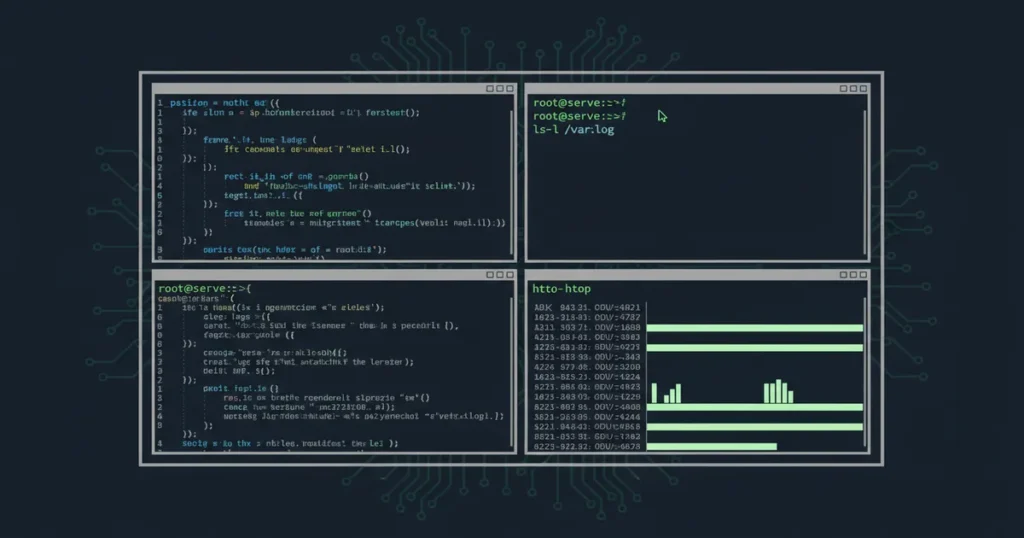
Multi-Pane System Monitoring
One of my favorite setups uses three panes:
- Top left:
htopfor CPU and memory monitoring - Top right:
tail -f /var/log/syslogfor live logs - Bottom: Regular command prompt for running commands
Pair this with the watch command in one pane to auto-refresh any command output. You can monitor system services while working in another pane without switching windows.
Development Workflow
For development work, I typically create a three-pane layout:
- Main pane: Text editor (vim or nano)
- Right pane: Development server running
- Bottom pane: Git commands and testing
Everything I need is visible at once. No more Alt-Tab juggling between terminal windows.
Pair Programming Sessions
Tmux can be shared. If you’re troubleshooting with a colleague, they can attach to your same session and see exactly what you see in real-time. Both people can type and control the terminal. It’s incredibly useful for remote pair debugging.
Configuring tmux: Making It Yours
Out of the box, tmux works great. But a few tweaks make it even better. All customization happens in ~/.tmux.conf.
Creating .tmux.conf
Create your config file:
touch ~/.tmux.confEdit it with your favorite text editor and add configurations. After making changes, reload without restarting tmux:
tmux source-file ~/.tmux.confChanging the Prefix Key
Many users change the prefix from Ctrl+B to Ctrl+A because it’s easier to reach. Add this to your config:
unbind C-b
set -g prefix C-a
bind C-a send-prefix
I made this change years ago and never looked back. Ctrl+A is just more comfortable.
Enabling Mouse Support
If you’re transitioning from graphical interfaces, mouse support helps:
set -g mouse onNow you can click to select panes, drag to resize them, and scroll with your mouse wheel. Some Linux purists scoff at this, but I say use whatever makes you productive.
Improving Visuals
Make the status bar more useful and easier to read:
# Status bar colors
set -g status-style bg=black,fg=white

# Highlight active window
set -g window-status-current-style bg=blue,fg=white

# Show session name prominently
set -g status-left '[#S] '
The config file supports hundreds of options. Check the official tmux wiki for comprehensive documentation.
Common Problems and How to Fix Them
Everyone hits these snags when starting with tmux. Here’s how to get past them.
Prefix Key Not Working
If Ctrl+B seems to do nothing, your terminal emulator might be intercepting it. Try a different terminal app, or check your terminal’s keyboard shortcuts settings. On some systems, you need to press the keys more deliberately—press Ctrl+B, release completely, then press the second key.
Lost Sessions After Reboot
Tmux sessions do not survive system reboots by default. When your server restarts, all sessions are gone. This catches everyone off guard at first.
For session persistence across reboots, look into the tmux-resurrect plugin. It saves and restores your entire tmux environment.
Colors Look Wrong
If colors appear washed out or incorrect, your TERM variable might need adjustment. Add this to your config:
set -g default-terminal "screen-256color"If that doesn’t help, try "tmux-256color" or "xterm-256color" depending on your system.
Copy/Paste Issues
Copying text in tmux requires entering copy mode (Ctrl+B then [), selecting text, and pressing Enter. Getting text to your system clipboard varies by operating system and requires extra configuration—it’s probably the most frustrating part of tmux for newcomers.
The tmux-yank plugin simplifies clipboard integration significantly.
tmux vs screen: Which Should You Use?
If you’ve used the screen command before, you might wonder why bother with tmux. Here’s my take after using both extensively.
tmux advantages:
- Active development (screen is essentially in maintenance mode)
- Better defaults out of the box
- Built-in mouse support
- Easier pane splitting and management
- Uses less memory per window
screen advantages:
- Pre-installed on more older systems
- Simpler for very basic use cases
- Familiar if you’ve used it for decades
“In Red Hat Enterprise Linux 8, the decision was made to deprecate screen and use tmux instead.” — Red Hat Enable Sysadmin
For new users, I recommend tmux without hesitation. The industry has clearly moved in this direction, and tmux’s features justify the learning curve.
Next Steps: Beyond the Basics
Once you’re comfortable with the fundamentals, there’s a whole world of advanced tmux usage to explore.
Plugins worth investigating:
- tmux-resurrect: Saves and restores sessions across reboots
- tmux-continuum: Automatic session saving
- tmux-yank: Simplifies clipboard integration
Scripting your sessions: You can write bash scripts that create your perfect tmux layout automatically. Imagine running one command that creates your development environment with the right windows, panes, and even commands already running.
For deeper documentation, the tmux Getting Started guide covers everything from basic usage to advanced scripting.
Start Using tmux Today
Tmux transformed how I work with Linux servers. That anxiety about losing SSH connections during critical updates? Gone. The frustration of juggling multiple terminal windows? Solved. The fear of accidentally closing a terminal with a long-running process? History.
Start simple. Run tmux, do some work, detach with Ctrl+B then D, and reattach with tmux attach. Feel that magic moment when you realize your session was running the whole time. Then gradually add pane splitting, multiple windows, and custom configuration.
Your future self—the one who doesn’t lose work to dropped connections—will thank you.
Ready to level up your Linux terminal skills? Check out our guides on the screen command for comparison, or learn about writing bash scripts to automate your tmux workflows.