How to Redirect Output in Linux: Master Pipes, File Descriptors, and Stream Control
Master Linux output redirection with stdin, stdout, and stderr. Learn pipes, file descriptors, 2>&1, and /dev/null through practical examples every admin needs.

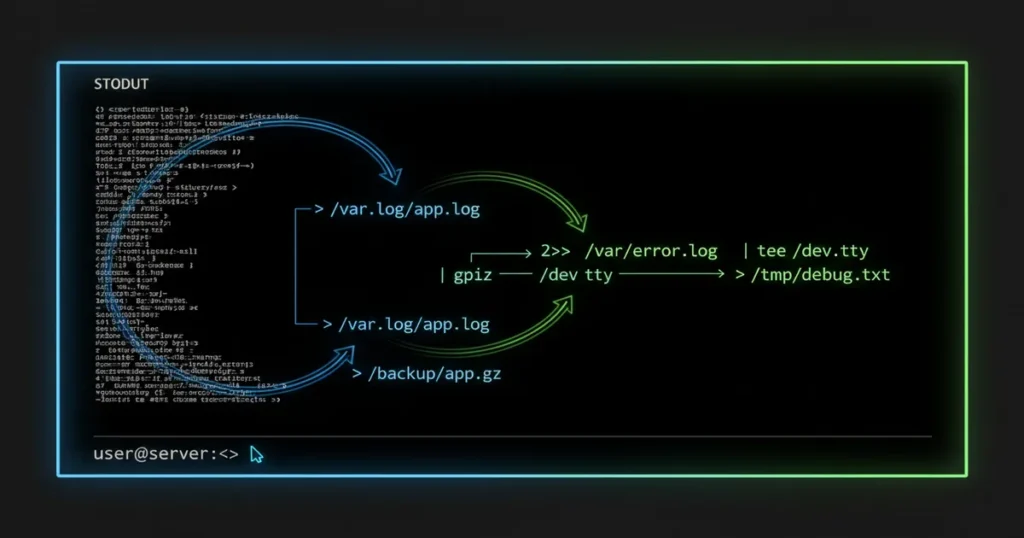
In this article
If you’ve ever run a command in the terminal and wished you could save the output, filter the noise, or send errors somewhere separate, you already need to know how to redirect output in Linux. Redirection is one of those foundational skills that separates someone who uses the terminal from someone who truly controls it. I still remember the moment redirection clicked for me during my first sysadmin job. I was drowning in terminal output from a backup script, squinting at scrolling text, and a coworker walked over and typed > backup.log 2>&1 at the end of my command. Everything went silent. The output was in a file. My mind was blown.
In this guide, I’ll walk you through everything from basic output redirection to pipes, file descriptors, and real-world sysadmin patterns. Whether you’re writing Bash scripts or just trying to wrangle command output, you’ll leave here with a toolkit that makes the terminal feel like home.
Understanding the Three Standard Streams in Linux
Every process in Linux gets three default communication channels. Think of them like plumbing in a house: water flows in, clean water comes out one pipe, and waste goes out another.
What Are stdin, stdout, and stderr?
- stdin (file descriptor 0): Standard input. This is how a command receives data, usually from your keyboard or from another command.
- stdout (file descriptor 1): Standard output. This is where normal results go, like what you see when you run
lsorecho. - stderr (file descriptor 2): Standard error. Error messages and diagnostics flow here, separate from regular output.
Why Linux Separates Output and Errors
This separation is intentional and brilliant. As Doug McIlroy, the inventor of Unix pipes, put it: “Write programs to handle text streams, because that is a universal interface.” (Source: Unix philosophy). By keeping stdout and stderr separate, you can save results to a file while still seeing errors on screen. Or you can log errors separately for debugging. This design has been a cornerstone of Unix since the 1970s, and it’s one of the reasons Linux is so powerful for automation.
Basic Output Redirection: Sending Output to Files
Using > to Redirect Output (Overwrite)
The > operator takes stdout and writes it to a file. If the file exists, it gets overwritten. No warnings, no confirmation. Gone.
ls -la > directory_listing.txt
echo "Hello, World" > greeting.txt
date > timestamp.txt
⚠️ Watch Out
I once wiped an entire config file by accidentally running echo "test" > /etc/myapp.conf instead of >>. Set set -o noclobber in your shell to prevent > from overwriting existing files. You’ll thank me later.
Using >> to Append Output
The >> operator adds output to the end of a file without erasing what’s already there. This is what you want for log files.
echo "Backup started at $(date)" >> backup.log
df -h >> disk_report.txt
Use > when you want a fresh file. Use >> when you’re building up a log or collecting results over time.
Redirecting Error Messages with stderr
Using 2> to Redirect Errors
Since stderr is file descriptor 2, you redirect it with 2>. This lets you capture errors separately from normal output.
find / -name "*.conf" 2> errors.logThat command searches the entire filesystem. You’ll hit plenty of “Permission denied” errors. With 2>, those errors go to errors.log while the actual results still print to your screen.
Redirecting stdout and stderr Separately
This is where it gets powerful. You can send output and errors to completely different places:
find / -name "*.conf" > results.txt 2> errors.txtNow your results are clean in one file, and you can review errors separately. This pattern is essential when you’re network troubleshooting or running diagnostics where you need to separate signal from noise.
Combining stdout and stderr: The 2>&1 Syntax
Understanding the 2>&1 Operator
The 2>&1 syntax means “send stderr (2) to wherever stdout (1) is currently going.” It merges both streams together.
command > output.log 2>&1This sends everything, both regular output and errors, into output.log.
Why Order Matters
Here’s where most people trip up, and I mean most. Even experienced admins get this wrong sometimes. There’s a critical difference between these two commands:
Order Matters
command > file.txt 2>&1 — Redirects stdout to file, then stderr follows stdout to the same file. ✅ Both streams end up in the file.
command 2>&1 > file.txt — Redirects stderr to wherever stdout currently is (the terminal), then redirects stdout to the file. ❌ Errors still show on screen.
The shell processes redirections left to right. So always redirect stdout first, then point stderr to it.
The Shortcut: Using &> in Bash
If you’re using Bash or Zsh, there’s a shorthand:
command &> output.logThis does the same thing as > output.log 2>&1. It’s cleaner, but it’s not POSIX-compliant. If you’re writing scripts that need to run on sh or dash, stick with the longer form.
Common Gotcha: Forgetting the Ampersand
Writing 2>1 instead of 2>&1 creates a file called 1 and sends errors there. The ampersand tells the shell that 1 is a file descriptor, not a filename. I’ve seen this bite people in production more times than I can count.
Input Redirection: Feeding Data Into Commands
Using < for Input Redirection
The < operator feeds a file’s contents into a command as stdin:
wc -l < access.log
sort < names.txt
Here Documents and Here Strings
Here documents (<<) let you embed multi-line input directly in a script. This is incredibly useful when writing Bash scripts that need to generate config files or send structured input:
cat < config.txt
server=192.168.1.100
port=8080
debug=false
EOF
Here strings (<<<) are simpler, passing a single string as stdin:
grep "error" <<< "This line has an error in it"The Power of /dev/null: Silencing Output
What Is /dev/null?
The /dev/null device is Linux’s “bit bucket.” Anything written to it simply disappears. It always exists, it never fills up, and it’s the cleanest way to discard output you don’t need. Check out DigitalOcean’s guide to /dev/null for more details.
Silencing Both Output and Errors
# Suppress all output
command > /dev/null 2>&1

# Same thing in Bash shorthand
command &> /dev/null
When to Use /dev/null
The most common use case? Cron jobs. When you’re scheduling cron jobs, any output that isn’t redirected gets emailed to the system user. That can flood your inbox fast. Redirecting to /dev/null suppresses those emails entirely. You might also use it to test whether a command succeeds without caring about its output:
if grep -q "pattern" file.txt > /dev/null 2>&1; then
    echo "Found it"
fi
Pipes: Connecting Commands Together
If redirection is about sending output to files, pipes are about sending output to other commands. The pipe operator | connects the stdout of one command directly to the stdin of the next. This is the backbone of the Unix philosophy: small tools that do one thing well, chained together to do powerful things.
How Pipes Work
# Find running processes and filter for nginx
ps aux | grep nginx

# Count files in a directory
ls -1 | wc -l

# Sort and deduplicate a list
cat names.txt | sort | uniq
Notice how each command in the pipeline only sees the output of the previous one. The ps command generates a list, and the grep command filters it. Clean and modular.
Common Pipeline Patterns
Here are some pipelines I use almost daily:
# Find the top 10 largest files
du -ah /var/log | sort -rh | head -n 10

# Extract specific fields from output
ps aux | awk '{print $1, $11}' | sort | uniq -c | sort -rn

# Monitor logs in real-time and filter
tail -f /var/log/syslog | grep --line-buffered "error"
Tools like awk text processing, sed stream editor, and xargs command become incredibly powerful when combined with pipes. You can also use head command and tail command to slice output from either end.
Using tee: Display and Save Output Simultaneously
What if you want to see output on your screen and save it to a file? That’s exactly what tee does. It reads from stdin, writes to stdout (so you see it), and also writes to one or more files.
# Watch the build and save the log
make 2>&1 | tee build.log

# Append to an existing log
./deploy.sh | tee -a deploy.log
I use tee constantly when running long processes on my homelab. If I’m doing a system upgrade or running a complex build, I want to watch progress in real-time but also have a log I can review later. The -a flag appends instead of overwriting, which is crucial when you’re building up logs over multiple runs.
Common Redirection Mistakes and How to Avoid Them
Mistakes to Watch For
- Wrong order:
command 2>&1 > filedoesn’t capture errors in the file. Always redirect stdout first. - Missing ampersand:
2>1creates a file named “1.” Use2>&1to reference file descriptor 1. - Overwriting files: Using
>when you meant>>. Enablenoclobberwithset -o noclobber. - Redirecting inside loops: Opening a file for writing inside a loop opens/closes it each iteration. Redirect the entire loop instead:
while read line; do echo "$line"; done output.txt
I’ll be honest, I’ve made every single one of these mistakes. The worst was when I accidentally used > on a production log file during an incident. Months of logs, gone in a keystroke. That’s when I learned to always set noclobber in my .bashrc.
Real-World Sysadmin Use Cases
Logging Cron Jobs Properly
This is one of the most practical applications of redirection. When you’re scheduling cron jobs, they run without a terminal. If you don’t redirect output, it either disappears or floods your mail:
# Good: log everything with timestamps
0 2 * * * /home/user/backup.sh >> /var/log/backup.log 2>&1

# Better: separate stdout and stderr
0 2 * * * /home/user/backup.sh >> /var/log/backup.log 2>> /var/log/backup_errors.log
Capturing Script Output for Debugging
When your automatic backup scripts fail at 3 AM, you need logs. Here’s a pattern I use in virtually every script:
#!/bin/bash
LOG="/var/log/myapp/script.log"
exec >> "$LOG" 2>&1
echo "=== Started at $(date) ==="
# Rest of script... all output goes to log
The exec command permanently redirects all output for the rest of the script. No need to add redirection to every single line.
Background Processes and nohup
When running long processes, the nohup command automatically redirects output to nohup.out. But you can control where it goes:
nohup ./long_process.sh > process.log 2>&1 &For services managed by systemd, systemctl service management handles stdout and stderr through journald. You can inspect those logs using viewing system logs with journalctl.
Advanced Redirection Techniques
File Descriptor Manipulation with exec
You can open, close, and redirect file descriptors using exec. This is useful for advanced logging in scripts:
# Save original stdout, redirect to file
exec 3>&1          # Save stdout to fd 3
exec > output.log  # Redirect stdout to file
echo "This goes to the file"
exec 1>&3          # Restore stdout
echo "This goes to the terminal"
For deeper coverage, the GNU documentation on file descriptors and the Advanced Bash-Scripting Guide are excellent references.
Named Pipes (FIFOs)
Named pipes let two processes communicate through a pipe that has a name in the filesystem:
mkfifo /tmp/mypipe
# Terminal 1: write to the pipe
echo "Hello from process 1" > /tmp/mypipe
# Terminal 2: read from the pipe
cat < /tmp/mypipe
You can even use the lsof command to inspect open file descriptors and see exactly where your redirected streams are going.
Wrapping Up
Output redirection isn’t just a convenience feature. It’s the glue that holds Linux automation together. From saving simple command output to building complex logging pipelines, these operators give you precise control over where data flows in your system.
Start with the basics: >, >>, 2>&1, and |. Practice them until they’re muscle memory. Then layer in tee, here documents, and exec as your scripts grow more sophisticated. The more comfortable you are with redirection, the more powerful every other Linux skill becomes.
If you’re building on these skills, check out our guide on writing Bash scripts where redirection is essential for logging and error handling. And if you’re setting up automated tasks, our walkthrough on scheduling cron jobs pairs perfectly with what you learned here.