How to Understand Linux File Permissions: The Complete Beginner’s Guide
Master Linux file permissions with this complete guide. Learn to read rwx notation, avoid chmod 777 mistakes, and secure your system properly.

In this article
I still remember the moment I truly understood linux file permissions. I’d spent three hours debugging why my newly-written bash script wouldn’t run. Turns out, I’d created the file but never made it executable. Three hours lost to a missing x.
That frustrating afternoon taught me something that Red Hat’s official guide on Linux permissions confirms: file permissions aren’t just a technicality. They’re the foundation of how Linux keeps your system secure, organized, and running smoothly.
If you’ve ever seen “Permission denied” and felt confused, this guide will fix that. By the end, you’ll read permission strings like rwxr-xr-x as easily as reading plain English.
Why Linux File Permissions Matter (And What Happens When You Get Them Wrong)
My first week running a homelab web server ended with a valuable lesson. I couldn’t figure out why my PHP application couldn’t save user uploads. My solution? Run chmod 777 on the uploads folder. Problem solved, right?
Wrong. That single command made my uploads directory writable by literally everyone on the system. If an attacker had gained any foothold on my server, they could have uploaded anything they wanted. I’d essentially left the front door wide open.
Linux was designed from the ground up as a multi-user operating system. Unlike early personal computers where anyone could do anything, Linux assumes multiple people (or processes) share the same machine. Permissions tell Linux exactly who can read, modify, or run each file.
- Web server config files exposed, leaking database passwords
- Scripts that won’t execute (the classic “permission denied”)
- Applications that can’t write logs or save data
- Security breaches where attackers escalate privileges
What Are Linux File Permissions?
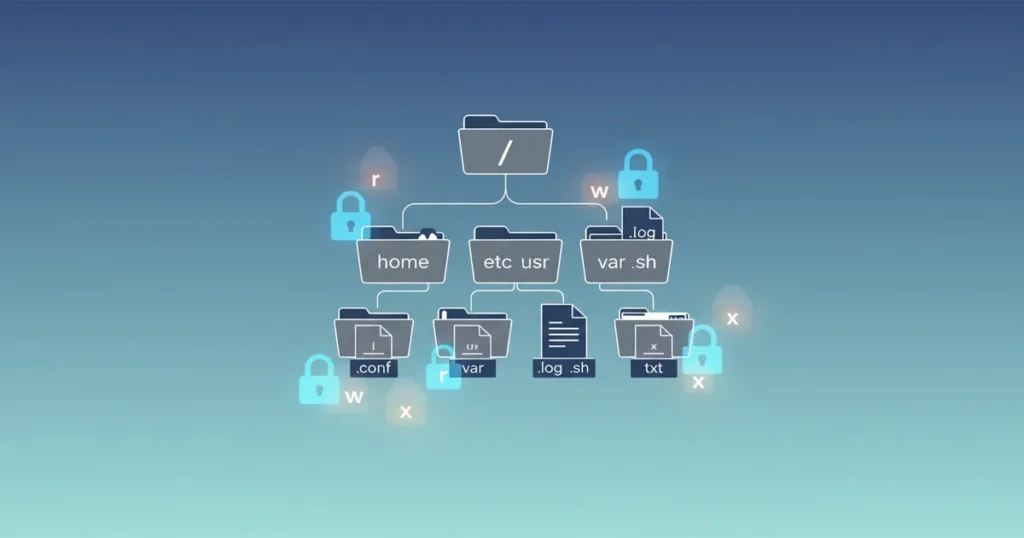
Every file and directory in Linux has three key properties: an owner, a group, and a set of permissions. Together, these determine exactly who can do what with that file.
The Linux Multi-User Security Model
As the SANS security perspective on permissions explains: “Linux’s permission system is one of the most fundamental security features of Linux. Linux was designed from the ground up with multiple users in mind.”
Think of it like an apartment building. The building owner controls everything. Each tenant controls their unit. And guests can only enter where they’re invited. Linux works the same way.
How Permissions Protect Your System
Permissions create boundaries. Your personal files stay private. System files stay protected. Programs run with only the access they need. If something goes wrong – say a web application gets compromised – the damage stays contained because that application can only access files it has permission to touch.
This is why learning about managing users and groups goes hand-in-hand with understanding permissions.
The Three Permission Types: Read, Write, and Execute
Linux keeps it simple with just three permission types. Once you understand what each one does, everything else clicks into place.
Read Permission (r)
Read permission lets you view the contents of a file. For directories, it lets you list what’s inside using commands like ls.
Without read permission on a file, you can’t open it, copy its contents, or even see what’s in it. The file exists, but it’s invisible to you.
Write Permission (w)
Write permission lets you modify a file – change its contents, edit it, or replace it entirely. For directories, write permission lets you create new files, delete existing ones, or rename them.
This is the dangerous one. Write access to the wrong directory gives someone the power to delete or corrupt everything inside it.
Execute Permission (x)
Execute permission lets you run a file as a program. Without it, the system won’t treat the file as something that can be executed, even if it’s a perfectly valid script.
As the Linux Foundation’s classic sysadmin guide notes: “Linux wisely never grants execute permission by default, for security.”
How Execute Differs for Files vs Directories
Here’s where it gets interesting. For directories, execute permission doesn’t mean “run this folder.” Instead, it means “enter this directory” – the ability to cd into it and access files inside.
You can have read permission on a directory (see the file names) without execute permission (actually access those files). It’s a subtle but important distinction. When you start writing executable bash scripts, this difference becomes very practical.
The Three User Categories: Owner, Group, and Others
Permissions apply differently to three categories of users. Understanding this layered approach is key to setting up secure, practical access controls.
Owner (User)
The owner is usually the person who created the file. They have the first claim on permissions. Even if you strip all permissions from a file, the owner can always restore them.
Group
Groups let multiple users share access without giving permissions to everyone. A development team might all belong to a “devs” group, letting them collaborate on code files without exposing those files to other users.
In production environments, groups are essential. They provide controlled access while keeping “others” locked out.
Others (World)
Others means everyone else – any user on the system who isn’t the owner and doesn’t belong to the file’s group. This is the category that should usually have the most restricted permissions.
How to Read Permission Strings (Breaking Down rwxr-xr-x)
When you run ls -l, you see something like this:
-rwxr-xr-x 1 alexa developers 4096 Sep 15 10:30 myscript.shThat mysterious -rwxr-xr-x at the start? Let me decode it for you.
The 10-Character Permission String
- Character 1: File type (
-for regular file,dfor directory,lfor symbolic link) - Characters 2-4: Owner permissions (rwx)
- Characters 5-7: Group permissions (r-x)
- Characters 8-10: Others permissions (r-x)
Reading Each Section
Each three-character group shows what that category can do. The letters mean:
r= read permission grantedw= write permission grantedx= execute permission granted-= that permission is denied
So rwxr-xr-x means: the owner can read, write, and execute. The group can read and execute but not write. Others can also read and execute but not write.
Common Permission Patterns You’ll See
Once you recognize patterns, you’ll read these instantly:
rw-r--r--(644) – Standard file: owner can edit, everyone can readrwxr-xr-x(755) – Executable/directory: owner has full control, others can read and executerw-------(600) – Private file: only owner can accessrwx------(700) – Private directory: only owner can enter
To really master the ls command and its output, check out our dedicated guide.
Symbolic vs Numeric (Octal) Permission Notation
You’ll see permissions written two ways: symbolic (like rwxr-xr-x) and numeric (like 755). Both describe the same thing.
Understanding Octal Numbers (755, 644, 600)
Numeric notation uses three digits, one for each user category. Each digit is calculated by adding:
- Read (r) = 4
- Write (w) = 2
- Execute (x) = 1
So rwx = 4+2+1 = 7. And r-x = 4+0+1 = 5. That’s where 755 comes from.
As explained on Unix file system permissions on Wikipedia, this octal system dates back to the original Unix design and remains the standard today.
When to Use Symbolic vs Numeric
Both work. Numeric is faster for commands when you know what you want: chmod 644 file.txt. Symbolic is clearer when describing permissions to others or when you want to change just one thing: chmod +x script.sh.
Learn the numeric codes for common patterns (644, 755, 600) and you’ll move faster at the command line.
How to View File Permissions (Using ls -l)
The ls -l command is your window into file permissions. The -l flag means “long format,” which displays permissions, ownership, size, and modification time.
$ ls -l /var/www/html/
-rw-r--r-- 1 www-data www-data 1247 Sep 10 14:20 index.html
drwxr-xr-x 2 www-data www-data 4096 Sep 12 09:15 images/
Useful variations:
ls -la– Include hidden files (starting with.)ls -lh– Human-readable file sizes (KB, MB instead of bytes)ls -ld directory/– Show the directory itself, not its contents
Common Permission Patterns for Real-World Scenarios
Knowing the theory is one thing. Knowing which permissions to actually use? That’s what separates beginners from sysadmins.
Web Server Files and Directories
For web servers, the pattern is well-established:
- HTML/CSS/JS files:
644(rw-r–r–) - Directories:
755(rwxr-xr-x) - PHP/script files:
644(they’re interpreted, not directly executed) - Upload directories:
775with group ownership by www-data
Executable Scripts
Scripts you want to run directly need execute permission:
- Your personal scripts:
700(only you can run them) - System-wide scripts:
755(everyone can run, only root can modify)
Configuration Files with Sensitive Data
Config files containing passwords or API keys deserve strict protection:
- Database configs:
600or640 - SSH keys:
600(SSH actually refuses to use keys with loose permissions) - SSL certificates:
644for public certs,600for private keys
Shared Directories for Teams
When collaborating:
- Shared project directory:
775with proper group ownership - Fully private team space:
770(excludes “others” entirely)
Home Directories
Your personal space should stay personal: 700 or 750 at most. Other users shouldn’t browse your files.
Common Permission Mistakes That Will Bite You
I’ve made most of these mistakes myself. Learn from my pain.
The chmod 777 Disaster
When something doesn’t work, the temptation is to throw chmod 777 at it. This grants everyone full access to read, write, and execute. It’s the nuclear option, and it’s almost never the right answer.
If you need 777 to make something work, you’re solving the wrong problem. Usually, the real issue is ownership, not permissions.
Confusing Ownership with Permissions
Here’s a scenario: A service runs as user appuser, but your files are owned by root. No amount of chmod will fix this. You need to change file ownership with chown instead.
Always check ownership first. Often that’s the real fix.
Recursive chmod Gone Wrong
The command chmod -R 755 / would wreck your system. Even less extreme recursive changes can cause chaos. Always double-check your path before running recursive commands. Test on a single file first.
Ignoring Group Permissions
New Linux users often give “others” access when they should be using groups. Groups provide controlled collaboration. “Others” means everyone on the system.
Set up proper groups and use them. It’s more work upfront but far more secure.
Web Directory Security Mistakes
A common web server setup: files owned by your SSH user, group set to www-data, upload directories with group write permission. This lets you manage files via SSH while letting the web server write to specific locations.
The mistake is making everything owned by www-data or giving world write access. Both create security holes. Permissions are one layer of defense – combine them with securing your system with UFW firewall and protecting your server with fail2ban for proper security.
Special Permissions: SUID, SGID, and Sticky Bit
Beyond the basic rwx, Linux has three special permissions. You won’t use these often, but you should know they exist.
- SUID (Set User ID): File runs with owner’s permissions, not the runner’s. Used for commands like
passwdthat need elevated privileges. - SGID (Set Group ID): Files created in a directory inherit the directory’s group. Great for shared team folders.
- Sticky Bit: In shared directories like
/tmp, users can only delete their own files, not each other’s.
These are powerful but potentially dangerous if misused. SUID on shell scripts, for example, is impossible to make secure. Use them sparingly and only when you understand the implications.
Next Steps: Changing Permissions Safely
Now you understand what permissions mean and how to read them. The next step is learning to modify them safely.
Here’s your learning path:
- Practice reading permissions with
ls -lon your own files - Learn how to change file permissions with chmod – the essential skill
- Master changing file ownership with chown for when ownership is the issue
- Explore setting default permissions with umask to control what new files start with
Start with test files in your home directory. Break things intentionally. Lock yourself out, then fix it. That hands-on experimentation is how the concepts stick.
Linux file permissions seemed overwhelming to me at first. But once I understood the building blocks – three permission types, three user categories, and how they combine – everything clicked. You’re now equipped with that same foundation. Go experiment, make some mistakes (safely), and make those rwxr-xr-x strings second nature.