How to Use Cron Jobs in Linux: Schedule and Automate Tasks
Learn how to use cron jobs in Linux with crontab syntax, real-world examples, output logging, and troubleshooting tips. Automate tasks like a pro sysadmin.

In this article
If you’ve ever caught yourself running the same script manually every single day, you already know why learning how to use cron jobs in Linux is a game-changer. Cron is the built-in task scheduler that handles repetitive work while you focus on things that actually need your brain. I remember setting up my first cron job on an old Ubuntu 8.04 box in college. It was a simple log cleanup script, and watching it fire automatically at 2 AM felt like actual magic. That one tiny automation sparked an obsession that shaped my entire career.
In this guide, I’ll walk you through everything you need to schedule and automate tasks with cron. We’ll cover the syntax, build your first cron job step by step, look at real-world examples, and tackle the mistakes that trip up almost everyone.
Quick Answer: What Is a Cron Job?
A cron job is a scheduled task in Linux that runs automatically at a time you define. You set it up using the crontab -e command and specify when and what to run using a five-field time expression followed by a command.
What Is Cron and How Does It Work?
Cron (software) has been part of Unix-like systems since the 1970s. It’s a time-based job scheduler that runs in the background on virtually every Linux distribution. You don’t install it. You don’t configure a service. It’s just there, quietly waiting for instructions.
The Cron Daemon: Always Watching
The cron daemon (crond) starts at boot and checks all crontab files once every minute. If it finds a job scheduled for the current time, it runs the command. That’s the entire loop. Simple, reliable, and battle-tested across decades of production servers.
Think of it like an alarm clock that never needs batteries. You set it, and it fires every single time.
System Cron vs. User Cron
There are two types of crontab files on a Linux system:
- User crontabs: Each user has their own crontab, edited with
crontab -e. Jobs run under that user’s permissions. - System crontabs: Located in
/etc/crontaband/etc/cron.d/. These include an extra username field and are managed by root.
For most tasks, your personal user crontab is all you need. System-level cron is for server-wide maintenance scripts that need root access.
Crontab Syntax: Reading the Five Fields
The crontab syntax looks intimidating at first. But once you see the pattern, it clicks fast. Every cron entry follows this format:
MIN  HOUR  DOM  MON  DOW  COMMAND
 │     │    │    │    │
 │     │    │    │    └─ Day of week (0-6, Sunday=0)
 │     │    │    └────── Month (1-12)
 │     │    └─────────── Day of month (1-31)
 │     └──────────────── Hour (0-23)
 └────────────────────── Minute (0-59)
For the full specification, check the crontab(5) man page.
Breaking Down the Time Fields
Each field controls when the job runs. You fill in exact values, or use wildcards to match everything. Here’s a quick reference table:
| Field | Range | Example | Meaning |
|---|---|---|---|
| Minute | 0–59 | 30 |
At minute 30 |
| Hour | 0–23 | 14 |
At 2:00 PM |
| Day of Month | 1–31 | 1 |
1st of the month |
| Month | 1–12 | */3 |
Every 3rd month |
| Day of Week | 0–6 | 1-5 |
Monday to Friday |
Special Characters: *, /, Commas, and Ranges
Four special characters make cron expressions flexible:
- * (asterisk): Matches every value.
* * * * *runs every minute. - / (slash): Step values.
*/15in the minute field means every 15 minutes. - , (comma): Lists specific values.
1,3,5in the DOW field means Monday, Wednesday, Friday. - – (dash): Ranges.
9-17in the hour field means 9 AM through 5 PM.
@Shortcuts for Common Schedules
Cron also supports shorthand keywords that reduce syntax errors:
- @reboot — Run once at system startup
- @daily (or
@midnight) — Run once per day at midnight - @weekly — Run once per week (Sunday at midnight)
- @monthly — Run once per month (1st at midnight)
- @hourly — Run once per hour
These are perfect when you don’t need fine-grained timing. I use @daily for my homelab backup scripts because “once a day at midnight” is all I need.
Creating Your First Cron Job: Step-by-Step
Let’s build a real cron job from scratch. We’ll schedule a backup script to run every night at 2 AM. If you want to write bash scripts in Linux for your cron jobs, check out that guide first.
Opening Crontab with crontab -e
Open your terminal and type:
crontab -eThis opens your user’s crontab in the default text editor. If you’d rather use nano instead of vi, set it first:
EDITOR=nano crontab -eWriting Your First Cron Entry
Add this line at the bottom of the file:
0 2 * * * /home/youruser/scripts/backup.sh >> /var/log/backup.log 2>&1⚠ Important: Always Use Absolute Paths
Cron doesn’t load your shell profile. It has no idea where backup.sh lives unless you spell out the full path. Use /home/youruser/scripts/backup.sh, not just backup.sh. This is the #1 reason cron jobs fail silently.
This entry means: at minute 0, hour 2, every day, every month, every day of the week, run the backup script. The output gets appended to a log file. If you want to set up a full automatic backups in Linux workflow, cron is the engine that powers it.
Verifying and Listing Jobs with crontab -l
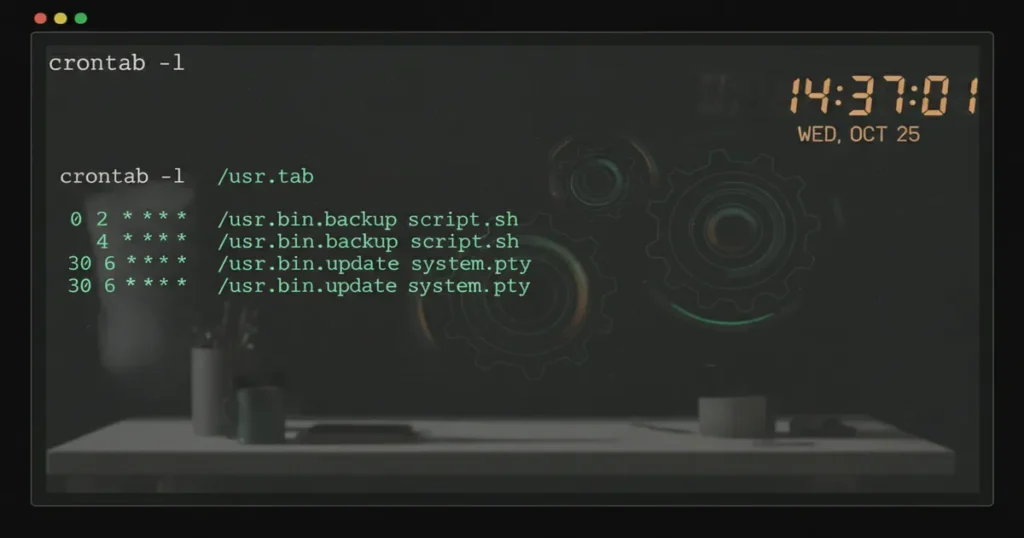
Save and exit. Then verify your job was saved:
crontab -lYou should see your new entry listed. If you need to remove your crontab entirely, crontab -r will do it. But be careful: there is no confirmation prompt. One mistyped letter and all your jobs are gone.
🚨 crontab -r vs crontab -e
The r key sits right next to e on your keyboard. Typing crontab -r deletes your entire crontab instantly with zero confirmation. I’ve done this exactly once in my career, lost about a dozen scheduled jobs, and now I always keep a backup of my crontab: crontab -l > ~/crontab-backup.txt
Real-World Cron Job Examples
Theory is great. Let’s look at practical cron jobs you can actually use. These are patterns I’ve relied on across homelab servers and production systems for years.
# Daily backup at 2 AM
0 2 * * * /usr/local/bin/backup.sh

# Clear temp files every Sunday at midnight
0 0 * * 0 rm -rf /tmp/oldfiles/*

# Disk usage report every Monday at 8 AM
0 8 * * 1 df -h > /var/log/disk-report.txt

# Update server packages nightly at 3 AM
0 3 * * * apt update && apt upgrade -y

# Run a Python monitoring script every 15 minutes
*/15 * * * * /usr/bin/python3 /home/user/monitor.py

# Start a service on boot
@reboot /usr/local/bin/start-monitor.sh
That @reboot shortcut is one of my favorites. I use it to restart monitoring scripts and clear stale lock files whenever my homelab Proxmox server reboots after a kernel update.
Handling Cron Output and Logging
Here’s something that trips up a lot of people: by default, cron tries to email the output of every job to the user. On most modern servers, local mail isn’t configured. So the output just vanishes. Your script could be throwing errors every single run, and you’d never know.
Redirecting Stdout and Stderr to a Log File
The fix is to redirect output in Linux to a log file:
0 2 * * * /home/user/backup.sh >> /var/log/backup.log 2>&1The >> appends stdout to the log. The 2>&1 sends stderr to the same place. Now you have a complete record of every run.
If you don’t care about the output at all, send it to /dev/null:
*/5 * * * * /home/user/health-check.sh > /dev/null 2>&1Over time, cron log files can grow large. Use logrotate to manage log files so they don’t eat your disk space.
Checking Cron Logs in Syslog and Journald
Want to confirm that cron actually ran your job? Check the system log. Use grep to search cron logs:
# Debian/Ubuntu
grep CRON /var/log/syslog

# RHEL/CentOS
cat /var/log/cron

# Systemd-based systems
journalctl -u cron
You can also watch logs in real time with the tail command to monitor logs:
tail -f /var/log/syslog | grep CRONCommon Cron Job Mistakes (And How to Fix Them)
I’ve debugged more broken cron jobs than I can count. These are the mistakes I see over and over again.
Using Relative Paths: The #1 Beginner Mistake
Cron runs with a minimal environment. It doesn’t source your .bashrc or .bash_profile. The default PATH is usually just /usr/bin:/bin. So if your script calls python3 without the full path, cron can’t find it.
Always use absolute paths for everything:
# Wrong
*/10 * * * * python3 myscript.py

# Right
*/10 * * * * /usr/bin/python3 /home/user/myscript.py
Missing Environment Variables
Since cron doesn’t load your shell profile, any custom environment variables you rely on won’t exist. You can fix this by setting them at the top of your crontab:
SHELL=/bin/bash
PATH=/usr/local/sbin:/usr/local/bin:/usr/sbin:/usr/bin:/sbin:/bin
HOME=/home/youruser

0 2 * * * /home/youruser/scripts/backup.sh
This is a subtle bug that wastes hours of debugging. If you need a deeper dive, check out how to set environment variables in Linux.
One more gotcha: cron uses /bin/sh by default, not bash. If your script uses bash-specific features like arrays or [[ ]] tests, it will fail silently. Set SHELL=/bin/bash in your crontab to avoid this.
Wrong File Permissions
Your script must be executable. If you created it with a text editor but forgot to set permissions, cron won’t run it:
chmod +x /home/youruser/scripts/backup.shUnderstanding Linux file permissions is essential here. Without the execute bit, cron logs will show the job firing but nothing actually happens.
Also, if you need root-level cron jobs, don’t add sudo inside a regular crontab. Instead, edit root’s crontab directly:
sudo crontab -e“A sysadmin is most productive when thinking about how to solve existing problems and how to avoid future problems. The more automation we have in place, the more time we have available to fix real problems when they occur.”
— Linux Journal, Sysadmin 101: Automation
Cron vs. Systemd Timers: When to Use Which
Cron isn’t the only scheduler in town. If your system runs systemd (and most modern distros do), you also have access to systemd timers. So which should you use?
Here’s my honest take after years of using both:
- Use cron for: Simple one-liner tasks, quick schedules, portability across any Linux system. If you can express it in one line, cron is perfect.
- Use systemd timers for: Complex service-dependent tasks, better logging through journald, resource limits via cgroups, and catching missed jobs with
Persistent=true.
That Persistent=true feature is a big deal. If your server was powered off when a job was supposed to run, a systemd timer with persistence will run it the next time the system boots. Cron has no equivalent. If cron misses its window, the job just doesn’t run.
If you want to explore the systemd side, learn how to create a systemd service and manage services with systemctl. For the full timer reference, see the systemd timers official documentation on the Arch Wiki.
That said, for 80% of scheduling needs, cron is simpler and gets the job done. I still reach for cron first in my homelab and only pull in systemd timers when I need dependency ordering or persistent scheduling.
Frequently Asked Questions
How do I check if cron is running on my system?
Run systemctl status cron (or crond on RHEL-based systems). If the service is active and running, cron is ready to process your scheduled jobs.
Can I run a cron job every 30 seconds?
Not directly. Cron’s smallest interval is one minute. For sub-minute scheduling, you’d need a workaround like running a script with a sleep 30 loop, or using systemd timers which support second-level precision.
Why is my cron job not running?
The most common causes are: relative paths instead of absolute paths, missing execute permissions on your script, or environment variables that aren’t available in cron’s minimal shell. Check grep CRON /var/log/syslog for clues.
How do I edit another user’s crontab?
As root, use sudo crontab -u username -e. This opens the specified user’s crontab for editing. Be careful here, as changes take effect immediately.
Start Automating Your Linux Workflow
Once you learn how to use cron jobs in Linux, you’ll wonder how you ever managed without them. From nightly backups to log cleanup to server monitoring, cron handles the boring stuff so you can focus on what matters.
My advice? Start small. Pick one repetitive task you do manually and turn it into a cron job today. Back it up with good logging, test it manually first, and you’ll be building a fully automated workflow before you know it.
If you’re ready to level up your Linux automation skills, explore these related guides:
- Learn to write bash scripts in Linux to power your cron jobs
- Set up automatic backups in Linux with scheduled scripts
- Master output redirection for clean cron job logging