How to Create a Systemd Service in Linux (Step-by-Step)
Learn how to create a custom systemd service in Linux with step-by-step examples. Write unit files, enable auto-start, and debug like a pro.

In this article
Why Systemd Services Beat Cron and rc.local
I still remember the night my homelab Proxmox server rebooted after a kernel update, and my monitoring script just… didn’t come back. I’d been running it with a @reboot cron job, and something about the timing meant the network wasn’t ready when the script tried to launch. Three hours of downtime before I even noticed. That was the night I learned to create a systemd service in Linux — and I never looked back.
Systemd is the init system running on virtually every major Linux distribution since around 2015. Ubuntu, Debian, Fedora, Arch, RHEL — they all use it. When you turn a script into a systemd service, you get automatic restarts on failure, boot persistence, dependency ordering, and full logging through journald. It’s the right tool for anything that needs to stay running.
In this guide, I’ll walk you through the entire process step by step. By the end, you’ll have a working service that starts at boot, restarts itself if it crashes, and logs everything you need for troubleshooting. There’s also one common pitfall that silently breaks restart behavior — we’ll cover that in the mistakes section.
What Is a Systemd Unit File?
A .service file is a plain-text config file that tells systemd exactly how to manage a process. Think of it as a contract between your script and the operating system. You define what to run, when to run it, and what to do if it fails.
Every service unit file has three main sections:
- [Unit] — Metadata and dependency info (what this service is, what it needs to start first)
- [Service] — How to actually run the process (the command, restart policy, user context)
- [Install] — When to activate at boot (which system target pulls it in)
Where Your Unit File Lives
This trips up a lot of people. There are multiple directories where unit files can live, and using the wrong one causes problems:
/etc/systemd/system/— This is where YOUR custom services go. Always use this path for anything you create yourself./lib/systemd/system/— Reserved for distro-provided units. Don’t edit files here — package updates will overwrite your changes.~/.config/systemd/user/— For user-level services that run without root. Handy for personal scripts on shared machines.
Your custom unit file should have 644 permissions (rw-r--r--). If you’re not sure about permission numbers, my Linux file permissions guide breaks down the full system.
Step 1 — Write the Script Your Service Will Run
Before you touch systemd, make sure the script you want to manage actually works on its own. If it doesn’t run standalone, it won’t run as a service either.
Here’s a simple example script. If you need a refresher on writing shell scripts, start with my guide on how to write bash scripts in Linux.
#!/bin/bash
# /usr/local/bin/myapp.sh
# A simple long-running script

while true; do
    /usr/bin/echo "$(date): App is running" >> /var/log/myapp.log
    /usr/bin/sleep 60
done
Critical: Use Absolute Paths
Notice I used /usr/bin/echo and /usr/bin/sleep instead of just echo and sleep. Systemd does not inherit your shell’s PATH variable. Relative commands that work fine in your terminal will silently fail inside a service. Always use full absolute paths.
Make the script executable:
chmod +x /usr/local/bin/myapp.shTest it manually first — run it, confirm it works, then kill it. If you’re running a Python app with a virtual environment, the ExecStart pattern looks like this:
ExecStart=/opt/myapp/venv/bin/python /opt/myapp/main.pyPoint directly at the Python binary inside your venv. Don’t rely on source activate — systemd doesn’t understand shell activation scripts.
Step 2 — Create the .service Unit File
Now it’s time to actually create the systemd service file. Open your favorite editor — I use Vim (here’s my Vim editor guide if you’re new to it) — and create a new file:
sudo vim /etc/systemd/system/myapp.serviceHere’s a complete, copy-pasteable example with comments explaining each line:
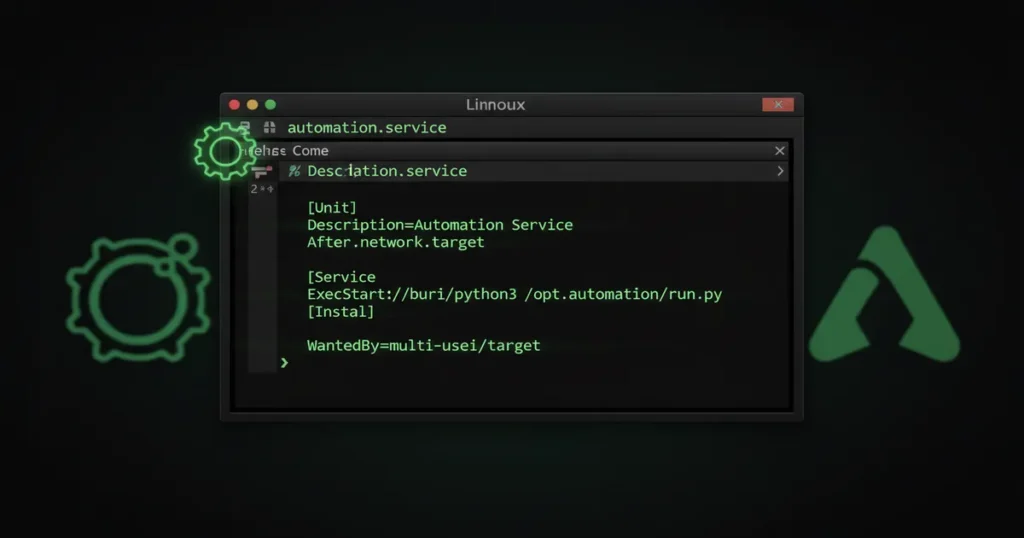
[Unit]
Description=My Custom Application Service
After=network.target

[Service]
Type=simple
User=www-data
WorkingDirectory=/opt/myapp
ExecStart=/usr/local/bin/myapp.sh
Restart=on-failure
RestartSec=5
StartLimitIntervalSec=0
EnvironmentFile=/etc/myapp.env

[Install]
WantedBy=multi-user.target
Let me break down each section.
The [Unit] Section
Description= is a human-readable label. It shows up in systemctl status output and logs. Make it descriptive enough that future-you understands what this service does.
After=network.target tells systemd to wait until the network is up before starting your service. This is an ordering dependency — it doesn’t mean the network is required, just that if the network target exists, start after it. For most web apps and API scripts, this is what you want.
The [Service] Section — Key Directives
This is where the real configuration lives. For the full list of available directives, see the official systemd.service manual.
- Type=simple — The default. Systemd considers the service started the moment ExecStart launches. Use this for 90% of custom services.
- ExecStart= — The command to run. Must be a full absolute path. This is non-negotiable.
- Restart=on-failure — Restarts the process if it exits with a non-zero code. Use
Restart=alwaysif you want it to restart no matter what. - RestartSec=5 — Wait 5 seconds between restart attempts. Prevents rapid crash loops.
- StartLimitIntervalSec=0 — Disables the default restart limit. Without this, systemd gives up after 5 failures in 10 seconds. We’ll cover this trap in the mistakes section.
- User= — Run as this user instead of root. A security best practice for web apps and custom daemons.
- EnvironmentFile= — Load environment variables from a file. Keeps API keys and secrets out of the unit file itself (unit files are world-readable by design).
The [Install] Section
WantedBy=multi-user.target is the line that makes your service start at boot when you enable it. The multi-user target is roughly equivalent to the old “runlevel 3” — a normal multi-user system with networking. For most services, this is exactly what you want.
After writing the file, you can validate it before deploying:
systemd-analyze verify /etc/systemd/system/myapp.serviceThis catches syntax errors and missing dependencies before they cause boot problems. I wish I’d known about this command years ago — would have saved me a few late-night debugging sessions.
Step 3 — Reload Systemd and Enable Your Service
Here’s the workflow that must happen in order. If you want a deeper dive into systemctl commands beyond service management, check out my guide on how to use systemctl.
Step-by-step: Enable and Start Your Service
- Reload systemd:
sudo systemctl daemon-reload— You MUST run this after every unit file change. Systemd caches unit files in memory, so without a reload, it’s still using the old version. - Enable the service:
sudo systemctl enable myapp.service— Creates a symlink so it starts automatically at boot. - Start the service:
sudo systemctl start myapp.service— Starts it right now, without waiting for a reboot. - Verify it’s running:
sudo systemctl status myapp.service— Should showactive (running).
There’s an important distinction here: enable makes it persistent across reboots. Start runs it right now. You usually want both. Here’s the one-liner that does both at once:
sudo systemctl daemon-reload && sudo systemctl enable --now myapp.serviceThe --now flag combines enable and start into a single command. Speaking of how systemd handles running services, make sure you understand the difference between systemctl restart vs reload — it matters more than you’d think.
Step 4 — View Logs and Troubleshoot
One of the biggest advantages of systemd services over cron jobs is logging. Everything your service writes to stdout and stderr gets captured by journald automatically.
# View all logs for your service
journalctl -u myapp.service

# Follow logs in real time (like tail -f)
journalctl -u myapp.service -f

# Filter by time
journalctl -u myapp.service --since "1 hour ago"

# Search for errors using grep
journalctl -u myapp.service | grep ERROR
For working with grep command patterns and filters, that link covers the essentials. For a full breakdown of journalctl filters and flags, see my journalctl guide.
The quickest status check is systemctl status myapp.service, which shows the last few log lines inline. For boot-time issues specifically, the dmesg command can surface kernel-level errors that journald misses. And if logs aren’t enough and the process is silently dying, strace for deep debugging reveals exactly what system calls are failing.
Choosing the Right Service Type
The Type= directive controls how systemd tracks your process’s lifecycle. Picking the wrong type leads to confusing timeout errors or services that show as “activating” forever.
Type=simple (Default)
Systemd considers the service started the moment ExecStart launches. The process should not fork into the background — systemd is already managing it. This is the right choice for most custom scripts and modern daemons. About 90% of homelab use cases fall here.
Type=forking
Use this when your process forks itself into the background (old-school daemon style). The parent process starts, forks a child, then exits. Pair it with PIDFile=/run/myapp.pid so systemd can track the child process. You’ll see this pattern with legacy applications like older versions of Apache or MySQL.
Type=oneshot
For tasks that run once and exit — like a startup configuration script. Add RemainAfterExit=yes so the service shows as “active” after completion instead of “inactive.” This is useful for firewall rules or mount scripts that do their job and finish.
There’s also Type=notify for sophisticated daemons that signal readiness via sd_notify(). Services like nginx and PostgreSQL use this. Unless you’re writing a daemon from scratch, you probably won’t need it. For reference, the systemd.service(5) man page documents every available type.
Common Mistakes That Break Systemd Services
I’ve hit every single one of these over the years. Save yourself the debugging time.
Top 6 Mistakes to Avoid
- Forgetting
daemon-reload— The #1 most common mistake. You edit the unit file, restart the service, and wonder why nothing changed. Systemd cached the old version. Always reload first. - Using relative paths in ExecStart —
ExecStart=myapp.shwill fail silently. Always use the full absolute path:ExecStart=/usr/local/bin/myapp.sh. - Script not executable — If you forget
chmod +x, systemctl start may return success but the process never actually launches. Restart=alwayswithoutStartLimitIntervalSec=0— By default, systemd gives up after 5 rapid failures in 10 seconds. Your service silently stops restarting and you won’t know until you check. SetStartLimitIntervalSec=0to retry forever.- Wrong
User=directive — If the specified user doesn’t exist, systemd reports “start request repeated too quickly” — a misleading error that doesn’t mention the user problem. - Unit file permissions too restrictive — The file needs
644. Setting600prevents systemd from reading it properly.
Real-World Example: Auto-Start a Python Web App
Let me show you a complete, production-ready example. This is basically the pattern I use on my homelab for every persistent Python process — Flask apps, Discord bots, data collection scripts, you name it.
[Unit]
Description=Flask Web Application
After=network.target

[Service]
Type=simple
User=www-data
Group=www-data
WorkingDirectory=/opt/flaskapp
EnvironmentFile=/opt/flaskapp/.env
ExecStart=/opt/flaskapp/venv/bin/gunicorn --bind 0.0.0.0:8000 app:app
Restart=always
RestartSec=5
StartLimitIntervalSec=0

[Install]
WantedBy=multi-user.target
Notice a few things: User=www-data runs the app as a non-root user. EnvironmentFile= loads secrets from a .env file, keeping them out of the unit file. ExecStart points directly at the Gunicorn binary inside the virtual environment — no need for source activate.
A great practical use case for this pattern: turning a backup script into a systemd service so it always runs at boot. My guide on automatic backups in Linux walks through that scenario. If you’re running Docker containers, systemd services are one of the cleanest ways to ensure they start automatically — though Docker has its own restart policies too. My Docker on Linux guide covers both approaches.
Systemd Services vs Cron Jobs: When to Use Which
I see this question come up constantly, and the answer is simpler than people think:
- Systemd services are for processes that need to be always running. Web servers, monitoring daemons, API endpoints — anything that should survive reboots and restart on failure.
- Cron jobs are for scheduled, recurring tasks. Run a backup at 3am every Sunday. Rotate logs every midnight. Clear temp files weekly.
For scheduled recurring tasks, my guide on how to schedule cron jobs covers the crontab syntax in detail.
Here’s something most guides don’t mention: systemd has its own timer units (OnCalendar=) that can fully replace cron. They integrate with journald for logging and support more flexible scheduling syntax. If you’re already comfortable with systemd, timers are worth exploring. The Arch Wiki systemd reference has an excellent section on timer units.
“systemd is also a big opportunity for Linux standardization. Since it standardizes many interfaces of the system that previously have been differing on every distribution… adopting it helps to work against the balkanization of the Linux interfaces.” — Lennart Poettering, creator of systemd
The simple rule of thumb: if it needs to be always running, make it a service. If it runs on a schedule, use cron or a systemd timer.
Start Building Your Own Services
Creating a systemd service isn’t complicated once you understand the pattern: write your script, create a unit file in /etc/systemd/system/, reload, enable, start. The directives that matter most for everyday use are ExecStart, Restart, User, and WantedBy.
The biggest unlock for me was realizing that systemd isn’t just for system daemons — it’s for any process you want to run reliably. Once I started converting my homelab scripts to services, my uptime went from “mostly working” to genuinely solid. No more mystery downtime after reboots.
If you’re just getting started with Linux administration, these guides will round out your knowledge:
- How to use systemctl — Master the command that controls all your services
- Journalctl guide — Dig deep into service logs
- How to write bash scripts — Build the scripts your services will run
Got a script that should be running 24/7? Go create a service for it. Your future self will thank you.