How to Use strace Command in Linux: The System Call Tracer Every Admin Needs
Learn how to use strace command in Linux to trace system calls, debug processes, and troubleshoot performance issues. Complete guide with real-world examples.

In this article
Learning how to use strace command in Linux changed the way I troubleshoot systems. Before I discovered this tool, debugging felt like stumbling around in the dark. Now? I can see exactly what a program is doing under the hood. If you have ever wondered why a process hangs, where a config file actually lives, or why you are getting cryptic permission errors – strace is your answer.
In this guide, I will walk you through everything from basic syntax to real-world debugging scenarios. By the end, you will have a new superpower in your Linux toolkit.
What is strace? (Understanding System Calls)
strace is a diagnostic utility that traces system calls made by a program. Think of system calls as the handshake between your applications and the Linux kernel. Every time a program opens a file, reads data, connects to a network, or allocates memory, it makes a system call.
The strace project has been part of the Linux ecosystem since its early days. What makes it invaluable is that you do not need source code access or special debugging builds. You can trace any running process and see exactly what it is asking the kernel to do.
How strace Works
Under the hood, strace uses the ptrace() debugging interface. It attaches to a process and intercepts every system call. You see the call name, its arguments, and what the kernel returned. When something fails, strace shows you the exact error code – no more guessing.
When to Use strace (And When Not To)
I reach for strace when I need to answer questions like:
- Where is this program reading its config from? – The most common use case according to sysadmin surveys
- Why does this process hang? – You will see exactly which system call it is stuck on
- What files is this mystery process touching? – Great for understanding undocumented software
- Why am I getting file not found when the file exists? – Often reveals path or permission issues
However, strace has serious limitations in production. We will cover that later, but for now: it is a dev and test environment tool.
Installing strace on Linux
Most Linux distributions include strace in their default repositories. Installation is straightforward regardless of your distro. Before installing, you might want to check your Linux version to ensure compatibility.
Debian/Ubuntu Installation
sudo apt update
sudo apt install strace
RHEL/CentOS/Fedora Installation
# For RHEL/CentOS 7 and older
sudo yum install strace

# For RHEL 8+, CentOS Stream, Fedora
sudo dnf install strace
Arch Linux Installation
sudo pacman -S straceAfter installation, verify it works by running strace --version. You should see version information and available features.
Basic strace Syntax and Usage
The simplest way to use strace is putting it in front of any command. The syntax is clean and intuitive.
Running strace on a Command
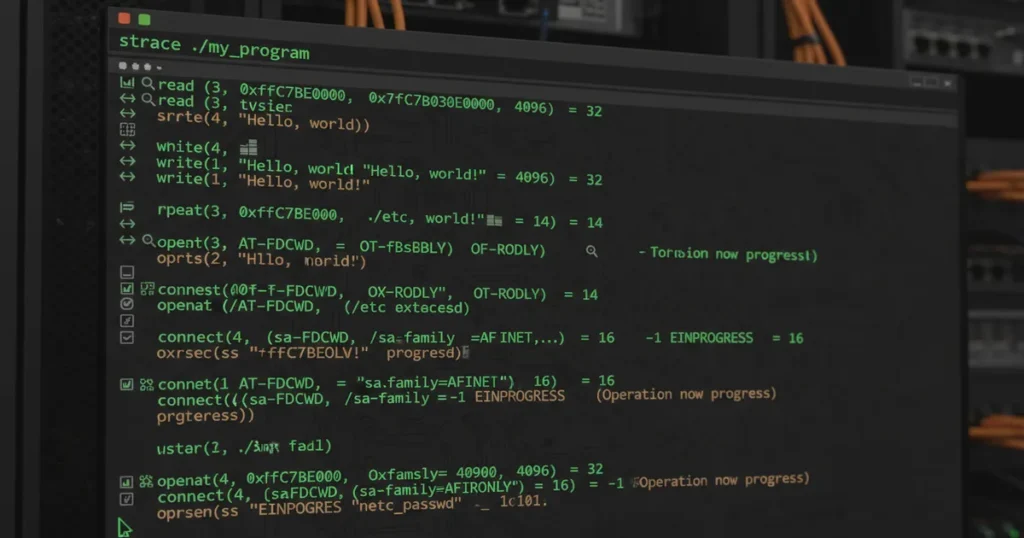
strace lsThis traces every system call that ls makes. You will see output like:
execve("/bin/ls", ["ls"], 0x7ffc...) = 0
brk(NULL)                               = 0x55d...
openat(AT_FDCWD, "/etc/ld.so.cache", O_RDONLY|O_CLOEXEC) = 3
read(3, "ELF..."..., 832)   = 832
close(3)                                = 0
Each line shows: the system call name, its arguments, and the return value after the equals sign.
Attaching strace to a Running Process
Often you need to debug a process that is already running. First, find its PID using the ps command or pidof:
# Find the PID
ps aux | grep nginx
# Or use pidof
pidof nginx
Then attach strace:
sudo strace -p 1234Replace 1234 with the actual PID. You will need root privileges to attach to processes you do not own.
Common strace Options and Flags
Raw strace output can be overwhelming. These flags help you focus on what matters. For complete documentation, refer to the official strace man page.
Output to File (-o)
For long traces, redirect output to a file instead of your terminal:
strace -o trace.log ./my-programThis keeps your terminal clean and gives you a searchable log to analyze later.
Filter by System Call (-e)
This is the flag I use most. Filter to specific system calls:
# Only show file-related calls
strace -e openat,read,write,close ls

# Only network calls
strace -e socket,connect,sendto,recvfrom curl example.com

# Filter by category
strace -e trace=file ls
strace -e trace=network curl example.com
Generate Statistics Report (-c)
Want a high-level view of where time goes? Use the summary flag:
strace -c lsThis produces a table showing percentage of time spent in each system call. Perfect for quick performance overviews.
Show Timestamps (-t, -tt, -ttt)
When timing matters, add timestamps to each line:
- -t – Adds time of day (HH:MM:SS)
- -tt – Adds time with microseconds
- -ttt – Shows seconds since epoch (useful for scripts)
strace -tt ./slow-programFollow Child Processes (-f)
Many programs spawn child processes. Without -f, you only see the parent:
strace -f ./script-that-forks.shThis follows all forked processes and shows which PID made each call.
Real-World strace Examples
Theory is great, but let us solve actual problems. These are scenarios I have encountered in production environments.
Finding Configuration Files
I remember spending an embarrassing amount of time searching for where Nginx was reading its config. The documentation said one thing, but the actual binary was compiled with different paths. strace ended the mystery in seconds:
strace -e openat nginx 2>&1 | grep -E "\.(conf|cfg)" | head -20This filters for file opens and searches for config extensions. Works for any program.
Debugging File Not Found Errors
Your app says file not found but the file clearly exists. What is happening?
strace -e openat ./my-app 2>&1 | grep -i errorLook for ENOENT (No such file or directory) errors. Often the program is looking in a different path than you expect, or there is a symlink issue.
Identifying Network Connection Issues
When a service cannot connect to a database or API, strace reveals the actual connection attempts:
strace -e socket,connect,sendto ./my-serviceYou will see the IP addresses and ports it is trying to reach. I once found a service was hard-coded to connect to 127.0.0.1 when it should have been hitting an external host.
Troubleshooting Slow Programs
A Java application server I inherited was inexplicably slow. The top command showed it was not CPU-bound. Memory looked fine. What gives?
strace -c -p $(pidof java) 2>&1After letting it run for a minute, the statistics showed massive time spent in read() calls. Further tracing revealed the app was reading class files one byte at a time – someone had forgotten to wrap the FileInputStream in a BufferedReader. A one-line fix improved performance by 40x.
Understanding strace Output
Reading strace output feels cryptic at first. Once you understand the pattern, it becomes second nature.
Reading System Call Format
Every line follows the same structure:
syscall_name(arg1, arg2, ...) = return_valueLet us break down a real example:
openat(AT_FDCWD, "/etc/passwd", O_RDONLY) = 3- openat – The system call (opening a file)
- AT_FDCWD – Relative to current directory
- “/etc/passwd” – The file being opened
- O_RDONLY – Read-only mode
- = 3 – Success, returned file descriptor 3
When a call fails, you see the error:
openat(AT_FDCWD, "/etc/shadow", O_RDONLY) = -1 EACCES (Permission denied)Common System Calls Explained
You will see these constantly:
- openat/open – Opening files
- read/write – Reading and writing data
- close – Closing file descriptors
- stat/fstat – Getting file information
- mmap – Memory mapping (loading libraries)
- connect – Network connections
- socket – Creating network sockets
- ioctl – Device control operations
Common error codes to watch for:
- ENOENT – File or directory does not exist
- EACCES – Permission denied
- EAGAIN – Resource temporarily unavailable
- ECONNREFUSED – Connection refused
Performance Considerations and Limitations
Here is where I need to be direct: strace has serious performance implications. Understanding these limitations has saved me from making production mistakes.
strace Overhead in Production
“I would not dare run strace(1) in production without seriously considering the consequences, and first trying the alternates.”
– Brendan Gregg, Systems Performance Engineer
That quote is not hyperbole. The ptrace() interface that strace uses pauses the target process twice for every single system call. In Brendan Gregg benchmarks, strace caused a 62x slowdown compared to normal execution. Even the lightweight perf tool only caused 2.5x slowdown in the same test.
If your production service handles 10,000 requests per second, attaching strace could drop that to under 200. I have seen teams accidentally cause outages by attaching strace to a critical process without understanding this overhead.
Alternatives for Production Use
When you need to trace production systems, reach for modern tools with near-zero overhead:
- eBPF and bpftrace – Kernel-level tracing with minimal performance impact
- perf – Linux profiling with much lower overhead than strace
- SystemTap – Dynamic tracing framework for deeper kernel analysis
For broader system issues, check out our guide on troubleshooting CPU performance using htop and perf. The Linux kernel workload tracing documentation covers these modern approaches in detail.
Keep strace for development, testing, and emergencies where the performance hit is acceptable.
Best Practices for Using strace
After years of using strace, I have developed a workflow that maximizes effectiveness while minimizing headaches:
- Always redirect long traces to files – Terminal scrollback will not save you. Use
-o trace.log. - Filter aggressively with -e – Know what you are looking for? Filter to those syscalls only.
- Start with -c for overview – Get statistics first, then dive into detailed traces.
- Combine with other tools – Use the lsof command to see open files, ps for process info.
- Never use in production without necessity – And if you must, keep it brief.
- Remember Ctrl+C detaches cleanly – Your traced process continues running.
If you are debugging services managed by systemd, you might also find our systemctl command guide helpful for restarting services after changes.
When processes become unresponsive during debugging, you may need to know how to kill processes safely. And if you are dealing with broader system stability issues, our guide on troubleshooting system freezes covers additional diagnostic approaches.
Frequently Asked Questions
Can I use strace without root access?
You can trace processes you own without root. However, attaching to other users processes or system services requires sudo or root privileges.
Does strace modify the traced program?
No, strace only observes. It does not change any behavior of the traced program, though it does significantly slow execution.
How do I trace a program that exits immediately?
Use strace ./program directly rather than trying to attach. strace will catch everything from the first execve() call.
Can strace trace threads?
Yes. Use -f to follow forks and -ff combined with -o to write each thread trace to separate files.
Conclusion
strace is one of those tools that separates intermediate Linux users from advanced troubleshooters. The ability to see exactly what a program is doing at the kernel level opens up debugging possibilities that were previously invisible.
Remember the key points: filter your traces with -e, use -c for quick overviews, always redirect to files for complex traces, and never use strace in production unless you have exhausted alternatives. The performance overhead is real and significant.
Start practicing in a safe environment – your homelab, a VM, or a test server. Trace familiar commands first to get comfortable reading the output. Then work your way up to complex debugging scenarios.
Ready to level up your Linux troubleshooting? Explore our other guides on lsof for open file debugging, ps for process management, and performance troubleshooting with htop and perf. Each tool complements strace and together they form a powerful diagnostic toolkit.