How to Use Netcat (nc) Command in Linux: The Network Swiss Army Knife Every Admin Needs
Master the netcat (nc) command in Linux with real examples. Learn port scanning, file transfers, connection testing, and banner grabbing every sysadmin needs.

In this article
If you’ve ever needed to quickly test whether a port is open, shoot a file across your LAN, or figure out what service is actually running on a mystery port, the netcat command in Linux is the tool you reach for. It’s often called the “network Swiss Army knife,” and honestly, that nickname undersells it.
I remember the first time I truly appreciated netcat. I’d just set up a new service on my homelab Proxmox server, and it wasn’t responding. Ping worked fine. DNS resolved. But the app wouldn’t connect. I spent 20 minutes staring at config files before I ran a quick nc -zv against the port. Connection refused. The firewall was blocking it. Two seconds with netcat told me what 20 minutes of guessing couldn’t. That’s when I realized this tiny utility belongs in every admin’s toolkit.
Netcat ranks #8 on SecTools.org top network security tools, and it’s a core part of how I troubleshoot network issues on any Linux box. Let’s break down exactly how to use it.
What Is Netcat (nc)?
Netcat reads and writes data across TCP and UDP network connections. That’s it. That simplicity is what makes it so powerful.
Originally written by a developer known as “Hobbit” back in 1995, netcat has been a staple of network administration and security testing for nearly three decades. At its core, it’s a raw network I/O tool. You point it at a host and port, and it opens a connection. What you do with that connection is up to you.
Quick Note: GNU Netcat vs OpenBSD nc
There are two major variants you’ll encounter in the wild. GNU netcat (the traditional version) supports the -e flag for executing commands. OpenBSD nc (which most modern distros ship by default) removed -e for security reasons. Then there’s ncat from the nmap project, which adds SSL support.
This matters because tutorials often assume one variant without saying which. If a command doesn’t work, check which version you have first.
Installing Netcat on Linux
Most Linux distributions include some version of netcat, but here’s how to install or verify it on the major distros.
Ubuntu/Debian
sudo apt install netcat-openbsdThe netcat-openbsd package is the preferred version. You can also install netcat-traditional if you specifically need the GNU variant with the -e flag.
RHEL/CentOS/Fedora
sudo dnf install nmap-ncatOn Red Hat-based systems, you get ncat from the nmap project. It’s nc-compatible and comes with bonus SSL support.
Arch Linux
sudo pacman -S openbsd-netcatI use Arch, BTW. And on Arch, the OpenBSD variant is in the official repos. Simple.
After installing, verify your version:
nc -hThis shows you which variant is active and what flags are available.
Basic Netcat Syntax and Key Flags
The general syntax is straightforward:
nc [options] [hostname/IP] [port]Here are the flags you’ll use 90% of the time:
| Flag | What It Does |
|---|---|
-l |
Listen mode (act as a server) |
-p |
Specify local port number |
-u |
Use UDP instead of TCP |
-v |
Verbose output (essential for debugging) |
-z |
Zero-I/O mode (scan only, don’t send data) |
-w [sec] |
Connection timeout in seconds |
-n |
Numeric only, skip DNS resolution |
The -v flag is your best friend. Always use it. Without verbose output, netcat is silent on success, and you’re left guessing.
Testing TCP and UDP Connections
This is where most people start with netcat, and honestly, where I use it most often. The ping command tells you if a host is alive. Netcat tells you if a service is accessible. Big difference.
Test if a Remote Port Is Open
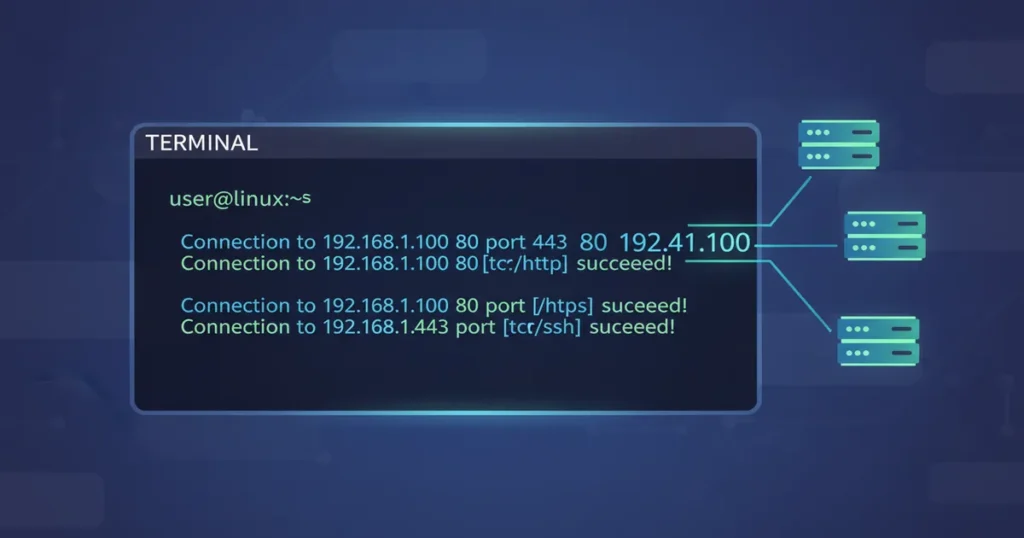
nc -zv 192.168.1.50 80The output tells you everything:
Connection to 192.168.1.50 80 port [tcp/http] succeeded!means the port is open and accepting connections.Connection refusedmeans the port is closed or no service is listening.- Timeout with no message usually means a firewall is silently dropping your packets.
That last distinction is huge. “Connection refused” and “silent timeout” mean completely different things for firewall debugging. A refusal means the host got your packet and rejected it. Silence means something in between swallowed it. You can use tcpdump alongside netcat to trace exactly where packets are dying.
Testing UDP Connections
nc -zvu 192.168.1.1 53UDP testing is trickier because UDP is connectionless. The -u flag switches to UDP mode, and the -z flag sends a zero-byte probe. This is useful for testing DNS (port 53) or other UDP services.
You can also verify what’s listening locally with the ss command or netstat before testing remotely.
Port Scanning with Netcat
Netcat can do quick port scans. It’s not a replacement for nmap command for heavy scanning, but it’s perfect for fast spot checks.
Scan a Single Port
nc -zv 10.0.0.5 22Quick check: is SSH running?
Scan a Port Range
nc -zv -w 1 10.0.0.5 20-100This scans ports 20 through 100 with a 1-second timeout per port. The -w 1 flag keeps things fast instead of waiting forever on filtered ports.
I use this all the time when setting up a new VPS. Spin up the server, run a quick nc scan to see what’s open out of the box, then start hardening. It’s a good habit to check open ports before you start deploying anything.
Transferring Files with Netcat
This is one of netcat’s coolest tricks. No SCP setup, no SSH keys, no config files. Just raw TCP and your data.
Setting Up the Receiver
On the machine that will receive the file, start listening:
nc -l -p 9999 > received_file.tar.gzSending the File
On the sending machine:
nc 192.168.1.50 9999 < file_to_send.tar.gzThe file streams over TCP and lands on the other side. Done.
⚠️ Security Warning
Netcat file transfers are unencrypted. Anyone sniffing the network can see your data. For sensitive files, use the SCP command or rsync instead. Save nc file transfers for trusted LAN environments.
I used this exact technique to move a 4GB disk image between two homelab servers when I couldn’t find a USB drive anywhere. Plugged both into the same switch, fired up nc, and the transfer just worked. No fuss. That’s peak sysadmin energy.
Banner Grabbing and Service Identification
Want to know what software is running on a port without installing nmap? Netcat does it.
nc -v 192.168.1.50 22Connect to port 22 and the SSH server announces itself:
SSH-2.0-OpenSSH_8.9p1 Ubuntu-3You can do the same with SMTP servers, HTTP servers, and more. For HTTP, try:
echo -e "HEAD / HTTP/1.0\r\n\r\n" | nc 192.168.1.50 80This sends a manual HTTP HEAD request and returns the server headers. You’ll see the web server version, content type, and sometimes the OS.
From a security angle, this is exactly what attackers see when they probe your servers. That’s why suppressing server banners is a common hardening step. The dig command handles DNS queries, but nc handles everything else at the raw TCP level.
Creating a Simple Network Chat
This one is more fun than practical, but it’s a great way to understand how netcat works under the hood.
On the server side:
nc -l -p 5000On the client side:
nc server-ip 5000Now type on either side. Messages flow both ways in real time. It’s a bare-bones chat over TCP.
I’ve actually used this in practice. When debugging connectivity between two containers in a Docker network, I fired up nc on both ends just to prove they could talk to each other. No HTTP, no app logic, just raw “can these two things exchange bytes?” That kind of fundamental test cuts through layers of abstraction fast.
Security Considerations: What Not to Do
Netcat is powerful. That power comes with responsibility.
“Netcat is a powerful tool that every security professional should be familiar with. It should be used with caution.” — Tom Armstrong, SANS Institute netcat security whitepaper
Here’s what you need to know:
- Reverse shells: The GNU netcat
-eflag can pipe a shell to a remote connection. This is why OpenBSD nc removed it. Understand this for defensive purposes. - Don’t leave nc listening on production servers. An open nc listener is an invitation. If you need persistent listeners, use proper services with authentication.
- Use ncat for encryption. When you need SSL-protected connections, ncat from the nmap project has you covered.
Protect your services with tools like fail2ban and lock down access with iptables or the UFW firewall. And consider generating SSH keys for any remote access instead of relying on open ports.
Netcat vs ncat vs nmap: When to Use Which
These three tools overlap but serve different purposes. Here’s my rule of thumb:
- nc (netcat): Quick connection tests, file transfers, banner grabbing. One host, one port, right now.
- Ncat (modern netcat from the nmap project): Same as nc but with SSL encryption and better IPv6 support. Use it when security matters.
- nmap command: Full network discovery. OS fingerprinting, service detection, scripting engine. Use it when you need to scan an entire subnet.
Think of it this way: nc is a scalpel. Nmap is a CT scanner. Reach for the right tool for the job.
Common Netcat Errors and Fixes
When netcat doesn’t behave, the error messages (or lack thereof) tell a story. Here’s how to read them:
Connection refused: The target port is closed or the service isn’t running. The host received your packet and said “no.”No route to host: A firewall is actively rejecting your connection at the network level.- Timeout with no message: The most frustrating one. A firewall is silently dropping your packets. You can check listening ports locally to verify the service is actually up.
nc: invalid option -- 'e': You have OpenBSD nc, which removed the-eflag. Use named pipes as a workaround, or install GNU netcat if you specifically need that feature.- Different flag behavior: If
-pisn’t working as expected, you might be mixing up GNU and OpenBSD syntax. Runnc -hto check your variant.
Start Using Netcat Today
Netcat is one of those tools that looks simple on the surface but rewards you the more you use it. From quick port checks to file transfers to diagnosing firewall rules, it’s a foundational piece of the Linux networking toolkit.
If you’re building out your network troubleshooting skills, nc pairs perfectly with tools like tcpdump for packet analysis and nmap for full network scanning. And if you’re still getting comfortable with Linux networking fundamentals, check out our full guide on how to troubleshoot network issues in Linux.
Install it. Open a terminal. Run your first nc -zv. You’ll wonder how you ever debugged networks without it.