How to Use iptables in Linux: The Firewall Tool Every Admin Needs
Master iptables firewall in Linux with practical examples for SSH, HTTP security. Learn chains, tables, rules from a sysadmin who locked herself out twice.

In this article
What is iptables (And Why It Still Matters in 2025)
If you have spent any time managing Linux servers, you have heard of iptables. It is the command-line firewall utility that has been protecting Linux systems since the kernel 2.4 days. Even now in 2025, with nftables officially positioned as its successor, iptables refuses to fade away.
I still remember the first time I stumbled into iptables rules on a production server. I was a junior sysadmin, poking around a legacy CentOS box that had been running for years. The previous admin had left behind a maze of firewall rules with zero documentation. That afternoon taught me that understanding iptables is not optional. It is survival.
Here is why iptables knowledge still matters:
- Legacy systems: Thousands of production servers still run iptables natively
- UFW foundation: The UFW firewall you love? It is just a friendly wrapper around iptables
- Docker networking: Docker on Linux manipulates iptables directly, often bypassing UFW entirely
- Documentation everywhere: Most security tutorials still reference iptables syntax
At its core, iptables interfaces with the Netfilter project. That is the packet filtering framework built into the Linux kernel. When you write an iptables rule, you are telling Netfilter what to do with network packets.
Understanding iptables Basics: Tables, Chains, and Rules
Before you start writing rules, you need to understand how iptables organizes its work. Think of it like a filing system with three levels: tables, chains, and rules.
The Three Main Tables (filter, nat, mangle)
Tables are categories of rules based on what they do:
- filter: The default table. This is where packet filtering happens. It decides what gets through and what gets dropped
- nat: Network Address Translation. Used for port forwarding and masquerading (think: WireGuard VPN setup scenarios)
- mangle: Specialized packet alteration. Most admins rarely touch this one
For 90% of your firewall work, you will use the filter table.
The Three Default Chains (INPUT, OUTPUT, FORWARD)
Within each table, chains act as checkpoints where packets get evaluated:
- INPUT: Packets coming INTO your server
- OUTPUT: Packets going OUT from your server
- FORWARD: Packets being routed THROUGH your server to another destination
How iptables Processes Packets
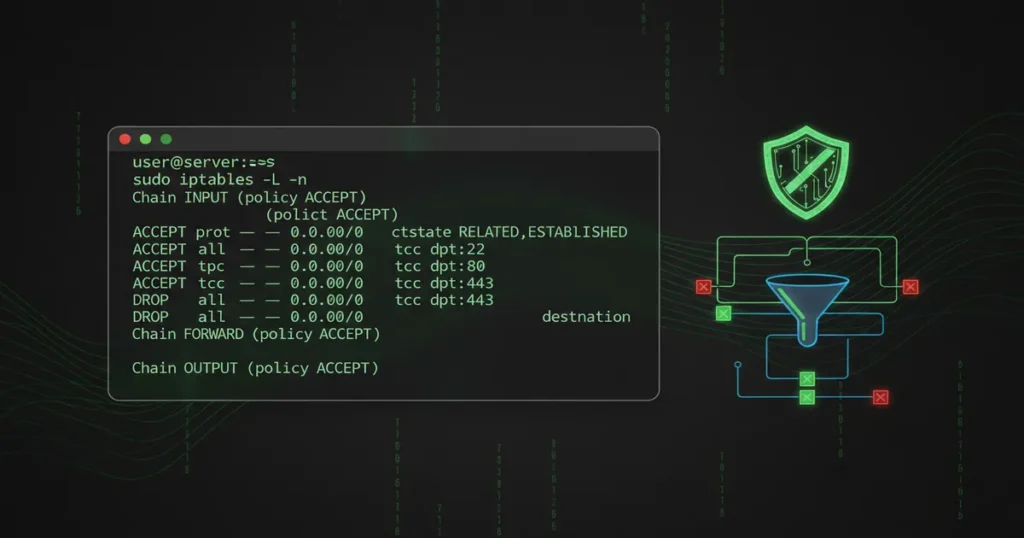
Rules within a chain are evaluated top to bottom. The moment a packet matches a rule, that rule action (ACCEPT, DROP, REJECT) is applied. If no rule matches, the chain default policy kicks in.
This sequential processing means rule order matters enormously. A rule at position 1 that drops all traffic will block everything, regardless of what comes after it.
Installing and Checking iptables
Good news: iptables is pre-installed on most Linux distributions. Let us verify it is there and working.
Check if iptables is installed:
which iptables
# Output: /usr/sbin/iptables
View current rules:
sudo iptables -L -v -nIf you see chains listed (even if they are empty), iptables is ready. The -v flag shows verbose output with packet counters, and -n prevents DNS lookups for faster display.
Basic iptables Commands You Will Actually Use
Let us cover the commands you will use daily. I am pulling these directly from the iptables man page, but with practical context.
Viewing Current Rules
# List all rules with details
sudo iptables -L -v -n

# List rules with line numbers (useful for deletion)
sudo iptables -L --line-numbers

# List rules for a specific chain
sudo iptables -L INPUT -v -n
Adding Rules (Append vs Insert)
# Append rule to end of chain
sudo iptables -A INPUT -p tcp --dport 22 -j ACCEPT

# Insert rule at specific position (position 1 = top)
sudo iptables -I INPUT 1 -p tcp --dport 22 -j ACCEPT
Use -A (append) when order does not matter. Use -I (insert) when you need a rule to be evaluated before others.
Deleting Rules
# Delete by rule specification
sudo iptables -D INPUT -p tcp --dport 22 -j ACCEPT

# Delete by line number (check with --line-numbers first)
sudo iptables -D INPUT 3
Flushing Rules (Careful!)
# Flush all rules in a chain
sudo iptables -F INPUT

# Flush ALL chains (dangerous on remote servers!)
sudo iptables -Fiptables -F on a remote server with a default DROP policy will lock you out instantly. I learned this the hard way on a DigitalOcean droplet in 2015. Had to use the web console to recover. Always allow SSH before setting restrictive policies.
Essential iptables Rules for Real-World Scenarios
Let us build a practical firewall configuration from scratch. These are the rules I set up on every new server.
Allow SSH Connections (Do Not Lock Yourself Out)
This should be your FIRST rule when hardening a server:
sudo iptables -A INPUT -p tcp --dport 22 -m conntrack --ctstate NEW,ESTABLISHED -j ACCEPT
sudo iptables -A OUTPUT -p tcp --sport 22 -m conntrack --ctstate ESTABLISHED -j ACCEPT
The conntrack module tracks connection states. This ensures only legitimate SSH traffic passes through. Once you have SSH secured here, consider using fail2ban to protect against brute force attacks.
Allow HTTP and HTTPS Traffic
# Allow incoming web traffic
sudo iptables -A INPUT -p tcp --dport 80 -j ACCEPT
sudo iptables -A INPUT -p tcp --dport 443 -j ACCEPT
Allow Loopback Traffic
Your server talks to itself through the loopback interface. Block this, and things break badly:
sudo iptables -A INPUT -i lo -j ACCEPT
sudo iptables -A OUTPUT -o lo -j ACCEPT
Block Specific IP Addresses
# Block a single IP
sudo iptables -A INPUT -s 192.168.1.100 -j DROP

# Block a subnet
sudo iptables -A INPUT -s 10.0.0.0/24 -j DROP
Allow Established and Related Connections
This is the rule that prevents you from breaking existing connections:
sudo iptables -A INPUT -m conntrack --ctstate ESTABLISHED,RELATED -j ACCEPTPlace this near the top of your ruleset. It allows responses to connections your server initiated and related traffic like ICMP errors.
Setting Default Policies (The Security Foundation)
Default policies determine what happens when no rule matches. You have two philosophies:
- Default ACCEPT: Allow everything, block specific things (blacklist approach)
- Default DROP: Block everything, allow specific things (whitelist approach)
“Default DROP forces administrators to explicitly define which traffic is allowed, leading to more deliberate and secure configurations.”
Here is how to safely set a default DROP policy:
# IMPORTANT: Set up allow rules FIRST
sudo iptables -A INPUT -i lo -j ACCEPT
sudo iptables -A INPUT -m conntrack --ctstate ESTABLISHED,RELATED -j ACCEPT
sudo iptables -A INPUT -p tcp --dport 22 -j ACCEPT

# NOW set default DROP
sudo iptables -P INPUT DROP
sudo iptables -P FORWARD DROP
sudo iptables -P OUTPUT ACCEPT
Notice OUTPUT remains ACCEPT. Most servers need unrestricted outbound access for updates, DNS queries, and general functionality.
Saving and Restoring iptables Rules
Here is something that catches beginners: iptables rules are lost on reboot. They exist only in memory until you save them.
Temporary vs Persistent Rules
Every rule you have added so far? Gone after a reboot. That is actually useful for testing. If you mess up, a reboot fixes everything. But for production, you need persistence.
Using iptables-save and iptables-restore
# Save current rules to file
sudo iptables-save > /etc/iptables/rules.v4

# Restore rules from file
sudo iptables-restore < /etc/iptables/rules.v4
Making Rules Persistent with iptables-persistent
On Debian/Ubuntu systems:
sudo apt install iptables-persistentDuring installation, it asks if you want to save current rules. Say yes. After that, rules are automatically restored on boot.
To save new rules:
sudo netfilter-persistent saveIntegrating with systemd
You can also create a systemctl service that loads rules at boot. The iptables-persistent package does this automatically, but knowing it is systemd-based helps with troubleshooting.
Common iptables Mistakes (And How to Avoid Them)
I have made every mistake on this list. Learn from my pain.
- Locking yourself out via SSH: Always allow SSH before setting default DROP. Test from a second terminal before closing your current session
- Wrong rule order: A DROP rule at position 1 blocks everything. Use
--line-numbersand-Ito insert rules correctly - Forgetting to save: Made beautiful rules? They are gone on reboot unless you save them
- Not allowing ESTABLISHED connections: Without this rule, even allowed services break randomly
- Blocking loopback: Many services communicate via localhost. Block it and watch things fail mysteriously
- Flushing without backup:
iptables -Fplus default DROP equals instant lockout
sudo iptables-save > /tmp/iptables-backup. If things break, restore with sudo iptables-restore < /tmp/iptables-backup.
iptables vs UFW vs nftables: Which Should You Use?
This question comes up constantly. Here is my honest take after years of using all three:
- UFW: User-friendly wrapper around iptables. Perfect for simple server setups. If you are running a basic web server, UFW is probably enough
- iptables: Direct control, essential knowledge for understanding what UFW actually does. Required for complex scenarios and legacy systems
- nftables: The modern replacement. Better performance, cleaner syntax, unified IPv4/IPv6 handling. Default in Debian 10+, Fedora, and Arch
My recommendation? Learn iptables first. Once you understand tables, chains, and rules, UFW makes perfect sense, and nftables becomes an easy transition. The main differences between iptables and nftables are mostly syntactic. The concepts transfer directly.
Testing Your iptables Configuration
Never assume your rules work. Test them.
From another machine, check open ports with nmap:
nmap -p 22,80,443 your-server-ipTest specific ports with netcat:
# From external machine
nc -zv your-server-ip 22
nc -zv your-server-ip 80
Check packet counters to verify rules are matching:
sudo iptables -L -v -n | grep -E "pkts|22"Non-zero packet counts mean traffic is hitting that rule.
Troubleshooting iptables Issues
When connections fail, here is my debugging process:
Check if iptables is the problem
Temporarily flush rules and test:
sudo iptables-save > /tmp/backup
sudo iptables -F
# Test your connection
sudo iptables-restore < /tmp/backup
Use LOG target for debugging
sudo iptables -I INPUT 1 -p tcp --dport 22 -j LOG --log-prefix "SSH_DEBUG: "View logs with journalctl:
sudo journalctl -k | grep SSH_DEBUGIf you are locked out
Your options depend on access:
- Cloud providers: Use web console or recovery mode
- Physical access: Boot into single-user mode
- Out of band management: IPMI/iDRAC/iLO console access
Once in, flush rules: sudo iptables -F && sudo iptables -P INPUT ACCEPT
Frequently Asked Questions
Are iptables rules persistent across reboots?
No. Rules exist only in memory by default. You must use iptables-save or the iptables-persistent package to make them survive reboots.
Should I use iptables or UFW?
For simple setups, UFW is easier. But understanding iptables helps you troubleshoot UFW issues and handle complex scenarios that UFW can not express.
Does Docker bypass iptables?
Docker manipulates iptables directly by inserting its own chains. This can bypass UFW rules. If you are using Docker, you need to understand how it modifies your firewall.
How do I migrate from iptables to nftables?
Use the iptables-translate command to convert rules one by one. Most distributions also provide compatibility layers that let iptables syntax work with an nftables backend.
Wrapping Up
iptables might feel old-school, but it is far from obsolete. Whether you are managing legacy systems, debugging Docker networking issues, or just trying to understand what UFW is doing under the hood, iptables knowledge pays dividends.
Start simple. Allow SSH, set up basic rules, and gradually build your firewall configuration. Make mistakes in a test environment. Lock yourself out of a VM. Trust me, it is a rite of passage.
If you are new to Linux security, I recommend pairing iptables with fail2ban for automated protection against brute force attacks. And if you find iptables syntax tedious for daily use, UFW firewall gives you the same protection with friendlier commands.
You have also got the option to generate SSH keys for passwordless authentication. That is another layer of security that works beautifully alongside firewall rules.
Got questions about your specific iptables setup? The concepts we covered today will help you debug almost any firewall configuration you encounter.