How to Use dig Command in Linux: The DNS Tool Every Admin Needs

In this article
What is the dig Command (And Why DNS Matters More Than You Think)
Learning how to use dig command in Linux transformed the way I troubleshoot network issues. The dig command (Domain Information Groper) is a DNS lookup utility that comes from the BIND project, and it’s hands-down the most powerful Domain Name System (DNS) diagnostic tool available on Linux systems.
I still remember my first real DNS disaster. It was 2 AM on a Saturday, and a client’s production website had vanished from the internet. I sat there running ping over and over, watching it time out, absolutely convinced the server had crashed. Spent three hours checking Apache configs, restarting services, even rebooting the box. Turns out? The DNS records had expired and propagation was in limbo. A single dig query would have shown me the truth in five seconds.
That experience taught me something critical: DNS failures don’t announce themselves politely. They masquerade as server crashes, network outages, and mysterious “it was working yesterday” situations.
The dig command gives you visibility into what’s actually happening with DNS resolution. Unlike ping (which tests connectivity) or basic lookups, dig shows you the complete picture: nameservers, TTL values, response times, and the entire resolution chain. When DNS breaks, dig tells you exactly where and why.
Installing dig on Linux
Most Linux distributions include dig by default, but if yours doesn’t, installation takes about ten seconds. The dig command lives in the dnsutils package (Debian/Ubuntu) or bind-utils package (RHEL/CentOS/Fedora).
Checking if dig is Already Installed
Open your terminal and run:
dig -vIf dig is installed, you’ll see version information. If not, you’ll get a “command not found” error.
Installing on Debian/Ubuntu
sudo apt-get update
sudo apt-get install dnsutils
Installing on RHEL/CentOS/Fedora
sudo dnf install bind-utilsOn older systems using yum:
sudo yum install bind-utilsInstalling on Arch Linux
sudo pacman -S bindAfter installation, verify everything works with a quick test:
dig google.com +shortYou should see one or more IP addresses. If you do, dig is ready to use.
Understanding dig Output (The Answer Section You Actually Need)
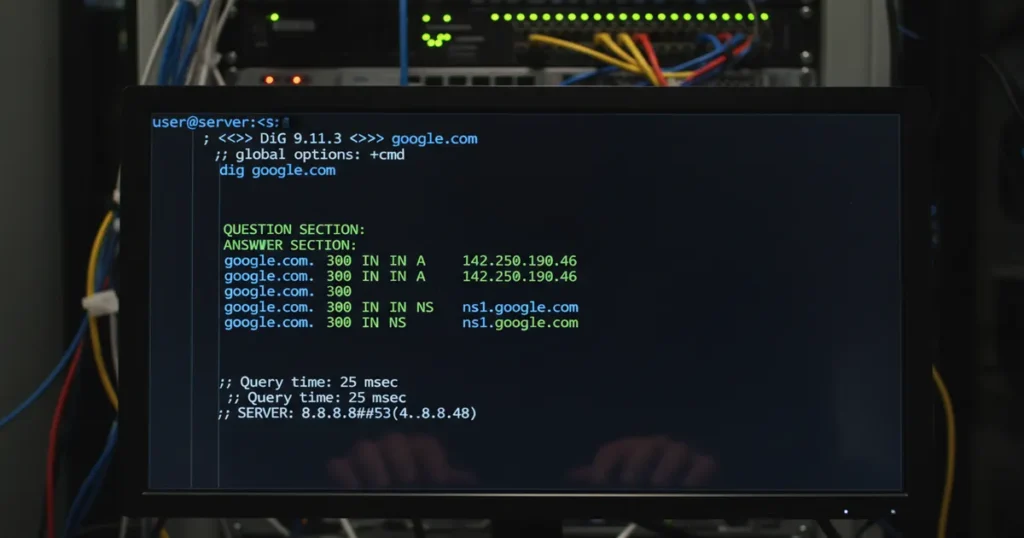
When you first run dig, the output can look overwhelming. Here’s what a typical query looks like:
dig cavecreekcoffee.com

; <> DiG 9.18.18 <> cavecreekcoffee.com
;; global options: +cmd
;; Got answer:
;; ->>HEADER<<- opcode: QUERY, status: NOERROR, id: 12345
;; flags: qr rd ra; QUERY: 1, ANSWER: 1, AUTHORITY: 0, ADDITIONAL: 1

;; QUESTION SECTION:
;cavecreekcoffee.com.           IN      A

;; ANSWER SECTION:
cavecreekcoffee.com.    300     IN      A       104.21.45.123

;; Query time: 23 msec
;; SERVER: 192.168.1.1#53(192.168.1.1)
;; WHEN: Tue Sep 02 10:30:15 UTC 2025
;; MSG SIZE  rcvd: 65
Let me break this down into the sections that actually matter:
- HEADER: Shows the query status (NOERROR means success) and flags
- QUESTION SECTION: What you asked for (the domain and record type)
- ANSWER SECTION: The actual DNS records you need (this is the gold)
- Query time: How long the lookup took (useful for diagnosing slow DNS)
- SERVER: Which DNS server answered your query
The ANSWER SECTION is where 90% of your troubleshooting happens. In this example, it shows that cavecreekcoffee.com resolves to IP 104.21.45.123 with a TTL (Time To Live) of 300 seconds.
TTL matters more than most admins realize. That 300 means DNS resolvers will cache this record for 5 minutes. If you’re planning a server migration, you want to lower TTL to 300 at least 24 hours before the change. Otherwise, some visitors might hit your old server for hours after the switch.
Essential dig Commands for Daily Use
These are the dig command examples I use constantly in my daily sysadmin work. Master these, and you’ll handle 95% of DNS troubleshooting scenarios. If you’re already familiar with tools like the ss command for socket statistics, adding dig to your toolkit rounds out your network diagnostic capabilities.
Basic DNS Lookup (A Records)
The simplest dig query returns the A record (IPv4 address) for a domain:
dig example.comThis queries your system’s default DNS resolver and returns the full output with all sections.
Query Specific DNS Servers (Bypassing Local Cache)
This is crucial for testing DNS propagation. Use the @ symbol to query a specific DNS server:
dig @8.8.8.8 example.com
dig @1.1.1.1 example.com
dig @9.9.9.9 example.com
Google (8.8.8.8), Cloudflare (1.1.1.1), and Quad9 (9.9.9.9) are popular public DNS servers. If one shows your new IP but another shows the old one, propagation is still in progress.
Using +short for Clean Output
When you just want the answer without all the extra information:
dig example.com +shortThis returns only the IP address(es), making it perfect for scripts and quick checks.
Checking MX Records (Mail Servers)
Email delivery issues? Check the MX records:
dig example.com MXThe output shows mail server priorities (lower numbers = higher priority) and hostnames. If these are wrong or missing, emails won’t reach their destination.
Querying NS Records (Name Servers)
Find out which nameservers are authoritative for a domain:
dig example.com NSThis tells you where the domain’s DNS records actually live. Useful when you need to contact the right DNS provider about issues.
Looking Up CNAME Records (Aliases)
CNAME records point one domain to another. They’re common for subdomains:
dig www.example.com CNAMEIf www.example.com is a CNAME pointing to example.com, you’ll see that relationship here.
Checking TXT Records (SPF, DKIM, etc.)
TXT records store text data, including email authentication settings. See the official DNS record types for a complete list of what you can query:
dig example.com TXTYou’ll often see SPF records (for email sender verification) and domain verification strings here.
Advanced dig Techniques for Troubleshooting
Once you’ve mastered the basics, these advanced options become invaluable for serious DNS troubleshooting. For more comprehensive DNS troubleshooting best practices, these techniques form the foundation.
Using +trace to Follow the Full DNS Resolution Path
The +trace option shows the complete DNS resolution chain from root servers down to authoritative nameservers:
dig example.com +traceAccording to IBM’s guide to dig +trace, this option performs iterative queries starting from root DNS servers. It’s incredibly useful for finding exactly where DNS resolution breaks down.
I use +trace whenever someone tells me “DNS isn’t working.” It shows me whether the problem is at the root level, the TLD (.com, .net), or the domain’s authoritative nameservers.
Checking Reverse DNS Lookups
Reverse DNS maps an IP address back to a hostname:
dig -x 8.8.8.8This returns the PTR record for that IP. Reverse DNS is important for email servers (many spam filters check it) and for identifying servers during network troubleshooting.
Testing DNS Propagation After Domain Changes
After updating DNS records, test propagation by querying multiple public DNS servers:
dig @8.8.8.8 example.com +short
dig @1.1.1.1 example.com +short
dig @208.67.222.222 example.com +short
If all three return the same IP, propagation is likely complete for most users.
Running Batch Queries from a File
Need to check multiple domains at once? Create a text file with one domain per line, then:
dig -f domains.txt +shortThis runs through all domains in the file. Great for auditing DNS records across multiple sites.
For filtering output to show only what you need:
dig example.com +noall +answerThis suppresses all sections except the answer, giving you cleaner output for parsing.
Real-World DNS Troubleshooting Scenarios
Theory is great, but let me walk you through actual scenarios I’ve encountered. When combined with tools like tcpdump for packet analysis, dig becomes even more powerful for network diagnostics.
Scenario 1: Website Not Resolving
User reports: “The website is down!”
First check: Does DNS resolve at all?
dig problematic-site.com +shortIf nothing returns, the A record is missing or DNS is broken. Query the authoritative nameserver directly:
dig problematic-site.com NS +short
dig @ns1.example.com problematic-site.com
Scenario 2: Email Delivery Failures
Emails bouncing or not arriving? Check MX records:
dig domain.com MXVerify the mail servers exist and resolve:
dig mail.domain.com +shortMissing or misconfigured MX records are a common cause of email issues.
Scenario 3: Subdomain Issues
Subdomain not working? Check if it’s a CNAME or A record:
dig app.domain.com CNAME
dig app.domain.com A
A common mistake is pointing a CNAME to an IP address (it should point to a hostname) or having conflicting records.
Scenario 4: Slow DNS Responses
Website loading slowly? Check query times across different resolvers:
dig domain.com | grep "Query time"Compare times between your ISP’s DNS and public resolvers. If Google’s DNS (8.8.8.8) responds in 20ms but your local resolver takes 500ms, consider switching DNS servers.
Scenario 5: Post-Migration Verification
After migrating to a new server, verify DNS changes propagated. If you need to also check open ports on the new server (like port 53 for DNS), that’s another layer of verification.
dig @8.8.8.8 domain.com +short
dig @1.1.1.1 domain.com +short
Both should show the new IP. If they differ, wait for propagation or check your TTL settings.
dig vs nslookup vs host: Which Tool When?
Linux offers multiple DNS lookup tools. Here’s when I use each one, along with network tools like traceroute for the complete diagnostic picture:
- dig: My go-to for serious troubleshooting. Most detailed output, full control over query options, shows the complete DNS response. If I need to diagnose a DNS problem, I reach for dig first.
- nslookup: Legacy tool that’s still widely available. Has an interactive mode for multiple queries. Good for quick checks, but less detail than dig.
- host: Simplest output of the three. Great for scripting when you just need an IP address with minimal parsing.
For anything beyond a quick “what IP is this domain?” query, dig wins. It was developed as part of BIND specifically for DNS troubleshooting, and that focus shows in its flexibility and output detail.
Common dig Mistakes (And How to Avoid Them)
After years of helping admins debug DNS issues, these mistakes come up constantly. You might also want to check your network interface configuration to rule out local network issues before blaming DNS.
Mistake 1: Using ping Instead of dig for DNS Testing
The ping command tests network connectivity, not DNS specifically. Ping can fail due to routing issues, firewalls blocking ICMP, or server configuration, even when DNS is working perfectly. Always use dig to test DNS resolution separately.
Mistake 2: Not Specifying DNS Server When Testing Propagation
Running plain dig domain.com queries your local resolver, which may have cached old records. Always query public DNS servers directly when checking propagation:
dig @8.8.8.8 domain.comMistake 3: Ignoring TTL Values
DNS changes aren’t instant. If your TTL was 86400 (24 hours) before the change, some resolvers will serve old records for up to a full day. Check TTL before making changes and lower it in advance if needed.
Mistake 4: Misreading Cached Results as DNS Failures
If dig @1.1.1.1 shows the new IP but your local dig shows the old one, it’s not a DNS failure. It’s your local cache. Either wait for TTL to expire or flush your local DNS cache.
Mistake 5: Not Checking the Authoritative Nameserver Directly
When troubleshooting, go to the source:
dig domain.com NS +short
dig @ns1.domain-registrar.com domain.com
If the authoritative nameserver has correct records but public resolvers don’t, it’s a propagation issue. If the authoritative server is wrong, that’s where you need to fix it.
Conclusion: Master DNS, Master Your Infrastructure
The dig command is one of those tools that separates admins who troubleshoot efficiently from those who spend hours guessing. With DNS-related outages costing an average of $8,600 per minute, the ability to quickly diagnose DNS issues directly impacts business continuity.
I use dig daily. Whether I’m verifying a client’s DNS configuration, debugging email delivery problems, or checking propagation after a migration, it’s always my first stop. The commands in this guide will handle virtually any DNS troubleshooting scenario you encounter.
dig domain.com– Basic lookupdig @8.8.8.8 domain.com– Query specific DNS serverdig domain.com +short– Clean outputdig domain.com MX– Mail server recordsdig domain.com +trace– Full resolution path
Practice these commands on non-production domains first. Once you’re comfortable with dig, you’ll wonder how you ever troubleshot DNS without it.
Want to expand your Linux networking toolkit? Check out our guides on using traceroute for path analysis and tcpdump for packet-level debugging. Together with dig, these tools give you complete visibility into network issues.