How to Use nmap Command in Linux: The Network Scanner Every Admin Needs
Learn how to use nmap in Linux for network scanning, security audits, and port discovery. Complete guide with examples, best practices, and legal considerations.

In this article
If you manage Linux systems, learning how to use nmap command in Linux is not optional. It is essential. nmap is the tool that shows you what your network actually looks like, not what you think it looks like. Whether you are checking open ports on Linux or running a full security audit, nmap belongs in your toolkit.
I still remember running my first nmap scan on my homelab a few years back. I expected a clean result. Instead, I found port 27017 wide open on a MongoDB instance I had forgotten about. No authentication. Exposed to my entire local network. That scan probably saved me from a very bad day. It also made me a lifelong nmap advocate.
This guide walks you through everything you need to get started with nmap: installation, scan types, output options, real-world use cases, and the legal stuff you absolutely cannot ignore.
What Is nmap?
nmap (Network Mapper) is a free, open-source network scanner created by Gordon Lyon (also known as Fyodor) back in 1997. Nearly three decades later, it remains the industry standard for network discovery and security auditing. You can learn more about its history on Wikipedia’s Nmap article.
At its core, nmap sends packets to target hosts and analyzes the responses. It can discover live hosts, identify open ports, detect running services, and even fingerprint operating systems. Security professionals, penetration testers, and sysadmins all rely on it daily.
Why Every Linux Admin Needs nmap
Here is the thing about networks: they drift. Services get spun up and never documented. Firewall rules get modified at 2 AM during an incident and never reverted. Containers expose ports nobody asked for. nmap cuts through all of that and gives you a clear picture of what is actually running.
“Nmap really made it a lot easier to scan in a fast consistent way and really understand your network better. Nmap was there at the early stage and everyone started using it in their toolbox… we want to trust our tools.” — Gordon Lyon, Nmap Creator
Some enterprise security teams scan over 50,000 hosts daily using nmap. But you do not need to operate at that scale to benefit. Even scanning your home network once a month can reveal surprises.
Installing nmap on Linux
nmap is available in the default repositories of every major distribution. If you are new to installing software on Linux, the process is straightforward.
Ubuntu/Debian Installation
sudo apt update && sudo apt install nmap -yRHEL/CentOS/Fedora Installation
sudo dnf install nmap -yArch Linux Installation
sudo pacman -S nmapI use Arch, by the way. So yes, pacman -S nmap is the one I type most often.
Verifying Installation
nmap --versionYou should see output showing the nmap version number and the compiled libraries. If that works, you are ready to scan.
Basic nmap Syntax and Concepts
Before you start scanning, it helps to understand what your own network looks like. Familiarize yourself with checking network interfaces and the ip command first. Once you know your subnet, nmap takes it from there.
Understanding Target Specification
The basic syntax is simple:
nmap [scan type] [options] {target}Your target can be a single IP (192.168.1.1), a hostname (server.local), a CIDR range (192.168.1.0/24), or an IP range (192.168.1.1-50).
Scan Types Overview
nmap offers dozens of scan types. Each one sends different packets and interprets responses differently. The scan type you choose depends on what information you need and how stealthy you want to be. We will cover the essential ones next.
Essential nmap Scan Types
These four scan types handle about 90% of what you will ever need. Master these first before exploring the more advanced options in the official Nmap reference documentation.
TCP SYN Scan (-sS): The Stealth Scanner
sudo nmap -sS 192.168.1.0/24This is the default and most popular scan type. It sends a SYN packet, waits for a SYN/ACK response, then immediately sends RST instead of completing the handshake. Because the connection never fully opens, it is harder to detect in logs. Requires root or sudo privileges.
TCP Connect Scan (-sT): The Full Connection
nmap -sT 192.168.1.10This scan completes the full TCP three-way handshake. It is slower and more visible in logs, but it does not require elevated privileges. nmap falls back to this automatically if you run it without sudo.
UDP Scan (-sU): Don’t Forget UDP
sudo nmap -sU 192.168.1.10UDP scans are slower because UDP is connectionless. There is no handshake to analyze, so nmap relies on ICMP responses to determine port states. Many admins skip UDP scans entirely, which leaves blind spots. DNS (port 53), SNMP (port 161), and DHCP (port 67/68) all run over UDP.
Ping Scan (-sn): Host Discovery
nmap -sn 192.168.1.0/24Need a quick headcount of live hosts without port scanning? The ping scan is your answer. It is much faster than the ping command for discovering multiple hosts, because nmap sends ARP requests, ICMP echo, TCP SYN, and TCP ACK probes in parallel.
Port Specification and Service Detection
Finding open ports is just the first step. Knowing what is running on those ports is where the real value lies.
Scanning Specific Ports (-p)
Quick Reference: Port Scanning Examples
- Single port:
nmap -p 22 192.168.1.10 - Port range:
nmap -p 1-1000 192.168.1.10 - Multiple ports:
nmap -p 22,80,443,3306 192.168.1.10 - All 65535 ports:
nmap -p- 192.168.1.10
Service Version Detection (-sV)
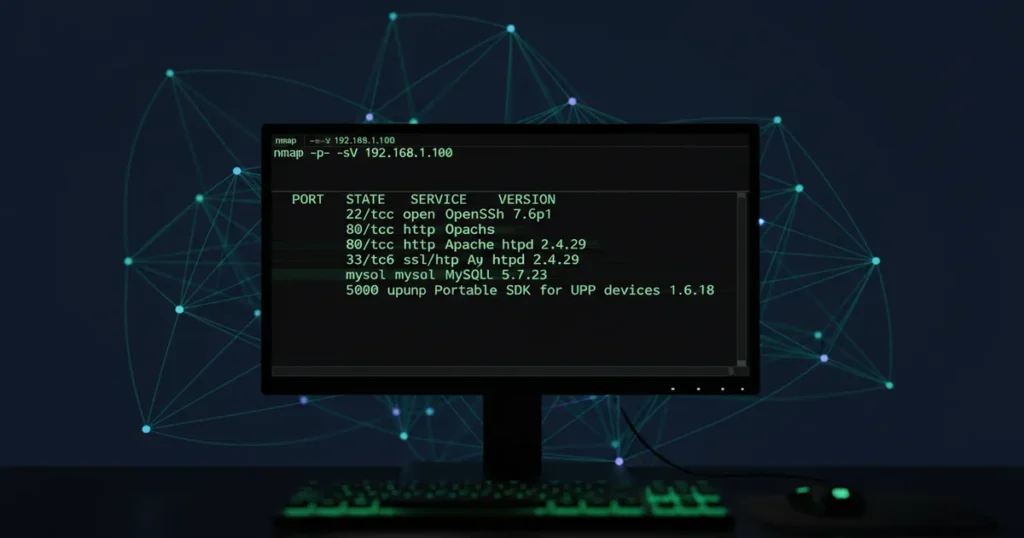
nmap -sV 192.168.1.10This flag probes open ports to determine the service name and version number. Instead of just knowing port 22 is open, you will learn it is running OpenSSH 9.2. That level of detail matters for vulnerability assessments.
OS Detection (-O)
sudo nmap -O 192.168.1.10OS detection uses TCP/IP fingerprinting to identify the target operating system. It requires root privileges and works best when at least one open and one closed port are found on the target.
Aggressive Scan (-A)
sudo nmap -A 192.168.1.10The -A flag combines OS detection, version detection, script scanning, and traceroute in one pass. It is incredibly useful in lab environments. However, it generates a lot of network noise. Do not use this on production systems without a good reason and explicit authorization.
Timing and Performance Options
How fast nmap scans matters more than you might think. Too fast and you crash fragile services or trigger intrusion detection systems. Too slow and your scan takes hours.
Timing Templates (-T0 through -T5)
- T0 (Paranoid): Extremely slow. Used for IDS evasion.
- T1 (Sneaky): Slow but less detectable.
- T2 (Polite): Uses less bandwidth to avoid disruption.
- T3 (Normal): Default setting. Balanced speed and accuracy.
- T4 (Aggressive): Faster scans. Great for labs and CTFs.
- T5 (Insane): Maximum speed. Can crash unstable systems.
When to Use Each Timing Setting
Timing Best Practices
For labs, CTFs, and your homelab: Use -T4 for faster results without much risk.
For production penetration tests: Stick with -T3 or lower. Stability matters more than speed.
Avoid T5 unless you fully understand the consequences. I have seen T5 scans cause poorly written IoT devices to reboot mid-scan.
Output Options and Saving Results
Always save your scan results. Trust me on this. I once ran a 45-minute scan of my entire homelab subnet, closed the terminal by habit, and lost everything. Now I never run nmap without an output flag.
Normal Output (-oN)
nmap -sV -oN scan_results.txt 192.168.1.0/24Saves human-readable output to a text file. Easy to review later.
XML Output (-oX)
nmap -sV -oX scan_results.xml 192.168.1.0/24XML format that other tools can parse. Useful for feeding results into vulnerability scanners or custom scripts.
All Formats (-oA)
nmap -sV -oA full_scan 192.168.1.0/24This is the one I recommend. It saves results in normal, XML, and grepable formats simultaneously. One flag, three files, zero regrets. You can always use tcpdump for packet analysis alongside your scan if you need even deeper visibility into what is happening on the wire.
Real-World nmap Use Cases
Theory is great, but let me show you how nmap actually fits into daily Linux administration and troubleshooting network issues.
Auditing Your Own Network Security
Run a monthly scan of your network to catch exposed services before attackers do. A simple nmap -sV -oA monthly_audit 192.168.1.0/24 can reveal open ports you forgot about, services running on non-standard ports, and systems that should not be on the network at all.
Discovering Unauthorized Services
Shadow IT is real. Developers spin up test databases. Someone plugs in a personal NAS. A forgotten Raspberry Pi runs an outdated web server. nmap finds all of it. In enterprise environments, regular scanning is the only reliable way to maintain an accurate inventory.
Checking Firewall Rules
You just configured your firewall. But did it actually work? Scan from outside the firewall to verify. If you are working with configuring UFW firewall or writing iptables firewall rules, nmap is how you test them. The rules only matter if they hold up against an actual scan.
Network Inventory and Asset Management
At scale, nmap can map thousands of hosts and track what changes over time. Combined with the ss command and netstat command for local socket inspection, you have a complete view of your network from both sides.
Legal and Ethical Considerations
This section is not filler. It might be the most important part of this article. Scanning the wrong network can end your career or land you in court.
When It’s Legal to Scan
You can scan networks you own or networks where you have explicit, written authorization. Your homelab? Fair game. Your employer’s network with a signed scope document? Absolutely. Practice environments like HackTheBox or TryHackMe? Built for this purpose.
When It’s Illegal (and Dangerous)
Scanning third-party networks without permission violates the Computer Fraud and Abuse Act (CFAA) in the United States and similar laws globally. Even scanning your employer’s network without authorization could result in termination or criminal charges. Review Nmap’s legal guidelines before scanning anything you do not own.
“Fixing a hole is far more effective than trying to hide it. That approach is also less stressful than constantly worrying that attackers may find the vulnerabilities.” — Gordon Lyon
Getting Proper Authorization
Before any scan, document the scope, get written permission from the system owner, and keep records of everything. This protects you legally and professionally. Consider securing SSH and setting up fail2ban on your own systems so you are ready if someone scans you without permission.
Common nmap Mistakes to Avoid
- Scanning without authorization: Legal consequences are real. Always get written permission.
- Using aggressive scans on production: A
-T5 -Ascan against production servers can crash unstable services. - Forgetting UDP ports: If your audit skips UDP, you are missing DNS, SNMP, and DHCP exposure entirely.
- Not saving scan output: Use
-oAevery time. Future you will be grateful. - Learning on production systems: Set up a homelab or use a VM. Break things safely.
- Using T5 timing carelessly: Maximum speed causes network noise, inaccurate results, and can overwhelm routers and switches.
Conclusion
Learning how to use nmap command in Linux gives you visibility into your network that no other single tool can match. Start with basic SYN scans in a safe lab environment. Get comfortable with the output. Then gradually explore service detection, OS fingerprinting, and timing options as your confidence grows.
Always get authorization before scanning any network. Always save your results. And always remember that nmap shows you reality, not assumptions.
If you are building out your Linux networking skills, check out our guides on checking open ports on Linux, the ss command, and troubleshooting network issues. Together with nmap, these tools give you a complete picture of what is happening on your network.
Fire up a terminal, scan your own subnet, and see what you find. You might be surprised.