How to Use the date Command in Linux: Format, Timestamps, and Scripts
Master the Linux date command: formatting output, date arithmetic, Unix timestamps, timezones, and real bash scripting examples for sysadmins.

In this article
The date command in Linux is one of those tools you use every single day without thinking about it — until the day you actually need it to do something specific, and suddenly you’re staring at a wall of % format specifiers. I’ve been there. Years ago, I wrote a backup script for my homelab that happily overwrote the same file every night because I forgot to add a timestamp to the filename. Three weeks of backups, one single file. That was the day I sat down and really learned date.
This guide covers everything you need: basic usage, format strings, date arithmetic, Unix timestamps, timezone handling, and real scripts you can copy and paste. Whether you’re a beginner or a seasoned sysadmin brushing up, you’ll walk away with practical knowledge you can use immediately. For the full reference, check the official Linux man page for date.
What Is the Linux date Command?
The date command is part of GNU coreutils. It ships on every major Linux distribution by default — no installation needed. It does two things: display the current date and time, or set the system clock (which requires root).
If you’re working through our bash scripting guide, you’ll run into date constantly. It’s the backbone of timestamped filenames, log entries, and scheduling logic.
Basic Usage: Displaying the Current Date and Time
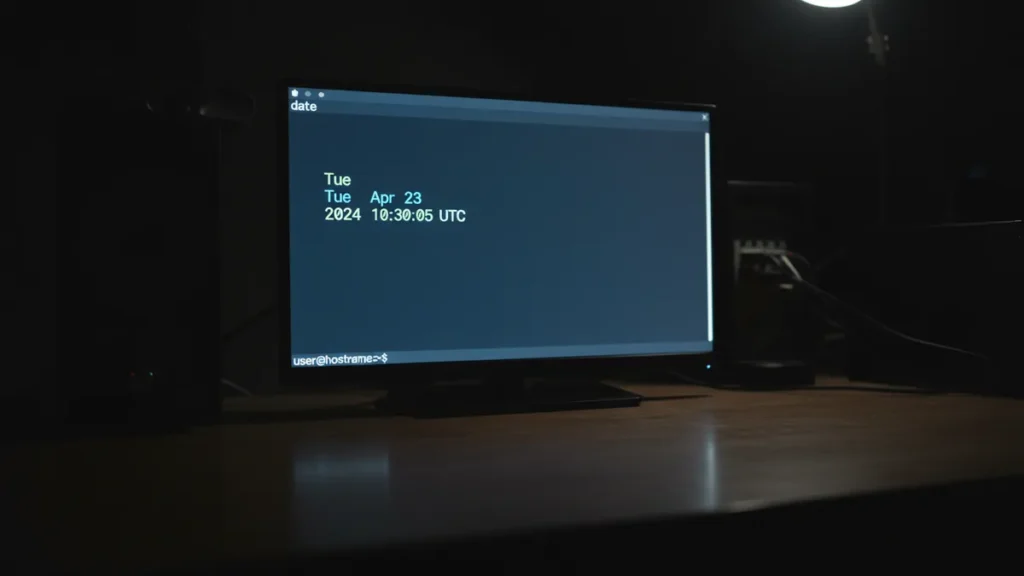
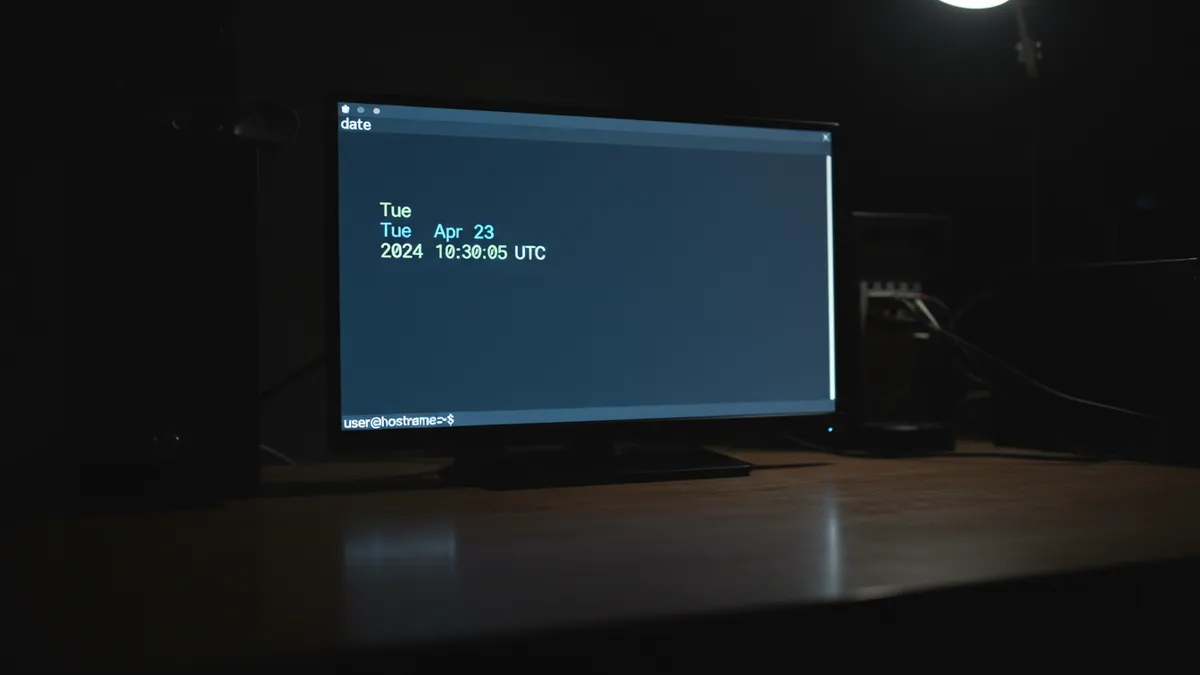
Open your terminal and type:
dateYou’ll get something like:
Sat Apr 11 09:32:04 UTC 2026That’s the default output. It shows the day of the week, month, day, time, timezone, and year.
Understanding the Default Output
The default format is fine for a quick glance, but it’s terrible for scripts. It doesn’t sort well, it’s hard to parse, and it includes spaces that break things. That’s why format specifiers exist — and why the next section matters so much.
Formatting date Output with Format Specifiers
This is where the Linux date command gets powerful. Format strings let you control exactly what the output looks like.
How Format Strings Work
Add a + sign followed by format codes wrapped in quotes:
date +"%Y-%m-%d"
# Output: 2026-04-11
Each % placeholder gets replaced with a piece of the current date or time. You can mix them with any literal characters you want — dashes, colons, underscores, whatever your use case needs.
Essential Format Specifiers Cheat Sheet
Here are the specifiers you’ll use 90% of the time:
%Y— 4-digit year (2026)%m— Month as zero-padded number (04)%d— Day of the month, zero-padded (11)%H— Hour in 24-hour format (09)%M— Minutes (32)%S— Seconds (04)%A— Full weekday name (Saturday)%B— Full month name (April)%Z— Timezone abbreviation (UTC)%s— Unix epoch seconds (more on this below)%j— Day of the year (101)
The full list has over 50 specifiers. For the complete reference, see the GNU Coreutils date documentation.
Common Real-World Patterns
Here are the three date formatting patterns I use most often:
ISO 8601 (Best for Logs)
date +"%Y-%m-%dT%H:%M:%S"
# Output: 2026-04-11T09:32:04
This is the ISO 8601 date and time standard — the universal format for logging. It sorts correctly with the sort command, and it’s unambiguous across countries.
Filename-Safe Timestamp
date +"%Y%m%d_%H%M%S"
# Output: 20260411_093204
No dashes, no colons — safe for filenames on any filesystem.
Human-Friendly Display
date +"%B %d, %Y"
# Output: April 11, 2026
Date Arithmetic: Adding, Subtracting, and Calculating Dates
Need to figure out what date it’ll be in 7 days? Or what it was a month ago? The -d flag handles Linux date arithmetic with surprisingly natural syntax.
The -d Flag: Computing Future and Past Dates
# Add 7 days
date -d "+7 days" +"%Y-%m-%d"

# Subtract 1 month
date -d "-1 month" +"%Y-%m-%d"

# Natural language works too
date -d "next Monday"
date -d "yesterday"
date -d "last Friday"
I use this constantly for retention logic — things like “delete backups older than 30 days” or “send a reminder 7 days before expiry.” Combine it with the find command and -mtime, and you’ve got a solid cleanup script.
Calculating Time Differences with Epoch Seconds
Sometimes you need to measure how long something takes. Epoch seconds make this trivial:
start=$(date +%s)
# ... your task runs here ...
end=$(date +%s)
echo "Elapsed: $((end - start)) seconds"
No external tools required. Just pure bash and the date command.
Working with Unix Timestamps (Epoch Time)
If you work with APIs, databases, or distributed systems, you’ll encounter epoch timestamps everywhere. Understanding them saves hours of debugging.
What Is Epoch Time?
Epoch time (also called Unix timestamp) is the number of seconds since January 1, 1970 00:00:00 UTC. It’s a single integer that represents any moment in time — no timezone ambiguity, no formatting confusion.
Converting a Date to Epoch
# Current time as epoch
date +%s

# Specific date as epoch
date -d "2026-04-11" +%s
Converting Epoch Back to Human-Readable
# Convert epoch to readable date
date -d @1744329600

# Format it however you want
date -d @1744329600 +"%Y-%m-%d %H:%M:%S"
The @ prefix tells date to interpret the number as epoch seconds. You can verify your conversions with Epoch Converter, a handy online tool I keep bookmarked.
Epoch timestamps are timezone-independent. This is why they’re critical for distributed systems and log correlation — when your servers span multiple timezones, epoch is the common language.
Handling Timezones with the date Command
Timezones are where things get tricky. I once spent a full afternoon debugging a cron job that was firing at the wrong time because the server was set to EST while my script assumed UTC. Lesson learned.
Displaying UTC Time
date -u
# Output: Sat Apr 11 13:32:04 UTC 2026
The -u flag forces UTC output regardless of your system timezone. Best practice: always run production servers in UTC. You can set this with timedatectl set-timezone UTC.
Converting Between Timezones Using TZ=
The TZ environment variable overrides the timezone for a single command:
# Show current time in Tokyo
TZ="Asia/Tokyo" date

# Convert a specific UTC time to New York time
TZ="America/New_York" date -d "2026-04-11 09:00 UTC"
Use timedatectl list-timezones to see every valid timezone name on your system. There are hundreds.
Real-World Bash Script Examples
Theory is great, but let’s look at real scripts. These are patterns I use in my own homelab and have dropped into production systems. Every one is copy-paste ready.
Creating Timestamped Backup Filenames
This is probably the single most common use of the bash date command. I learned this pattern the hard way after my backup disaster, and now every script I write starts here.
#!/bin/bash
TIMESTAMP=$(date +"%Y%m%d_%H%M%S")
BACKUP_DIR="/backups"
BACKUP_FILE="${BACKUP_DIR}/db_${TIMESTAMP}.tar.gz"

tar -czf "$BACKUP_FILE" /var/lib/mysql/
echo "Backup created: $BACKUP_FILE"
Every run produces a unique filename like db_20260411_093204.tar.gz. No overwrites, ever. Pair this with your automatic backup setup and rsync for file syncing to build a complete backup pipeline.
Timestamped Log Entries
Adding timestamps to log files makes troubleshooting dramatically easier. When something breaks at 3 AM, you’ll thank yourself for this:
#!/bin/bash
LOGFILE="/var/log/myapp.log"

log_msg() {
    echo "[$(date +"%Y-%m-%d %H:%M:%S")] $1" >> "$LOGFILE"
}

log_msg "Task started"
# ... your commands here ...
log_msg "Task completed successfully"
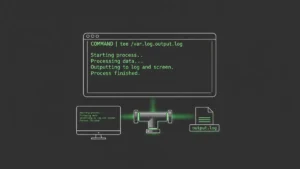
The >> operator appends each entry — check our guide on how to redirect output in Linux if that syntax is new to you. You can also pipe through the tee command to see output on screen and write to the log simultaneously. For managing those log files as they grow, look into logrotate for log management.
Later, you can search those timestamped logs with the grep command to find exactly when something went wrong.
Measuring Script Execution Time
#!/bin/bash
START=$(date +%s)

echo "Running database maintenance..."
# Simulate a long task
sleep 5

ELAPSED=$(( $(date +%s) - START ))
echo "Finished in ${ELAPSED} seconds"
These scripts work perfectly inside cron jobs in Linux and systemd timers. The date command runs identically whether it’s triggered by your terminal, cron, or systemd.
Common Mistakes and macOS vs Linux Differences
These two gotchas trip up almost everyone at some point. Save yourself the headache.
Quoting Format Strings Correctly
Watch Out for This Common Error
# WRONG — bash splits on the space and throws "extra operand" error
date +%Y-%m-%d %H:%M:%S

# CORRECT — quotes keep it as a single argument
date +"%Y-%m-%d %H:%M:%S"
Always wrap your format string in double quotes. Even if it works without quotes today, it’ll break the moment you add spaces or special characters.
The GNU vs BSD date Divide (Linux vs macOS)
This is the one that bites developers who work on a Mac but deploy to Linux servers. GNU date (Linux) and BSD date (macOS) use completely different flags for the same operations.
# GNU date (Linux) — parse a specific date
date -d "2026-04-11" +%s

# BSD date (macOS) — same operation, different syntax
date -j -f "%Y-%m-%d" "2026-04-11" +%s
The -d flag doesn’t exist on macOS. Instead, macOS uses -j (don’t set the date) with -f (specify input format). If you’re writing scripts that need to run on both platforms, either install GNU coreutils on your Mac via Homebrew (brew install coreutils, then use gdate), or write platform detection into your script.
Pro Tip
Also note that setting the system time manually with date -s is deprecated on modern Linux. Systems now use chrony or systemd-timesyncd to sync time automatically via NTP. If you need to change the time, use timedatectl set-time instead.
Quick Reference: date Command Cheat Sheet
Bookmark this section. Here are the ten date command examples I reach for most often:
| Command | Output | Use Case |
|---|---|---|
date |
Sat Apr 11 09:32:04 UTC 2026 | Quick check |
date +"%Y-%m-%d" |
2026-04-11 | ISO date |
date +"%Y%m%d_%H%M%S" |
20260411_093204 | Filenames |
date +%s |
1744364724 | Epoch timestamp |
date -d @1744329600 |
Sat Apr 11 … | Epoch to date |
date -d "+7 days" |
Sat Apr 18 … | Future date |
date -d "yesterday" |
Fri Apr 10 … | Previous day |
date -u |
Sat Apr 11 13:32:04 UTC 2026 | UTC time |
TZ="Asia/Tokyo" date |
Sat Apr 11 22:32:04 JST 2026 | Other timezone |
date +"%B %d, %Y" |
April 11, 2026 | Human-readable |
Frequently Asked Questions
How do I format the date as YYYY-MM-DD in Linux?
Use date +"%Y-%m-%d". The %Y gives a 4-digit year, %m gives the zero-padded month, and %d gives the zero-padded day. This is the ISO 8601 format and the most widely recommended pattern for scripts and logs.
Does the date command work the same on macOS?
Not entirely. macOS uses BSD date, which has different flags. The biggest difference is date parsing: Linux uses date -d while macOS uses date -j -f. Install GNU coreutils via Homebrew and use gdate if you need Linux-compatible behavior on a Mac.
How do I get the current Unix timestamp in bash?
Run date +%s. This outputs the number of seconds since January 1, 1970 UTC. It’s the simplest way to get an epoch timestamp without any external tools.
What to Explore Next
The date command is one piece of a larger toolkit. Once you’ve got timestamps down, you’ll naturally want to automate things. I’d suggest exploring cron jobs in Linux to schedule your scripts, and our bash scripting guide if you’re building out more complex automation.
If backups are on your mind, our walkthrough on automatic backup setup ties everything together — timestamps, scheduling, and file management in one workflow.
Got a specific use case you’re trying to solve? Drop it in the comments. I genuinely enjoy helping people work through these kinds of problems — it’s what got me into writing about Linux in the first place.