Knowing how to add a user in Linux is one of those foundational skills that separates casual tinkerers from real administrators. Whether you’re setting up a fresh server, onboarding a team member, or creating a service account for an app, user management is something you’ll do constantly.
I still remember the first time I set up a dedicated Linux server. I ran useradd deploy, tried to log in as that user, and hit a wall. No home directory. No bash shell. Just a confused blinking cursor. That five-minute detour taught me more about Linux user management than any tutorial had up to that point.
This guide covers everything you need: creating users, setting passwords, granting sudo access, modifying accounts, and cleaning up when it’s time to remove someone. Let’s get into it.
Two Ways to Add a User in Linux: useradd vs adduser
Before you create your first user, you need to understand that Linux gives you two commands for the job. They sound similar, but they work very differently.
useradd — The Low-Level, Portable Command
The useradd command is available on every Linux distribution. It’s a low-level binary that does exactly what you tell it and nothing more. Check the useradd man page for the full flag reference.

Get a VPS from as low as $19.95/year! WOW!
Here’s the catch that got me early on: useradd does not create a home directory by default. It also defaults to /bin/sh instead of /bin/bash. If you forget the right flags, your new user will have a strange prompt and nowhere to store their files.
For scripts and automation, useradd is the right choice. It’s portable and predictable.
adduser — The Interactive Wrapper (Debian/Ubuntu)
On Debian-based systems like Ubuntu, adduser is a Perl script that wraps useradd with sensible defaults. It creates the home directory, sets /bin/bash as the shell, and prompts you for a password and user info interactively.
If you’re doing a one-off server setup on Ubuntu, adduser is friendlier and harder to mess up. But don’t rely on it in scripts. It’s not available on RHEL, CentOS, Fedora, or Arch.
Quick Rule of Thumb
- Interactive setup on Debian/Ubuntu? Use
adduser - Shell scripts or non-Debian distros? Use
useradd - Not sure? Learn
useraddfirst. It works everywhere.
How to Add a Basic User in Linux
Let’s walk through creating a user on the two main distro families. The process differs just enough to trip you up if you’re switching between systems.
Add a User on Debian/Ubuntu with adduser
sudo adduser jsmithThat single command handles everything. It creates the user, builds the home directory at /home/jsmith, sets /bin/bash as the default shell, and prompts you to set a password. It even asks for optional info like full name and phone number.
Add a User on RHEL/CentOS/Arch with useradd
sudo useradd -m -s /bin/bash jsmith
sudo passwd jsmith
Two commands instead of one. The -m flag creates the home directory. The -s /bin/bash flag sets the login shell. Without these, you get a user who can’t do much. Then you set the password separately with passwd.
Each new user gets their own environment variables and their own cron jobs per user, so getting the home directory right from the start matters.
Verify the New User Was Created Correctly
Always verify. Don’t assume the command worked the way you expected.
# Check UID, GID, and group memberships
id jsmith

# View the account entry in /etc/passwd
cat /etc/passwd | grep jsmith

# Confirm the home directory exists
ls -la /home/jsmith
The grep command filters the passwd file down to just your new user. The entry format looks like this:
jsmith:x:1001:1001:John Smith:/home/jsmith:/bin/bashThat tells you the username, UID, GID, comment field, home directory, and shell. If anything looks off, fix it now before the user tries to log in.
Key useradd Options Every Admin Should Know
The useradd command has a handful of flags you’ll use over and over. Here are the ones I reach for most.
Create a Home Directory with -m
sudo useradd -m usernameThis creates /home/username and copies skeleton files from /etc/skel into it. Those skeleton files include .bashrc, .profile, and other defaults. The default permissions on the new home directory are controlled by umask settings.
Set the Login Shell with -s
sudo useradd -m -s /bin/bash usernameWithout -s, you often get /bin/sh, which is a minimal shell. Your users will wonder why tab completion feels broken and their prompt is just a dollar sign.
Assign the User to Groups with -G
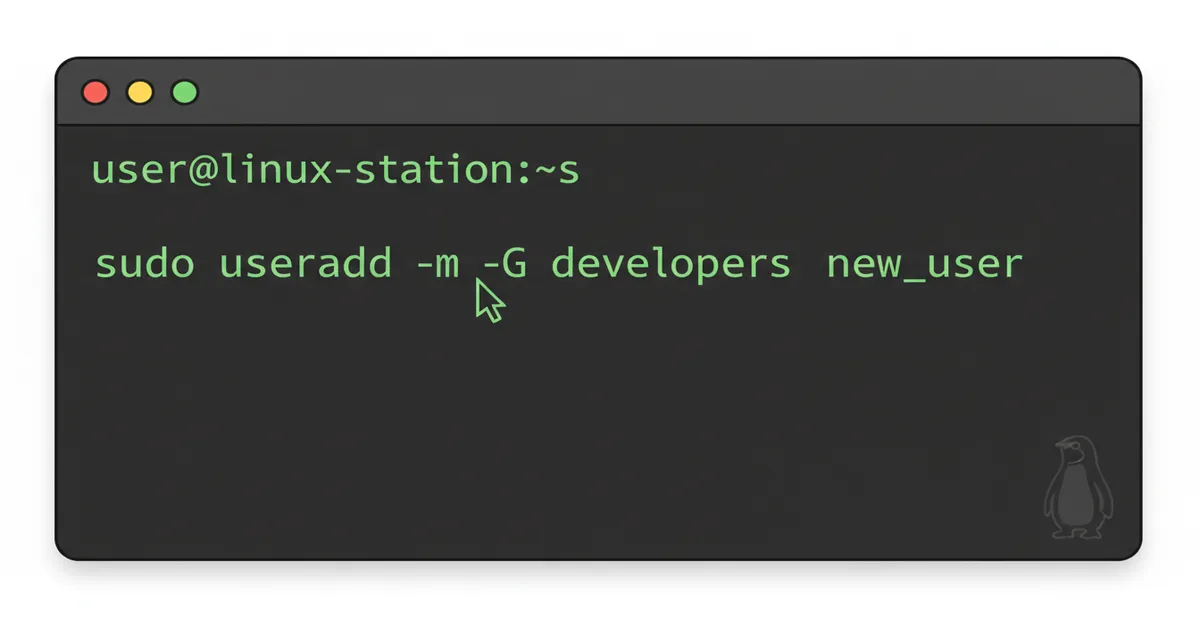
sudo useradd -m -G docker,www-data usernameThe -G flag adds the user to supplementary groups at creation time. This is handy when you know a user needs Docker access or web server group membership right away.
Set an Account Expiry Date with -e
sudo useradd -m -e 2026-06-30 contractorPerfect for temporary accounts. The user is automatically disabled after the expiry date. I use this for contractor access on my homelab when I’m letting someone test a service temporarily.
For service accounts that run background processes managed by systemctl, use the -r flag:
sudo useradd -r -s /usr/sbin/nologin appserviceThe -r flag creates a system account with a UID below 1000 and no home directory. The /usr/sbin/nologin shell prevents anyone from logging in as that user interactively.
Set or Change a User Password with passwd
A user created with useradd has no password by default. They literally cannot log in until you set one.
# Set a password for another user (requires sudo)
sudo passwd jsmith

# Change your own password (no sudo needed)
passwd
The passwd command also lets you lock and unlock accounts, which is incredibly useful when you need to temporarily disable someone without deleting their account:
# Lock the account
sudo passwd -l jsmith

# Unlock the account
sudo passwd -u jsmith
I’ve used account locking more times than I can count. It’s a much safer move than deleting a user when you’re not 100% sure they’re done.
Add a User to the sudo Group for Admin Privileges
Here’s where distro differences really matter. To grant a user admin privileges, you add them to a specific group. But the group name depends on your distribution.
# Debian / Ubuntu
sudo usermod -aG sudo jsmith

# RHEL / CentOS / Fedora / Arch
sudo usermod -aG wheel jsmith
Verify with:
groups jsmithThe user needs to log out and back in for group changes to take effect. I can’t tell you how many times I’ve added someone to the sudo group, tested immediately, and panicked when it didn’t work. Just log out first.
Once a user has sudo access, understanding Linux file permissions becomes critical. You should also set up fail2ban for brute force protection and a UFW firewall setup to lock down SSH access for these privileged accounts.
“It’s best to grant sudo access to general users only when absolutely necessary. The recommended practice is to designate standard tasks to regular users while limiting administrative or privileged ones to the root user.” — StrongDM Security Guide
⚠️ Security Warning
Never add NOPASSWD to your sudoers file unless you have an extremely specific, well-documented reason. It’s been the source of countless security breaches. If you need to edit sudoers, always use visudo. It validates your syntax before saving, so you can’t accidentally lock yourself out.
Modify an Existing User with usermod
Users change roles. People switch teams. Shells get upgraded. The usermod command handles all of it. See the usermod manual page for the full reference.
# Rename a user
sudo usermod -l newname oldname

# Add to a group (keep existing groups!)
sudo usermod -aG docker jsmith

# Change default shell
sudo usermod -s /bin/zsh jsmith

# Move home directory
sudo usermod -d /new/home/jsmith -m jsmith
🚨 Critical: Always Use -aG, Never Just -G
The -a flag means “append.” Without it, usermod -G docker jsmith will set docker as the only supplementary group, removing the user from every other group. I’ve seen this wipe sudo access from production users. Always use -aG together.
After modifying a user, you may need to update file ownership with the chown command, especially if you moved their home directory.
Delete a User in Linux with userdel
When it’s time to remove an account, the userdel command gives you two options. Check the userdel man page for the complete reference.
# Remove the user account only
sudo userdel jsmith

# Remove the user AND their home directory
sudo userdel -r jsmith
Before deleting anyone, check if they have running processes:
ps -u jsmithThe ps command will show you any active processes. Kill those first, or you’ll leave orphaned processes behind.
I always recommend archiving the home directory before deletion. A quick tarball takes seconds and can save you hours of pain later:
sudo tar -czf /backup/jsmith_backup.tar.gz /home/jsmithConsider setting up automatic backups so you don’t have to remember this step every time. And if you have any doubt about whether a user should be removed, lock the account with passwd -l instead. You can always delete later.
Linux User Management Quick Reference
Here’s a cheat sheet you can bookmark. I keep something like this in a text file on every server I manage. Refer to the Red Hat Linux user management documentation for additional enterprise-level details.
| Task | Command |
|---|---|
| Create user (Debian/Ubuntu) | sudo adduser username |
| Create user (any distro) | sudo useradd -m -s /bin/bash username |
| Set password | sudo passwd username |
| Grant sudo (Debian/Ubuntu) | sudo usermod -aG sudo username |
| Grant sudo (RHEL/Arch) | sudo usermod -aG wheel username |
| Add to group | sudo usermod -aG groupname username |
| Change shell | sudo usermod -s /bin/zsh username |
| Lock account | sudo passwd -l username |
| Unlock account | sudo passwd -u username |
| Delete user | sudo userdel username |
| Delete user + home | sudo userdel -r username |
| Create system account | sudo useradd -r -s /usr/sbin/nologin name |
| Check user info | id username |
Frequently Asked Questions
What is the difference between useradd and adduser?
useradd is a low-level command available on all Linux distributions. adduser is a friendlier wrapper script found mainly on Debian and Ubuntu systems. For scripting, use useradd. For quick interactive setup on Ubuntu, use adduser.
Why can’t my new user log in after running useradd?
Most likely, you forgot to set a password with sudo passwd username. A user created with useradd has no password by default and cannot authenticate. Also check that a home directory exists and the shell is set to /bin/bash.
How do I add a user to multiple groups at once?
Use a comma-separated list with the -G flag: sudo useradd -m -G docker,www-data,developers username. For existing users, use sudo usermod -aG group1,group2 username. Always include the -a flag to append.
What to Set Up After Creating a New User
Creating the user is just step one. Once the account exists, you’ll usually want to generate SSH keys for passwordless authentication. If the user needs to transfer files, set up SCP for file transfer access as well.
User management is one of those skills that looks simple on the surface but has real depth once you start dealing with groups, permissions, and security. The commands in this guide cover about 95% of what you’ll encounter in daily administration. Bookmark the cheat sheet above, practice on a test machine, and you’ll have this workflow down in no time.