Linux Bash Aliases: Create, Save, and Supercharge Your Terminal Workflow
Learn how to create and manage Linux bash aliases to speed up your terminal. Practical examples for navigation, safety, system admin, and networking shortcuts.

In this article
Back in my early sysadmin days, I spent an embarrassing amount of time typing out ssh -i ~/.ssh/id_rsa [email protected] dozens of times a day. Every. Single. Time. Then a coworker watched me do it, shook his head, and showed me Linux bash aliases. That five-minute lesson changed how I use the terminal forever.
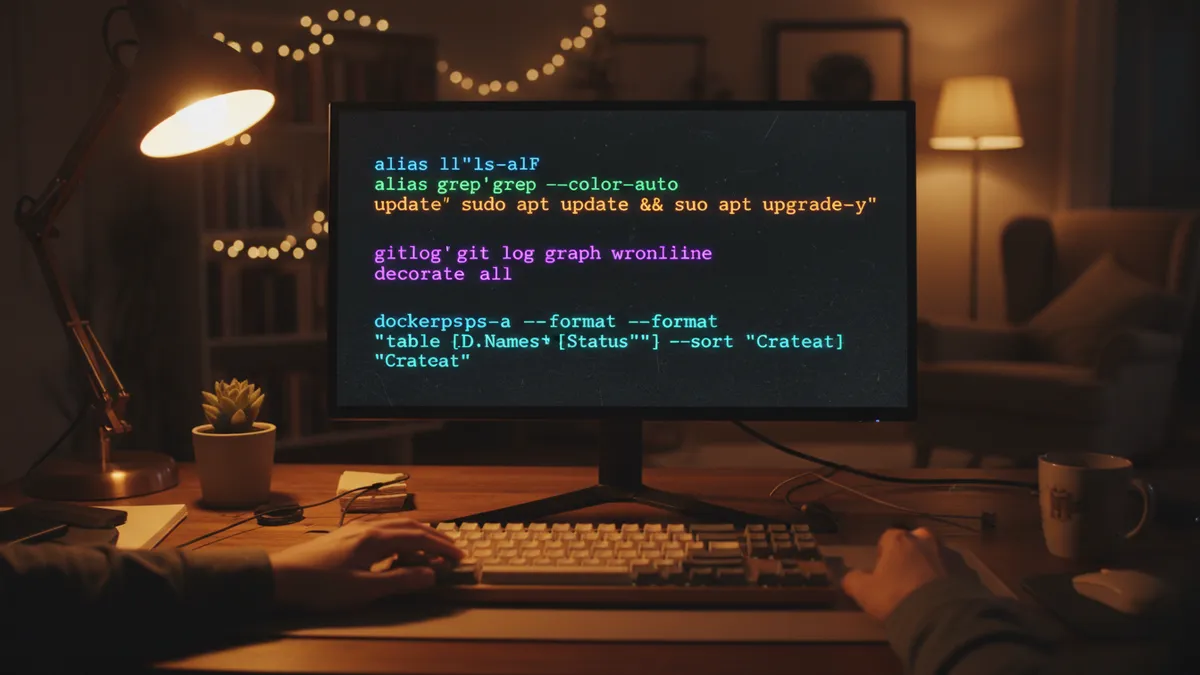
A bash alias is a custom shortcut that maps a short word to a longer command. Instead of typing a full command string, you type a few characters and let the shell expand it for you. According to the GNU Bash official documentation on aliases, an alias is simply “a name that the shell substitutes for another string.” Simple concept, massive payoff.
Industry surveys show that 75% of developers actively use command aliases. And the time savings add up fast. Terminal shortcuts and aliases save roughly 30 minutes per week, which compounds to over 26 hours per year. That’s more than three full workdays you get back just by setting up a few shortcuts.
In this guide, I’ll walk you through creating temporary and permanent aliases, show you where to store them, share 20 practical examples I actually use, and cover when you should reach for a bash function instead. Let’s get into it.
What Is a Bash Alias (And Why Every Admin Needs One)
Think of a bash alias like a speed dial on your phone. You press one button instead of dialing a full number. The alias command has been part of Unix shells since the late 1970s, and it’s still one of the most practical tools in any Linux user’s toolkit.
Here’s what makes aliases so valuable: developers spend about 20% of their terminal time on repetitive actions. Aliases cut that down to roughly 5%. If you pair a solid alias setup with the best Linux terminal emulator for your workflow, you’ll feel the difference immediately.
Quick Answer: What Is a Bash Alias?
A bash alias maps a short keyword to a longer command. Type alias ll='ls -lha' and now ll runs ls -lha. It saves time, reduces typos, and makes your terminal workflow faster.
How to Create a Bash Alias (Temporary vs Permanent)
Create a Temporary Alias (Lasts Until You Close the Terminal)
The fastest way to create a shell alias is right in your terminal. Just use this syntax:
alias name='command options'For example:
alias ll='ls -lha'
alias gs='git status'
That’s it. Type ll and you’ll see a detailed file listing. But here’s the catch: this alias only lives in your current session. Close the terminal and it’s gone. To see all your active aliases, run alias with no arguments.
Temporary aliases are great for testing. I always try a new alias in the current session before making it permanent. It’s the same instinct that makes me test scripts on a staging box before production.
Make Aliases Permanent So They Survive Reboots
To keep your aliases across reboots, add them to a config file that your shell reads at startup. Here’s the exact workflow:
- Open your config file:
nano ~/.bashrc(or better,~/.bash_aliases) - Add your alias:
alias ll='ls -lha' - Save and reload:
source ~/.bashrc - Verify it works: type
alias llto confirm
Once it’s in the file, that permanent alias loads every time you open a new terminal. No more re-typing definitions after a reboot.
Where to Store Your Aliases: .bashrc vs .bash_aliases
Most people dump their aliases straight into ~/.bashrc. It works, but your shell config gets cluttered fast. I’ve seen .bashrc files with 200+ lines of aliases mixed in with environment variables and prompt customization. It’s a mess to maintain.
The better approach: use a dedicated ~/.bash_aliases file. Most modern distros like Ubuntu, Debian, and Fedora already include this snippet in your ~/.bashrc:
if [ -f ~/.bash_aliases ]; then
    . ~/.bash_aliases
fi
If that block isn’t in your .bashrc, add it. From now on, all your alias definitions go in ~/.bash_aliases. This keeps things clean and portable. You can copy that single file between machines, share it with teammates, or (as I’ll cover later) version-control it with Git.
This separation makes a real difference. When I need to tweak an alias, I know exactly where to look. No scrolling through 300 lines of mixed config. Just aliases, nothing else.
20 Bash Alias Examples Every Linux User Needs
Here are the aliases I keep in my own ~/.bash_aliases file. I’ve grouped them by category so you can grab the ones that fit your workflow.
Navigation Shortcuts
alias ..='cd ..'
alias ...='cd ../..'
alias ....='cd ../../..'
alias home='cd ~'
These seem trivial until you realize how often you type cd .. in a day. I pair these with the fzf fuzzy finder for interactive directory jumping, and honestly, navigating the filesystem has never been faster.
Smarter File Listing
alias ll='ls -lha'
alias la='ls -A'
alias l='ls -CF'
alias lh='ls -lh --color=auto'
The ll alias is probably the most common alias in the Linux world. It shows file sizes, permissions, hidden files, and human-readable sizes all at once. If you only set up one alias today, make it this one.
Safety Wrappers for Dangerous Commands
alias rm='rm -i'
alias cp='cp -i'
alias mv='mv -i'
⚠️ Why These Matter
The -i flag forces a confirmation prompt before overwriting or deleting. I learned this lesson the hard way early in my career when a careless rm -rf in the wrong directory cost me an afternoon of restoring from backups. These three aliases have saved me more than once since then.
System Administration Shortcuts
alias update='sudo apt update && sudo apt upgrade -y'
alias sctl='systemctl'
alias jctl='journalctl -xe'
alias logs='sudo tail -f /var/log/syslog'
alias df='df -h'
alias du='du -sh *'
The sctl alias pairs nicely when you’re managing systemd timers or checking service status throughout the day. And if you’re automating tasks with cron jobs, having quick aliases for log-checking is essential.
I also keep a backup alias that wraps rsync for backups:
alias backup='rsync -avz --progress ~/projects /mnt/backup/'You can create aliases for any command you use frequently, including the find command or file transfers with the scp command.
Networking Quick-Checks
alias myip='curl -s https://ipinfo.io/ip'
alias ports='ss -tulnp'
alias pingg='ping -c 5 google.com'
The myip alias is one I use constantly when setting up SSH tunneling or configuring firewall rules. And ports gives you a quick snapshot of everything listening on your machine.
One more bonus alias I keep around:
alias grep='grep --color=auto'Color-highlighted matches make a huge difference when you’re scanning output. If you want to go deeper with pattern matching, check out the full grep command guide. You can also chain aliases with pipes and output redirection to build some powerful one-liners.
How to List, Remove, and Bypass Aliases
Managing your aliases is just as important as creating them. Here’s what you need to know:
- List all active aliases: Run
aliaswith no arguments - Remove a specific alias:
unalias ll - Remove ALL aliases in the current session:
unalias -a
But here’s the trick most articles skip. Sometimes you need to bypass an alias temporarily. Maybe you aliased rm to rm -i but a script needs to run rm without the confirmation prompt.
The solution: prefix the command with a backslash.
\rm somefile.txt    # Runs the real rm, bypasses your alias
\ls                 # Runs the real ls, ignoring alias options
This backslash trick is one of those things that seems small but saves you in real situations. I’ve had automated scripts break because they inherited my interactive alias for rm. Once I learned about \rm, that problem disappeared.
When Aliases Aren’t Enough: Use a Bash Function Instead
Aliases have one major limitation: they can’t accept arguments in the middle of a command. For example, this does not work:
# THIS WILL NOT WORK
alias mkcd='mkdir $1 && cd $1'
When you need to pass arguments or add logic, write a bash function instead:
mkcd() {
    mkdir -p "$1" && cd "$1"
}
Now mkcd my-new-project creates the directory and moves into it in one step. I use this function multiple times a day.
Rule of Thumb
One command with fixed options? Use an alias. Needs arguments or logic? Use a function. Both can live in your ~/.bash_aliases file.
For more complex automation, functions are just the beginning. Our bash scripting guide covers full scripts with loops, conditionals, and error handling. The Advanced Bash-Scripting Guide on aliases is another solid reference for understanding where aliases end and functions begin.
Sync Your Aliases Across Servers with a Dotfiles Repo
Here’s the real power-user move that most alias tutorials never mention: store your ~/.bash_aliases in a Git repository.
I keep a dotfiles repo on GitHub with a structure like this:
dotfiles/
├── .bash_aliases
├── .bashrc
├── .vimrc
├── .tmux.conf
└── install.sh
When I spin up a new server, my setup takes about two minutes:
git clone https://github.com/username/dotfiles.git ~/dotfiles
ln -sf ~/dotfiles/.bash_aliases ~/.bash_aliases
source ~/.bashrc
That’s it. Full personalized terminal, instantly. I remember setting up a new Hetzner VPS last year for a side project. By the time the DNS propagated, my terminal was already fully configured with every alias, every color scheme, every shortcut I depend on. Five minutes from bare server to feeling like home.
This is how most experienced sysadmins keep their environments consistent across dozens of machines. And if you’re already using aliases to speed up your workflow, a dotfiles repo is the natural next step.
Start Building Your Alias Collection Today
Linux bash aliases are one of those rare things in tech that take five minutes to learn and pay off for years. Start small. Pick three or four commands you type constantly and create aliases for them. Once you feel the speed difference, you’ll want to alias everything.
My suggestion: begin with ll, the safety wrappers (rm -i, cp -i, mv -i), and one or two navigation shortcuts. Then grow your collection over time as you notice repetitive patterns.
If you want to keep leveling up your terminal game, check out our full list of terminal productivity tips for more ways to work faster on the command line. Every shortcut you add today compounds into serious time savings down the road.