How to Use Podman in Linux: Run Containers Without Docker
Learn how to use Podman in Linux: install it, run rootless containers, manage images, and integrate with systemd. The Docker alternative that is free forever.

In this article
What Is Podman (And Why I Ditched Docker for It)
If you’ve been running containers on Linux, you probably started with Docker. I did too. But learning how to use Podman in Linux changed how I think about container security, system resources, and even my wallet. Podman is a daemonless, rootless container engine that runs OCI-compatible containers without needing a background service eating up your RAM. According to the CNCF 2024 Annual Survey, 52% of organizations now run most workloads in containers, and container security is a top concern. Podman answers both of those needs. Check the official Podman documentation if you want the full spec, but stick with me here for the practical, battle-tested walkthrough.
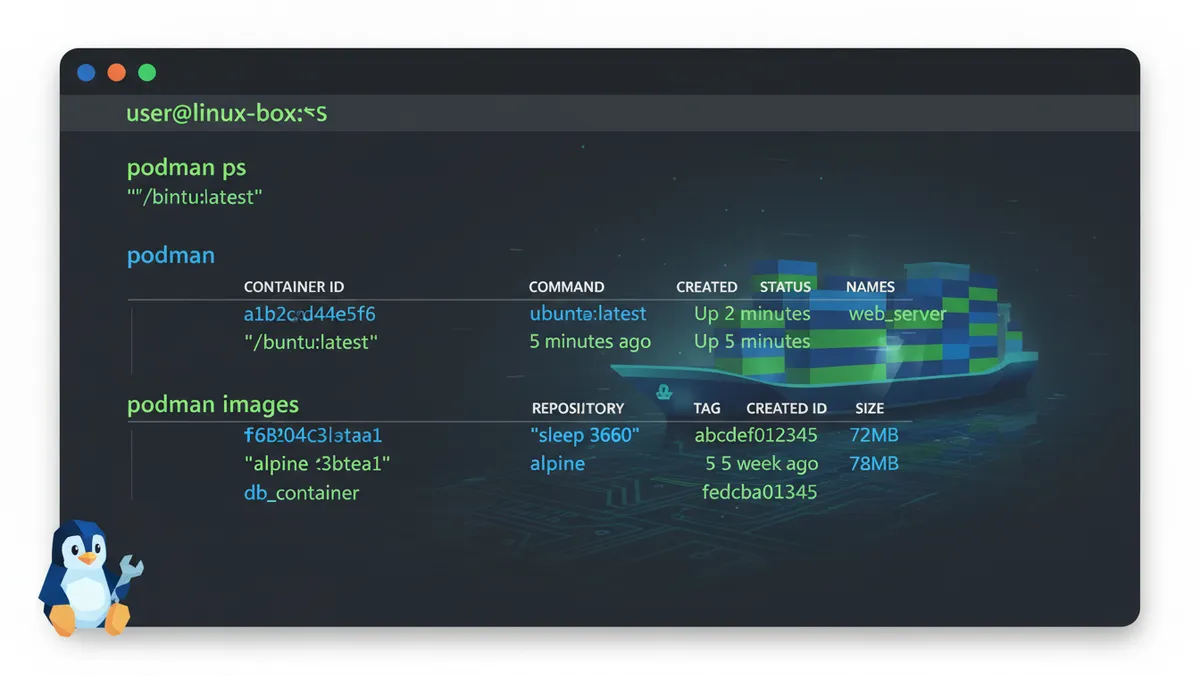
When Docker Desktop changed its licensing in August 2021, charging $9 to $24 per user per month for commercial use, I was running about a dozen containers in my homelab. The thought of paying per-user for something I’d been using on my own servers for years felt wrong. I started testing Podman that same week and never looked back. The rootless default was a revelation. I’d been running Docker as root without really thinking about it.
The Daemonless Architecture Explained
Docker relies on a central daemon called dockerd. Every container you run talks through that single process. If the daemon crashes, every container goes down with it. Podman flips this model. Each container runs as a direct child process of the Podman binary. No daemon means no single point of failure. It also means Podman uses 45 to 60 MB of memory at idle, compared to Docker’s 140 to 180 MB for the daemon alone. That’s roughly 65% less memory overhead.
And here’s the part that sold me: Podman follows the OCI (Open Container Initiative) specification. Same image format as Docker. You can pull from Docker Hub, Quay.io, or GitHub Container Registry. Your existing Dockerfiles work. In most cases, you can literally alias docker=podman and keep working.
Rootless by Default: Why This Is a Big Deal
Docker runs as root by default. That means if someone escapes your container, they land on your host as root. Podman runs containers as your regular user. No root needed. No sudoers file modifications required.
“A rootless container is a container that can be created, run, and managed by users without admin rights. Rootless containers make containment security stronger.” — Dan Walsh, Principal Software Engineer, Red Hat
We’ll dig into exactly how rootless mode works and its limitations in a dedicated section below. For now, just know: this is the single biggest reason to make the switch.
Installing Podman on Linux
Installation is straightforward on every major distro. If you’re picking a server OS, check our list of the best Linux distro for servers in 2026. Fedora and RHEL ship with Podman preinstalled. For others, it’s one command away.
Ubuntu and Debian
sudo apt update
sudo apt install podman
Available in Ubuntu 20.10+ and Debian 11+ repositories. After installation, verify with:
podman --versionFedora, RHEL, and CentOS Stream
sudo dnf install podmanFedora 34+ already has Podman installed by default. On RHEL 8 and above, it’s in the default repos.
Arch Linux
sudo pacman -S podmanI use Arch, by the way. Had to say it. But seriously, the Arch package stays current with upstream releases, so you’ll always have the latest Podman features.
Quick Smoke Test
After installing on any distro, run this to confirm everything works:
podman run hello-worldIf you see a greeting message, you’re good to go. Podman 5.x is the current stable release, and it uses Pasta networking by default (replacing the older slirp4netns). Keep that in mind if you’re upgrading from an older version.
Core Podman Commands Every Linux Admin Needs
If you’ve used Docker, you already know 90% of Podman’s commands. The syntax is nearly identical. Here’s what you’ll reach for every day.
Pulling Images and Running Containers
Pull an image from a registry:
podman pull docker.io/library/nginx:latestRun a container in the background with port mapping:
podman run -d --name webserver -p 8080:80 nginxThat -d flag detaches the container so it runs in the background. The -p 8080:80 maps your host port 8080 to the container’s port 80. For quick, disposable tasks:
podman run --rm alpine echo 'hello from podman'The --rm flag automatically removes the container when it exits. I use this constantly for testing scripts and one-off commands.
Managing Running Containers
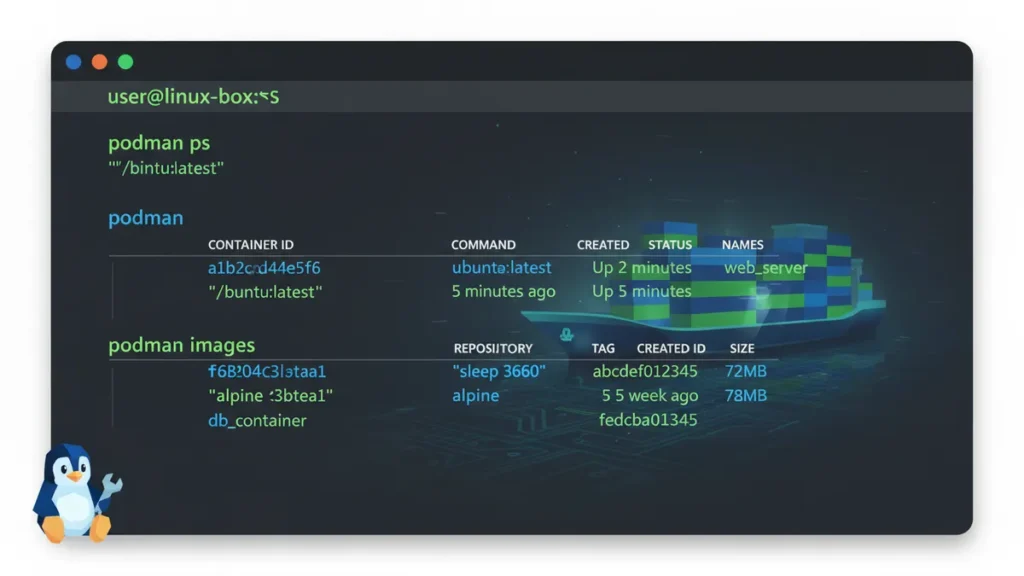
List running containers:
podman psList all containers, including stopped ones:
podman ps -aGet a shell inside a running container:
podman exec -it webserver bashView container logs (useful with logrotate for managing log files on disk):
podman logs webserverMonitor real-time resource usage:
podman statsFor a broader view of your system, combine this with Linux monitoring tools to track container performance alongside host metrics.
Working with Container Images
List your local images:
podman imagesRemove an image you no longer need:
podman rmi nginxInspect detailed metadata about a container:
podman inspect webserverStop and remove a container:
podman stop webserver && podman rm webserverRunning Rootless Containers: The Security Advantage
This is where Podman genuinely shines. Rootless containers run entirely under your regular user account. If an attacker escapes the container, they get your unprivileged user, not root. That’s a massive reduction in attack surface.
How Rootless Mode Works (User Namespaces)
Podman uses Linux user namespaces to map UIDs inside the container to unprivileged UIDs on the host. This requires entries in /etc/subuid and /etc/subgid. Modern distros set these up automatically when you add a Linux user. Verify yours are configured:
grep $USER /etc/subuidYou should see something like username:100000:65536. That gives your user 65,536 subordinate UIDs for container processes. For deeper technical details, see Podman’s official rootless containers guide.
“Running containers as root is a significant security risk — Podman’s default rootless mode means that even if an attacker escapes the container, they have no privileged access to the host.” — Dimitris Vagiakakos, Security Researcher, NVISO
Practical Limitations to Know
Rootless containers aren’t perfect. Here are the gotchas I’ve hit in practice:
- Privileged ports: Rootless containers can’t bind to ports below 1024. Either use a port above 1024 and put a reverse proxy in front, or adjust sysctl settings:
sysctl -w net.ipv4.ip_unprivileged_port_start=80 - NFS home directories: User namespaces don’t work on NFS mounts. Use a local path like
/tmpor a dedicated local partition instead. - Port access and firewalls: If you’re exposing container ports to the network, configure firewalld rules to control access.
Volumes, Bind Mounts, and SELinux Labels
Containers need data. Whether it’s a web root, a database directory, or config files, you’ll use volumes and bind mounts to get host data into containers.
Mounting Host Directories into Containers
Create a named volume:
podman volume create mydata
podman run -v mydata:/app/data nginx
Or bind-mount a host directory directly:
podman run -v /home/user/html:/usr/share/nginx/html:ro nginxThe :ro flag mounts it read-only. I always recommend starting with read-only mounts and opening write access only when needed.
The :Z and :z SELinux Volume Labels
If you’re on Fedora, RHEL, or CentOS (anything with SELinux enforcing), this is the gotcha that will eat your afternoon. SELinux will block container access to mounted volumes unless you apply the right label.
SELinux Volume Fix
- :Z (uppercase) — Relabels the volume for private access by this container only
- :z (lowercase) — Relabels for shared access across multiple containers
podman run -v /home/user/html:/usr/share/nginx/html:Z nginxI’ve spent more hours debugging “permission denied” errors on Fedora containers than I care to admit. If SELinux is enforcing and your bind mount fails, :Z is almost always the fix.
Integrating Podman with Systemd Using Quadlet
Running containers manually is fine for testing. But for production or homelab services that need to survive reboots, you want systemd managing your containers. If you’re new to the concept, start with our guide on creating systemd services.
What Is Quadlet (and Why It Replaced podman generate systemd)
Quadlet is the modern way to run Podman containers as systemd services. It was introduced in Podman 4.4, and the old podman generate systemd command is deprecated in Podman 5.x. Quadlet uses simple declarative .container unit files that systemd reads directly. For more on Red Hat’s Quadlet introduction, their blog post covers the design rationale.
Creating a Quadlet Container Unit
For rootless containers, place your unit file in ~/.config/containers/systemd/. For root, use /etc/containers/systemd/.
Here’s a complete Quadlet unit for an Nginx container:
# ~/.config/containers/systemd/nginx.container
[Container]
Image=docker.io/library/nginx:latest
PublishPort=8080:80
Volume=/home/user/html:/usr/share/nginx/html:Z

[Service]
Restart=always

[Install]
WantedBy=default.target
Activate it:
systemctl --user daemon-reload
systemctl --user enable --now nginx.service
That’s it. Your container starts on boot, restarts on failure, and logs go to journald. You get all the native systemd features: systemd timers for scheduled tasks, dependency management, and resource controls. No extra tooling required.
Podman vs Docker: When Each Makes Sense
This isn’t a “Podman good, Docker bad” situation. Both tools have their place. Here’s my honest take after running both extensively.
Choose Podman When:
- You’re on RHEL, Fedora, or CentOS (it’s built into the ecosystem)
- Security matters (rootless by default)
- You run a homelab and don’t want licensing costs
- You need CI/CD containers without root access
- Memory efficiency matters (45-60 MB vs 140-180 MB idle)
Choose Docker When:
- You have large, established Docker Compose in Linux workflows
- Your team needs Docker Desktop’s GUI on Mac/Windows
- Third-party tools hard-depend on the Docker socket
One trick I love: you can actually run Docker Compose against Podman by pointing it at the Podman socket:
export DOCKER_HOST=unix:///run/user/$UID/podman/podman.sockFor multi-container setups, podman-compose exists but Docker Compose is still more polished. The socket trick gives you the best of both worlds.
Common Podman Gotchas (And How to Avoid Them)
After years of running Podman on everything from Arch workstations to RHEL servers, these are the issues that trip people up most often.
- Image registry prefixes: Docker resolves
nginxtodocker.io/library/nginxautomatically. Podman may prompt you to choose a registry. Fix this by always using full paths or configuring/etc/containers/registries.conf. - Pasta networking: Podman 5.0 switched from slirp4netns to Pasta for rootless networking. It’s faster and has better IPv6 support, but DNS resolution can behave differently. If lookups fail after upgrading, check your
/etc/resolv.confinside the container. - Post-upgrade migration: After upgrading from an older Podman version, run
podman system migrateto update internal storage formats. - Registry authentication: Log in to registries with
podman login docker.io. Credentials are stored in${XDG_RUNTIME_DIR}/containers/auth.json. - Cleanup: Use
podman system prune -ato remove all stopped containers and unused images. Combine with the find command to locate leftover overlay storage files.
One more tip: consider signing your container images with GPG in Linux for supply chain security. It’s an extra step, but on production systems, verifying image integrity matters.
Frequently Asked Questions
Can I use my existing Docker images with Podman?
Yes. Podman uses the same OCI image format as Docker. Pull images from Docker Hub, Quay.io, or any OCI-compatible registry. Your existing Dockerfiles build without changes.
Is Podman really free for commercial use?
Yes. Podman is open source under the Apache 2.0 license. No per-user fees, no enterprise tiers. Unlike Docker Desktop, there are no licensing restrictions regardless of company size or revenue.
Does Podman work with Kubernetes?
Podman can generate Kubernetes YAML from running containers with podman generate kube and deploy pods with podman play kube. It’s not a Kubernetes replacement, but it bridges local development and cluster deployment.
Start Running Containers the Smarter Way
Podman gives you everything Docker does for container management on Linux, minus the daemon overhead, the root requirement, and the licensing fees. If you’re already managing Linux servers, the transition is nearly seamless. Start with a simple podman run hello-world, work through the commands in this guide, and build up to Quadlet units for your production services.
If you’re building out a containerized homelab or server stack, these guides will help you round out your setup:
- Creating systemd services for managing all your system processes
- Best Linux distro for servers in 2026 for picking the right foundation
- Linux monitoring tools to keep an eye on container and host performance
Got questions about your Podman setup? Drop them in the comments. I’ve probably hit that same wall and can help you past it.