How to Edit the Sudoers File in Linux: Manage sudo Permissions Safely
Learn how to edit the sudoers file in Linux using visudo, grant precise sudo permissions, use NOPASSWD, and avoid common misconfigurations that lock you out.

In this article
If you’ve ever needed to grant someone root-level access on a Linux machine, you’ve probably run into the sudoers file. Knowing how to edit the sudoers file in Linux is one of those essential sysadmin skills that separates “I kinda know Linux” from “I manage Linux servers.” But here’s the thing: one wrong move in this file can lock you out of your own system entirely.
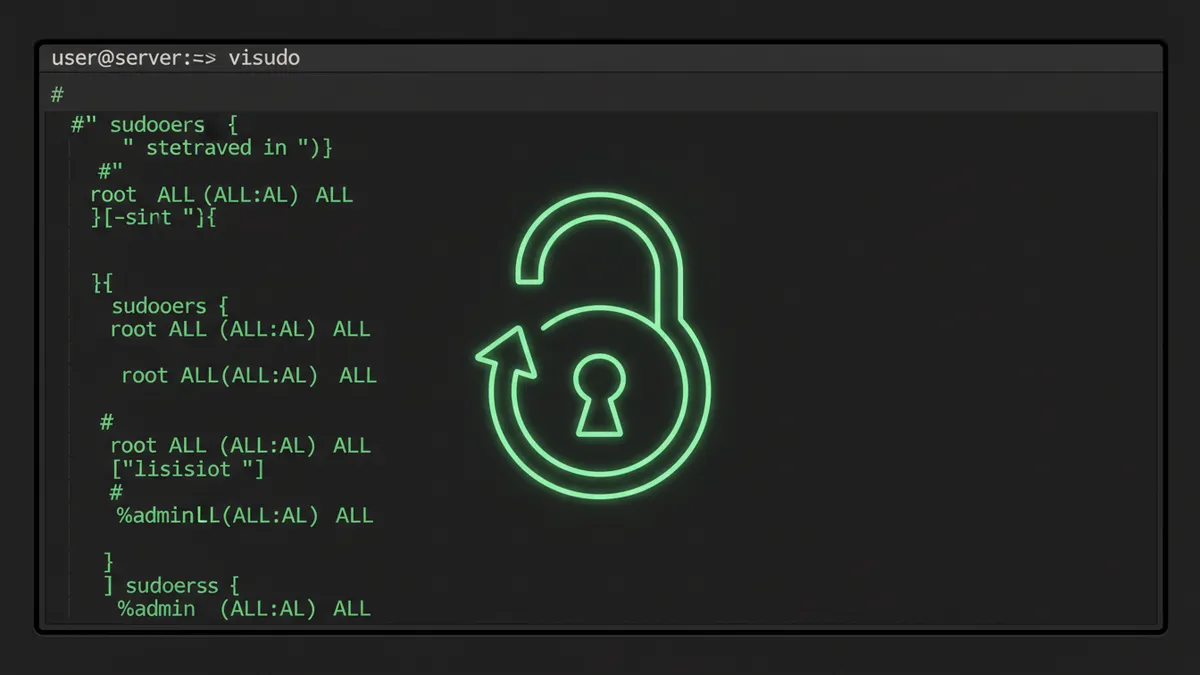
I learned that the hard way. Back when I was still a junior sysadmin, I opened /etc/sudoers in nano directly. No visudo, no safety net. I fat-fingered a colon, saved the file, and suddenly nobody on that server could run sudo. Not me, not the senior admin, nobody. That was a fun afternoon involving a rescue USB and a lot of humble pie. So trust me when I say: the sudoers file demands respect.
This guide walks you through how to safely edit sudoers, understand the syntax, configure sudo permissions for users and groups, and avoid the mistakes that leave you locked out. Whether you’re managing a homelab or a fleet of production servers, this is the foundation of Linux file permissions and access control.
What Is the Sudoers File (And Why It Matters)
The sudoers file is a configuration file located at /etc/sudoers. It controls which users and groups can run commands with elevated (root) privileges using the sudo command. Think of it as the master access list for your entire system.
Every time you type sudo apt update or sudo systemctl restart nginx, the system checks this file to determine whether you’re actually allowed to do that. Without a proper entry, you get the dreaded “user is not in the sudoers file” error.
Where the Sudoers File Lives
The main file is always at /etc/sudoers. However, modern distributions also use a directory called /etc/sudoers.d/ for modular, drop-in configuration files. We’ll cover that approach later because it’s honestly the better way to manage sudo permissions on any system beyond a single-user desktop.
Why You Must NEVER Edit It Directly
Here’s the golden rule: never open /etc/sudoers with a regular text editor. No nano /etc/sudoers. No vim /etc/sudoers. If you save a syntax error, sudo breaks for every user on the system. There’s no “undo” button.
Instead, you use the official visudo man page tool. The visudo command does two critical things:
- Locks the file: Prevents multiple admins from editing simultaneously
- Validates syntax: Checks your changes before saving, so a typo won’t break sudo access
How to Open and Edit the Sudoers File with visudo
Using visudo is straightforward. It’s the only safe way to edit the sudoers file, and it should become muscle memory.
The Basic Command
Open a terminal and run:
sudo visudoThat’s it. This opens /etc/sudoers in your system’s default editor. On Ubuntu and Debian, that’s usually nano. On Arch, Fedora, and most other distros, it opens in the Vim editor. If you’re not comfortable with Vim (no shame in that), you can override the editor.
Changing the Default Editor
To use nano instead of Vim for a single session:
EDITOR=nano sudo visudoTo make it permanent on Ubuntu/Debian:
sudo update-alternatives --config editorYou can also validate an existing sudoers file without opening it for editing:
sudo visudo -cThis checks the syntax and reports any errors. I run this after every change, just as a sanity check. Old habits from that lockout incident.
Understanding the Sudoers File Syntax
The sudoers file has its own syntax, and it can look intimidating at first glance. But once you understand the pattern, it clicks. The official sudoers manual covers every edge case, but here’s what you actually need to know.
The Basic Rule Structure
Every sudoers rule follows this format:
user host=(runas_user:runas_group) commandsLet’s break that down:
- user: The username (or %group) this rule applies to
- host: Which hostname this rule applies on (usually
ALL) - (runas_user:runas_group): Which user/group they can run commands as
- commands: Which specific commands they’re allowed to execute
The most common line you’ll see is:
root ALL=(ALL:ALL) ALLThis means: the user root can run ALL commands, as any user or group, on any host. Straightforward, but powerful.
The %group Syntax
A % prefix means “group” instead of “user.” On Ubuntu and Debian, the default sudo group is called sudo:
%sudo ALL=(ALL:ALL) ALLOn RHEL, Fedora, and Arch Linux, the equivalent group is called wheel:
%wheel ALL=(ALL:ALL) ALLSame effect, different group name. If you’re learning how to add and manage users in Linux, understanding group-based sudo is essential.
The NOPASSWD Tag
Sometimes you need a user or script to run sudo commands without being prompted for a password. This is especially common in automation and CI/CD pipelines where interactive prompts aren’t an option.
deploy ALL=(ALL) NOPASSWD: /usr/bin/systemctl restart nginxThis lets the user deploy restart nginx without a password, but nothing else. If you’re writing bash scripts that need to run privileged commands non-interactively, NOPASSWD is how you do it safely.
NOPASSWD: ALL on a real server. It gives a user unrestricted passwordless root access. Limit NOPASSWD to the specific commands that actually need it.
Command Aliases
If you find yourself listing the same set of commands for multiple users, command aliases keep things clean:
Cmnd_Alias SYSADMIN = /usr/bin/apt, /sbin/reboot, /usr/bin/systemctl
john ALL=(ALL) SYSADMIN
jane ALL=(ALL) SYSADMIN
Now both john and jane can run those three commands with sudo, and you only need to update the alias when the list changes. Note how every command uses its absolute path. That’s not optional.
Common Sudoers Configurations with Examples
Let’s walk through the configurations you’ll actually use in real life. These cover about 90% of what I’ve needed across homelab setups and production servers.
Add a User to the sudo Group (Simplest Method)
The easiest way to grant full sudo access is adding a user to the appropriate group. If you’ve already followed our guide on how to add a user in Linux, this is the next logical step.
On Debian/Ubuntu:
sudo usermod -aG sudo usernameOn RHEL/Fedora/Arch:
sudo usermod -aG wheel usernameThe user needs to log out and back in for the group change to take effect.
Grant Full sudo to a Specific User
If you’d rather grant sudo access directly in the sudoers file (without relying on group membership), add this line using visudo:
username ALL=(ALL:ALL) ALLThis gives username the same privileges as root. Use this sparingly.
Limit sudo to Specific Commands Only
This is where the principle of least privilege comes in. Instead of granting full root access, restrict users to only the commands they need:
devops ALL=(ALL) /usr/bin/systemctl, /usr/bin/aptNow the user devops can manage services and packages, but can’t touch the filesystem, network config, or user accounts with sudo. This is the approach I use on every production server.
NOPASSWD for Specific Commands
A practical example for a deploy user that needs to restart services during automated deployments:
deploy ALL=(ALL) NOPASSWD: /usr/bin/systemctl restart nginx, /usr/bin/systemctl restart gunicornUsing /etc/sudoers.d/ for Modular Configuration
Here’s the approach I recommend for anything beyond a personal machine. Instead of editing the main /etc/sudoers file, create separate files in /etc/sudoers.d/:
sudo visudo -f /etc/sudoers.d/devteamThen add your rules there:
# Development team sudo rules
deploy ALL=(ALL) NOPASSWD: /usr/bin/systemctl restart nginx
devops ALL=(ALL) /usr/bin/systemctl, /usr/bin/apt, /usr/bin/journalctl- Drop-in files are never overwritten by package manager updates
- Each team or role gets its own file, making audits simpler
- If one file has a syntax error, it doesn’t break the others
- Easier to manage with configuration management tools like Ansible
The main /etc/sudoers file includes this line by default on most distros:
@includedir /etc/sudoers.dThat @includedir directive loads every file in the directory. Just make sure your filenames don’t contain a dot or tilde, or they’ll be silently ignored.
Sudoers Security Best Practices
Configuring sudo correctly goes beyond just “making it work.” Sudo is a privilege escalation mechanism, and misconfigured sudo permissions are one of the most common attack vectors on Linux servers. Let me share what I’ve learned from years of hardening systems, including pairing sudo with tools like fail2ban, a UFW firewall, and SSH key authentication.
Always Use Absolute Paths
When specifying commands in sudoers, always use the full path:
# Correct
deploy ALL=(ALL) NOPASSWD: /usr/bin/systemctl restart nginx

# WRONG - allows PATH hijacking
deploy ALL=(ALL) NOPASSWD: systemctl restart nginx
Without absolute paths, an attacker could place a malicious systemctl binary earlier in the user’s $PATH and escalate privileges. This is a real attack vector, not a theoretical one.
Avoid Broad ALL Permissions
A common mistake is granting ALL=(ALL) ALL to service accounts or deploy users. This violates the principle of least privilege and essentially gives that account root access. Only grant the specific commands each user or role actually needs.
“The principle of least privilege means granting users only the minimum privileges necessary to perform their tasks.” – Red Hat Enterprise Linux Security Hardening Documentation
Use /etc/sudoers.d/ Instead of the Main File
I’ve said it before and I’ll keep saying it: use /etc/sudoers.d/ for all custom rules. Leave the main file alone. This makes auditing, version control, and automated configuration management far easier. If you’re using GPG encryption and other security hardening measures, keeping your sudoers config clean and modular is part of the same mindset.
Audit sudo Activity with journalctl
Every sudo invocation gets logged. Review these logs regularly using journalctl:
journalctl | grep sudoOr check the auth log directly:
cat /var/log/auth.log | grep sudoI review sudo logs weekly on my production servers. It only takes a few minutes, and it’s caught unauthorized access attempts more than once.
Speaking of security, it’s worth noting that recent sudo privilege escalation vulnerabilities like CVE-2025-32462 and CVE-2025-32463 have demonstrated that even sudo itself isn’t immune to bugs. Keep your sudo package updated with sudo apt update && sudo apt upgrade (or the equivalent for your distro). Patching isn’t glamorous, but it’s essential.
How to Recover If You Get Locked Out of sudo
It happens. Maybe you mistyped a rule, or maybe you forgot to use visudo. However you got here, don’t panic. There are ways back in.
Try pkexec First
If you’re on a desktop system with PolicyKit installed, pkexec is your lifeline:
pkexec visudoThis uses a different authentication mechanism than sudo, so a broken sudoers file won’t block it. If it works, fix your syntax error and save. Crisis averted.
Boot Into Recovery Mode
If pkexec isn’t available (common on headless servers), you’ll need to boot into single-user or recovery mode:
- Reboot the machine
- At the GRUB menu, select Advanced options, then Recovery mode
- Choose Drop to root shell
- Remount the filesystem as read-write:
mount -o remount,rw /- Fix the sudoers file:
visudo- Reboot normally:
rebootWrapping Up: The Sudoers File Is Power (Handle It Carefully)
The sudoers file is one of the most important configuration files on any Linux system. Getting it right means your users have exactly the access they need and nothing more. Getting it wrong means either a security hole or a locked-out system.
Here’s my checklist that I follow every time I touch sudoers:
- Always use visudo to edit the sudoers file
- Apply least privilege: grant only what’s needed, nothing more
- Use /etc/sudoers.d/ for modular, maintainable configuration
- Use absolute paths in every command specification
- Keep sudo updated to patch privilege escalation vulnerabilities
- Audit regularly with journalctl and review who has access
If you found this guide helpful, you might also want to check out our guide on the chown command for managing file ownership, or dive deeper into Linux file permissions to understand the full picture of access control on Linux.
Got questions or a sudoers horror story of your own? Drop a comment below. We’ve all been there.