How to Change Timezone in Linux: timedatectl and Manual Methods Explained
Learn how to change timezone in Linux using timedatectl, manual symlink, and dpkg-reconfigure. Includes NTP sync, UTC best practices, and real command examples.

In this article
Learning how to change timezone in Linux sounds like a five-second task. Run a command, move on with your day. But I’m going to tell you a quick story about why I take this little chore very seriously now — and why you should too. The first “real” server I ever built was an Ubuntu 8.04 box stuffed under my desk, and one Sunday morning I woke up to discover my nightly database dump hadn’t run for three days. The cause? I had set the system clock to my local time, the RTC to something else entirely, and Daylight Saving had quietly walked in and stomped on my cron jobs in Linux like an unwanted houseguest.
That mistake taught me to respect timedatectl. In this guide, I’ll walk you through every reliable way to change the timezone — the modern timedatectl approach, the manual symlink method for chroots, and the Debian-friendly dpkg-reconfigure workflow. We’ll also cover NTP sync, why your servers should live in UTC, and one trick most folks miss for per-cron timezone overrides. Stick around for the best practices section — that’s where I share the workflow I use to verify every new server I provision.
sudo timedatectl set-timezone America/New_York (replace with your zone). Verify with timedatectl. Done. The rest of this article covers the gotchas — chroots, NTP, RTC mode, and the cron DST trap.
Why Getting Your Timezone Wrong Can Break Your Whole Server
I want to start here because most tutorials skip this part, and it’s honestly the most important section. The reason you care about timezone configuration isn’t aesthetic — it’s because almost every scheduled, time-sensitive thing your server does depends on it.
Cron is the classic landmine. When DST shifts forward, a job scheduled for 2:30 AM might never run because that minute literally doesn’t exist. When DST shifts back, the same job can run twice. As one server admin put it bluntly:
“If the clock jumps forward or backward because of manual changes, NTP stepping or timezone/DST shifts, cron may skip scheduled runs or execute them twice, which can break backups, reporting, billing or any business-critical batch job.” — DCHost Server Administration Blog
Then there’s log correlation. If you’ve ever tried to debug an incident across three servers in different regions and they’re all logging in different local times, you know the special kind of pain I’m talking about. Tools like journalctl can render timestamps in any zone, but the underlying logs need a consistent reference point. UTC is that reference.
The other usual suspects: automatic backups in Linux, billing rollovers, replication windows, certificate renewals, and logrotate schedules — all of them assume the system clock and timezone are accurate. Get this wrong and the cascade of weird, hard-to-debug failures will eat your weekend.
How to Check Your Current Timezone in Linux
Before you change anything, find out what you’re working with. There are three quick ways I use depending on what info I want.
Using timedatectl
This is my go-to. Just run it with no arguments:
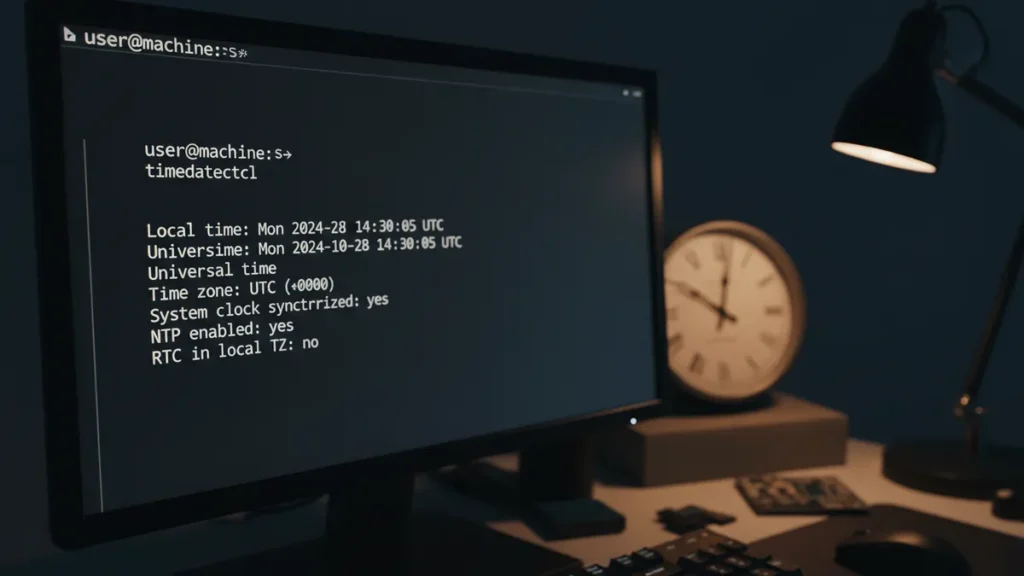
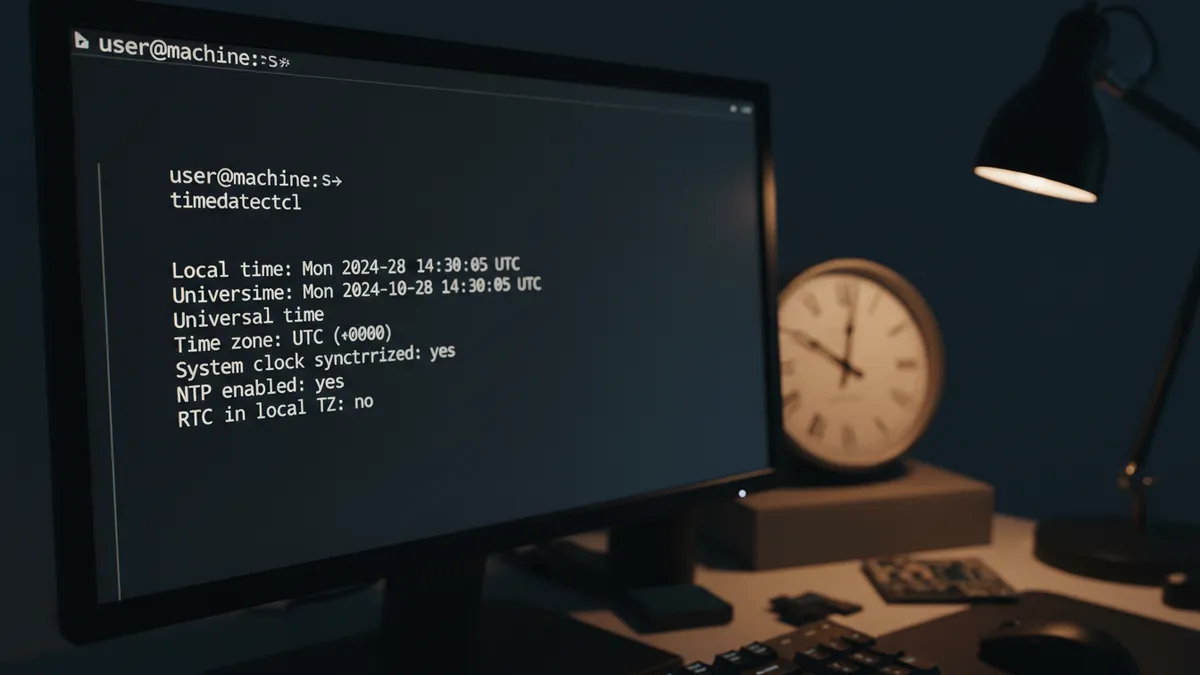
timedatectlYou’ll get something like this:
               Local time: Fri 2026-05-01 14:32:11 MST
           Universal time: Fri 2026-05-01 21:32:11 UTC
                 RTC time: Fri 2026-05-01 21:32:11
                Time zone: America/Phoenix (MST, -0700)
System clock synchronized: yes
              NTP service: active
          RTC in local TZ: no
That single command answers five questions at once: local time, UTC time, hardware clock time, current zone, and whether NTP is keeping you in sync. It’s the cleanest summary view in the entire toolset.
Using the date command
If you just want a quick sanity check, the date command in Linux is fastest:
dateYou’ll see something like Fri May 1 14:32:11 MST 2026. The three-letter code at the end is your timezone abbreviation. Pair it with date -u to see UTC for comparison.
Reading /etc/timezone directly
On Debian and Ubuntu systems, /etc/timezone is a plain text file containing the zone name:
cat /etc/timezone
# America/Phoenix
You can also inspect the symlink that timedatectl manages under the hood:
ls -la /etc/localtime
# /etc/localtime -> /usr/share/zoneinfo/America/Phoenix
That symlink is the real source of truth. Every method we’re about to discuss is just a different way of pointing it somewhere else.
How to Change Timezone with timedatectl (The Modern Method)
This is the method I use 95% of the time. It works on any distribution that uses systemd — which is basically everything modern: Ubuntu, Debian, Fedora, RHEL, CentOS Stream, openSUSE, Arch, and so on.
Step 1: List Available Timezones
Linux ships with around 339 timezone definitions stored as binary TZif files under /usr/share/zoneinfo/. To see them all, run:
timedatectl list-timezonesThat’ll page through the entire list. It’s a lot.
Step 2: Filter by Region
Nobody scrolls through hundreds of zones. Filter by continent or region instead:
timedatectl list-timezones | grep America
timedatectl list-timezones | grep Europe
timedatectl list-timezones | grep Asia
The format is always Region/City — for example, America/New_York, Europe/London, Asia/Tokyo, Asia/Kolkata, or just UTC.
Step 3: Set the Timezone
Once you’ve found the right zone, set it:
sudo timedatectl set-timezone America/New_YorkThat’s it. No restart needed for the system itself, though long-running services that cached the old timezone may need to be restarted to pick up the change. Worth knowing if you have a Java app or a database that started before the change.
Step 4: Verify the Change
Always verify. Always.
timedatectl
date
Look at the “Time zone” line and the offset. They should match what you set. If you want the gory technical details on every option, the official timedatectl documentation from the systemd project is the canonical reference.
timedatectl requires an active D-Bus connection. That means it won’t work inside a chroot environment (like during an OS install or when fixing a broken system from a live USB). For those cases, use the manual symlink method below.
How to Change Timezone Without timedatectl (Legacy and Chroot Method)
Sometimes you can’t use timedatectl. Maybe you’re in a chroot, on a stripped-down container, on Alpine Linux (which doesn’t ship systemd at all), or troubleshooting a system where systemd itself is broken. Here’s the manual approach.
Manual Symlink Method
This is the universal fallback. Replace the /etc/localtime symlink to point at the zone you want:
sudo ln -sf /usr/share/zoneinfo/America/New_York /etc/localtimeThe -f flag forces replacement of the existing symlink. On Debian and Ubuntu, also update the plain-text companion file so other tools stay consistent:
echo 'America/New_York' | sudo tee /etc/timezoneFor deeper background on what that symlink actually does, see the localtime(5) Linux man page.
Debian and Ubuntu: dpkg-reconfigure tzdata
If you’re on Debian or Ubuntu and you’d rather click through a menu than memorize zone names, this one’s for you:
sudo dpkg-reconfigure tzdataYou’ll get a friendly terminal menu. Pick your geographic area, then your city. It updates everything — symlink, /etc/timezone, the works. Great for desktop systems and one-off configurations where speed of memory beats speed of typing.
Interactive Method with tzselect
One more option I love for new admins: tzselect. It walks you through a series of prompts and outputs the correct zone name. It doesn’t actually set anything — it just helps you identify the right string to feed into one of the other commands. Useful when you’re in a country whose canonical zone name you don’t remember.
NTP Synchronization: Making Sure Your Clock Stays Accurate
Setting the timezone tells your system how to display time. NTP keeps the underlying clock accurate. You need both.
Enabling NTP with timedatectl
To turn on automatic time synchronization:
sudo timedatectl set-ntp trueThat activates systemd-timesyncd, a lightweight SNTP client built into systemd. To disable it (for air-gapped boxes or test environments where you want full clock control):
sudo timedatectl set-ntp falseVerify it’s working:
timedatectlLook for System clock synchronized: yes and NTP service: active. If something looks off, use systemctl to inspect the timesyncd service directly: systemctl status systemd-timesyncd. For Ubuntu-specific guidance, Ubuntu’s official guide on timedatectl and timesyncd is excellent.
Quick production note: systemd-timesyncd is fine for most workloads, but if you need higher accuracy or want your machine to act as a time server itself, swap it for chrony. I run chrony on every production box I manage.
Hardware Clock (RTC) and UTC
This is the part that bit me on that Ubuntu 8.04 disaster. Your motherboard has a battery-backed Real Time Clock that keeps ticking when the system is off. The kernel reads it at boot. The question is: should the RTC store local time or UTC?
The answer is always UTC. Always. Run:
sudo timedatectl set-local-rtc 0The systemd documentation is unambiguous on this:
“Maintaining the RTC in the local timezone is not fully supported and will create various problems with time zone changes and daylight saving adjustments. If at all possible, keep the RTC in UTC mode.” — systemd Project, timedatectl Documentation
The only reason to ever use set-local-rtc 1 is dual-boot with a Windows install you can’t reconfigure. Even then, fix Windows instead.
Timezone Best Practices for Production Linux Servers
Here’s the part where I save you the weekend I lost to my own server. These are the rules I run by.
- Always use UTC on servers. No DST, no shifts, no ambiguity. Log correlation across regions becomes trivial. Set it with
sudo timedatectl set-timezone UTCand forget about it. - Use the TZ environment variable for local-time cron jobs. If you absolutely need a job to run at 9 AM Eastern, don’t change the system zone — set
TZ=America/New_Yorkat the top of the crontab. This is one of the most underused tricks in environment variables in Linux, and it saves you from scattering timezone assumptions across services. - Consider systemd timers instead of cron. They’re timezone-aware in a more controllable way and integrate cleanly with the rest of the systemd ecosystem.
- Bake timezone into your provisioning automation. If you’re using Ansible on Linux or cloud-init, set the zone there. Manual configuration is how fleets drift out of sync.
- Verify after every new server provision. Cloud providers don’t all default to UTC. Run
timedatectlas part of your post-provision checklist. Trust nothing. - Make services inherit timezone correctly. When creating a systemd service, remember unit files inherit the system timezone unless you explicitly override with an Environment directive.
- Keep your kernel and system config sane. Related reading on tuning Linux at the kernel level: sysctl in Linux.
- Run
timedatectl— confirm zone is UTC and NTP is active. - Run
date— sanity check. - Set
set-local-rtc 0if it isn’t already. - Drop a test cron job logging
dateoutput. Wait for it. Verify timestamps match expectations.
Wrapping Up
Changing the timezone in Linux is a small task with outsized consequences. Use timedatectl set-timezone on any modern systemd system, fall back to the symlink method when you can’t, keep the RTC in UTC, and standardize on UTC across your server fleet. Do those four things and you’ll never have a 3 AM “where did the backup go” mystery to debug.
If you found this useful, you’ll probably want to dig deeper into the surrounding tools too. My guides on cron jobs in Linux and systemd timers pair naturally with this one — once your time is right, you’ll want scheduled tasks you can trust. And if you’re starting to think about doing all this consistently across multiple machines, the Ansible on Linux guide is where I’d head next.
Got a Linux question, a horror story, or a corner case I didn’t cover? Browse the rest of the Linux guides on the site — there’s a good chance I’ve already written about it, and if I haven’t, drop me a note and it goes on the list. Happy clocking. BTW, I use Arch.