How to Use LUKS Disk Encryption on Linux (Step-by-Step)
Learn to encrypt disks and partitions with LUKS on Linux using cryptsetup. Covers LUKS2 setup, key management, header backup, and auto-mount at boot.

In this article
If you run Linux and care about your data, Linux LUKS disk encryption should be non-negotiable. LUKS is the standard way to encrypt a full partition or drive on Linux, and once you set it up, the data is unreadable without your passphrase. I’ve been deploying LUKS on every homelab rebuild, laptop install, and backup drive for over a decade now, and in this guide I’ll walk you through exactly how I do it — step by step.
Before LUKS, I lost a drive I thought was “safe” because it lived inside my house. I’ll get to that story in a minute. First, let’s talk about what LUKS actually is and why it’s become the default on pretty much every modern Linux distro.
cryptsetup, run cryptsetup luksFormat /dev/sdX, open it with cryptsetup open /dev/sdX name, create a filesystem, then mount it at /dev/mapper/name. Always back up the LUKS header with luksHeaderBackup — without it, a corrupted header means your data is gone forever.
What Is LUKS and How Does It Work?
LUKS stands for Linux Unified Key Setup, and it was created back in 2004 by Clemens Fruhwirth. It’s not an encryption algorithm on its own. Under the hood, the Linux kernel handles the actual encryption through dm-crypt. LUKS sits on top of dm-crypt and adds a structured header, multiple passphrases, and sane key management.
Think of it this way: dm-crypt is the engine. LUKS is the dashboard, ignition, and spare keys. Together they form the most deployed disk encryption stack on the planet — and with Linux now powering 49.2% of global cloud workloads as of 2025, that’s not a small footprint.
Why does this matter? Because 71% of businesses encrypt data at rest, and the average data breach in 2024 cost $4.88 million. Encryption isn’t optional anymore — it’s table stakes. Unlike openssl for TLS certificate management or GPG for file-level encryption, LUKS operates at the block device level. That means every byte of the disk is protected, not just individual files.
LUKS1 vs LUKS2: Which Should You Use?
Short answer: LUKS2, unless your bootloader refuses to cooperate. Here’s why.
- LUKS2 (the default on modern distros): Uses the Argon2id KDF, which is memory-hard and designed to resist GPU brute-force attacks. JSON-based header with redundant metadata copies. Up to 32 keyslots. Supports online re-encryption.
- LUKS1 (legacy): Uses PBKDF2 only. Fixed binary header. Maximum of 8 keyslots. Offline re-encryption only. Still needed for some older GRUB setups that can’t read LUKS2 headers.
“The default across modern distributions, dm-crypt with LUKS2, is hardened, standardized, and the best choice for most environments.” — linuxsecurity.com
If you’ve ever wondered why LUKS2 matters for real-world security, it’s this: Argon2 makes brute-forcing with graphics cards considerably more expensive than PBKDF2 did. For anyone worried about a stolen laptop or a pulled drive, that’s a huge upgrade.
Installing cryptsetup on Linux
All the commands here require root, so either use sudo or switch to a root shell. If you’re not sure how to manage sudo privileges cleanly, read the sudoers guide first.
Debian / Ubuntu
sudo apt update && sudo apt install cryptsetupRHEL / Fedora / CentOS
sudo dnf install cryptsetupArch Linux
sudo pacman -S cryptsetupMost modern distros ship with cryptsetup preinstalled. Verify it’s there:
cryptsetup --versionHow to Encrypt a Partition with LUKS (Step-by-Step)
This is the part where you need to pay attention. I’ve personally wiped the wrong drive once (only once — you only do it once), so let’s be careful together.
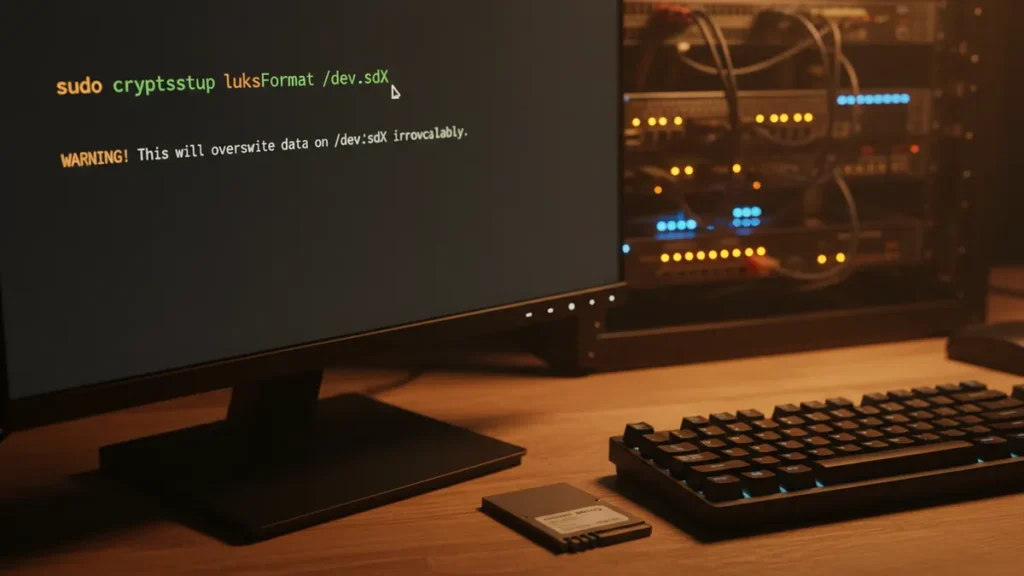
luksFormat destroys all existing data on the target device. Triple-check the device path before running it. There is no undo.
Step 1: Identify Your Target Device
Use lsblk or fdisk to identify and partition your disks first. You’re looking for something like /dev/sdb or /dev/nvme0n1p2.
lsblk -f
sudo fdisk -l
Step 2: Format the Partition with luksFormat
sudo cryptsetup luksFormat --type luks2 /dev/sdb1It’ll prompt you to type YES in all caps (that’s on purpose) and then ask for a passphrase twice. Pick something long. You cannot recover it.
Step 3: Open the LUKS Container
sudo cryptsetup open /dev/sdb1 my_secure_diskThis decrypts the volume and maps it to /dev/mapper/my_secure_disk. That mapper path is what you’ll read and write to from now on.
Step 4: Create a Filesystem Inside
sudo mkfs.ext4 /dev/mapper/my_secure_diskext4 is the safe choice. Use XFS or Btrfs if you have a reason to.
Step 5: Mount and Use the Encrypted Volume
sudo mkdir -p /mnt/secure
sudo mount /dev/mapper/my_secure_disk /mnt/secure
If this is your first time mounting disks in Linux, it’s worth the quick read. Anything you write to /mnt/secure is now encrypted at rest.
Step 6: Unmount and Close the Container
sudo umount /mnt/secure
sudo cryptsetup close my_secure_disk
Run lsblk again — the mapper entry should be gone. The disk is now a wall of ciphertext until you open it again.
If you want flexible encrypted storage with resizable volumes, pair this with LVM (Logical Volume Manager). The classic pattern is LUKS-on-LVM or LVM-on-LUKS, and it’s what I use on every server I build.
Managing LUKS Keys and Passphrases
LUKS2 gives you up to 32 keyslots. I use this for one reason: recovery. One passphrase is a single point of failure.
Add a Second Passphrase (Backup Key)
sudo cryptsetup luksAddKey /dev/sdb1It’ll ask for an existing passphrase, then for the new one. Now the volume opens with either.
Remove a Passphrase
sudo cryptsetup luksRemoveKey /dev/sdb1Inspect Your LUKS Header with luksDump
sudo cryptsetup luksDump /dev/sdb1This shows keyslot status, cipher, and KDF settings. For every command detail you’d ever need, the official cryptsetup man page is the authoritative reference. Also worth bookmarking: Red Hat’s LUKS security hardening documentation.
Auto-Mount an Encrypted Volume at Boot
For servers that reboot unattended, typing a passphrase at the console isn’t an option. The answer is a key file read from the root partition at boot. This is the section most beginner guides skip — but it’s essential for production.
Generate a Key File
sudo dd if=/dev/urandom of=/etc/luks-keyfile bs=512 count=8
sudo chmod 600 /etc/luks-keyfile
The chmod 600 is non-negotiable. If you’re fuzzy on why, read up on Linux file permissions — this file is a master key and must be root-readable only.
Configure /etc/crypttab
Add the key file as a second passphrase, then wire it up in /etc/crypttab:
sudo cryptsetup luksAddKey /dev/sdb1 /etc/luks-keyfile

# /etc/crypttab
# name             source     key-file           options
my_secure_disk     /dev/sdb1  /etc/luks-keyfile  luks
Add the Mount to /etc/fstab
# /etc/fstab
/dev/mapper/my_secure_disk  /mnt/secure  ext4  defaults  0  2
Then reload with systemctl to apply changes:
sudo systemctl daemon-reloadReboot to confirm the volume mounts automatically. While you’re at it, consider encrypting your swap space on Linux too — unencrypted swap can leak memory contents.
Back Up Your LUKS Header — Don’t Skip This
This is the section I wish someone had screamed at me about when I started. The LUKS header stores all your key material. If it’s corrupted or overwritten, your data is permanently unrecoverable. No passphrase, no recovery, no chance.
This is the story I mentioned at the top. Early in my homelab days I ran a NAS with four drives. No encryption. One day I pulled the drives to upgrade hardware, and it hit me — anyone who ever got those drives had everything. Family photos. Tax records. SSH keys. The cold feeling I got that afternoon is why LUKS is a default for me now, and why I back up the header before I do anything else.
sudo cryptsetup luksHeaderBackup /dev/sdb1 \
  --header-backup-file luks-header-backup.img
Store it off the encrypted disk. USB stick, encrypted cloud backup, separate system — anywhere but the drive it backs up. Fold this into an automated backup strategy so it happens without you thinking about it.
To restore (test this before you need it):
sudo cryptsetup luksHeaderRestore /dev/sdb1 \
  --header-backup-file luks-header-backup.img
Common LUKS Errors and How to Fix Them
“No key available with this passphrase”
Either the passphrase is wrong or you’re hitting the wrong device. Verify it’s actually a LUKS volume with cryptsetup luksDump /dev/sdb1. If luksDump works, it’s the passphrase. If it errors, it’s the device.
“Device /dev/sdX is not a valid LUKS device”
Nine times out of ten, this is partition vs. whole-disk confusion. You probably encrypted /dev/sdb1 but are trying to open /dev/sdb, or vice versa. Run lsblk and double-check.
Header Corruption Recovery
Restore from your header backup (you did make one, right?). Without a backup, the data is gone — full stop. After failed opens, check dmesg for kernel-level hints about what’s going wrong.
Frequently Asked Questions
Can I encrypt an existing partition without losing data?
Yes, but it’s risky. LUKS2 supports online re-encryption via cryptsetup reencrypt. Back up everything first. I’ve done it successfully, but I’d still rather rebuild clean when possible.
Does LUKS slow down my disk?
On modern hardware with AES-NI support (basically every CPU from the last decade), the overhead is typically under 5%. You won’t notice it on day-to-day work.
Is LUKS enough on its own for full server security?
No. Disk encryption protects data at rest. Combine it with fail2ban to protect against brute-force attacks, proper firewall rules, and good SSH hygiene. Encryption is one layer in a stack.
What happens if I forget my passphrase?
If you have no other keyslot with a known passphrase, and no header backup with a known passphrase inside it, your data is gone. This is why I always configure two keyslots from the start.
Wrapping Up
LUKS isn’t complicated once you’ve done it twice. Format, open, mkfs, mount — that’s the whole dance. The real discipline is backing up your header and managing your keys like you manage your SSH setup: carefully, with redundancy.
If you’re building out a broader security posture, take a look at the best Linux security tools roundup next — LUKS pairs well with host-based intrusion detection and good backup habits. Pair it with LVM, fail2ban, and automated header backups, and you’ve got a setup I’d be comfortable running in production any day of the week.
Encrypt your disks. Back up your header. Test your restore. That’s the whole philosophy — and your future self will thank you.