How to Add Swap Space in Linux: The Complete Guide Every Admin Needs
Learn how to add swap space in Linux using a swap file or swap partition. Step-by-step commands, size recommendations, and swappiness tuning included.

In this article
If you’ve ever had a Linux server crash out of nowhere, killing your database mid-transaction, you already know why learning how to add swap space in Linux matters. I learned this the hard way on a cheap VPS with 1GB of RAM. No swap configured. MySQL was happily chugging along until a traffic spike ate all available memory, and the OOM killer stepped in and terminated my database process without warning. Data gone. Lesson learned.
Swap space is your system’s safety net. It won’t replace RAM, but it buys your server precious seconds (or minutes) to survive memory pressure instead of crashing hard. In this guide, I’ll walk you through everything: what swap is, how much you need, and two methods to add it. Plus we’ll cover swappiness tuning and common mistakes I see people make constantly.
What Is Swap Space and Why Does It Matter
Swap space is a section of your disk that Linux uses as overflow memory. When your RAM fills up, the kernel moves inactive memory pages to swap. This frees up RAM for processes that actually need it right now.
Is swap slower than RAM? Absolutely. Disk I/O is orders of magnitude slower than memory access. But here’s the thing most tutorials skip: swap isn’t just a last resort. As Linux kernel engineer Chris Down explains in Chris Down’s in-depth analysis of Linux swap misconceptions, swap enables the kernel to reclaim anonymous memory from idle processes, improving overall memory efficiency across your entire system.
Without swap, the Linux OOM (Out of Memory) killer activates the moment RAM is exhausted. It picks a process to terminate, and its choices are often terrible. I’ve seen it kill SSH daemons, web servers, and yes, databases. If you want to check your system’s memory usage before deciding on swap, that’s a smart first step.
How Much Swap Space Do You Actually Need
The old “2x your RAM” rule is outdated. It made sense when systems had 256MB of memory. On a modern machine with 32GB of RAM, allocating 64GB of swap is wasteful and unnecessary.
Here’s what actually works, based on Red Hat’s official swap space size recommendations:
Red Hat Swap Size Guidelines
| System RAM | Recommended Swap |
|---|---|
| Under 2GB | 2x RAM |
| 2GB to 8GB | Equal to RAM |
| 8GB to 64GB | At least 4GB |
| 64GB+ | At least 4GB (workload dependent) |
For VPS and cloud servers with 1-4GB RAM, I typically go with 1-2GB of swap. It’s enough to handle spikes without eating too much disk space.
Swap for Hibernation
If you use hibernation (suspend-to-disk) on a Linux laptop, your swap must be at least as large as your total RAM. During hibernation, the entire contents of RAM get written to swap. Not enough space means hibernation fails silently or corrupts data.
Running SSDs? Keep your swappiness value low to reduce unnecessary writes. We’ll cover that tuning shortly.
Check Your Current Swap Status First
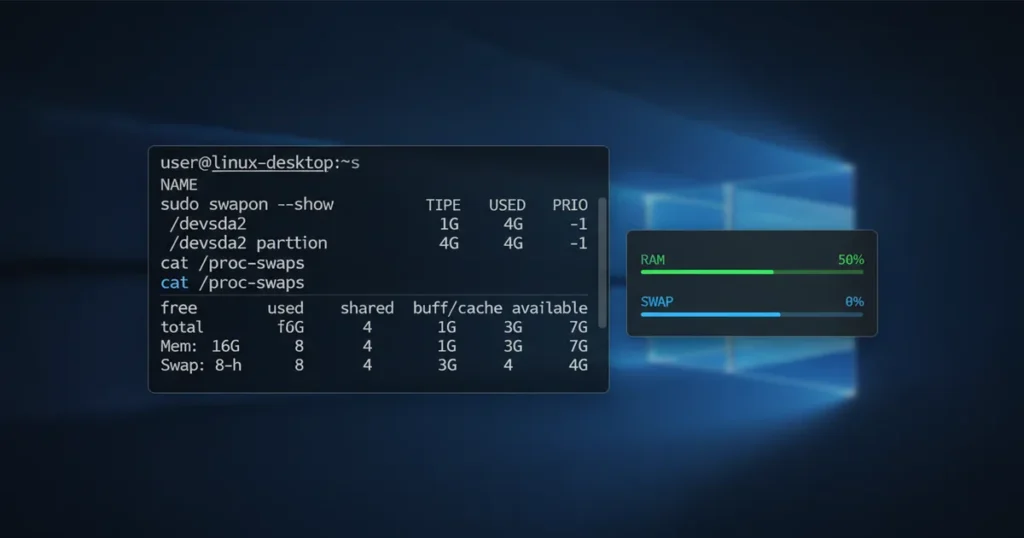
Before adding swap, check what’s already configured. Open a terminal and run:
swapon --showIf you get no output, you have no active swap. You can also use the free command for a broader view:
free -hThis shows both RAM and swap totals. Look at the “Swap” row. If it shows all zeros, you’re running without a safety net.
An alternative check:
cat /proc/swapsAny of these three commands will tell you where you stand. If swap is already active and you just want to monitor it in real time, tools like htop or the top command show swap usage visually alongside CPU and memory.
Method 1: Add a Swap File (Recommended for Most Setups)
A swap file is the most flexible way to add swap space in Linux. You can resize it, move it, or remove it without touching your partition table. This is what I use on every VPS and homelab machine I manage.
Step 1: Check Available Disk Space
First, make sure you have enough room. Use the df command to check available disk space:
df -hYou need at least as much free space as the swap file you plan to create. For this guide, we’ll create a 2GB swap file.
Step 2: Create the Swap File
The fastest method on ext4 or XFS filesystems:
sudo fallocate -l 2G /swapfile⚠ Btrfs Users: Use dd Instead
fallocate can create files with “holes” on Btrfs, which breaks swap entirely. If you’re on Btrfs (common on Fedora and some Arch setups), use this instead:
sudo dd if=/dev/zero of=/swapfile bs=1M count=2048 status=progressYou also need to disable copy-on-write: sudo chattr +C /swapfile before running mkswap. The Arch Linux wiki swap reference covers Btrfs edge cases in detail.
Step 3: Set Correct Permissions
This step is critical for security. Without it, any user on the system can potentially read sensitive data that got swapped out of other processes’ memory.
sudo chmod 600 /swapfileThis restricts the swap file so only root can read or write it. Skip this step and you’ve got a security hole. I can’t stress this enough.
Step 4: Format the File as Swap
sudo mkswap /swapfileThis writes the swap signature to the file so the kernel recognizes it as valid swap space.
Step 5: Enable the Swap File
sudo swapon /swapfileVerify it’s active:
swapon --show
free -h
You should now see your 2GB swap file listed and active.
Step 6: Make Swap Persistent Across Reboots
The swapon command only activates swap for the current session. Reboot and it’s gone. To make it permanent, add an entry to /etc/fstab:
echo '/swapfile none swap sw 0 0' | sudo tee -a /etc/fstabThe 0 0 at the end means no dump backup and no filesystem check on this file. If you’re new to fstab, my guide on mounting disks and editing /etc/fstab walks through the format in detail.
✓ Pro Tip: Back Up fstab First
A typo in /etc/fstab can prevent your system from booting. Always back it up before editing: sudo cp /etc/fstab /etc/fstab.bak. While you’re thinking about backups, consider setting up automatic backups for your critical config files.
Method 2: Add a Swap Partition (For Dedicated Disks)
Swap partitions bypass the filesystem layer entirely, giving a marginal I/O advantage. On modern kernels, the performance difference is negligible for most workloads. I only recommend this approach if you’re setting up a server with a dedicated swap disk or configuring swap during OS installation.
The trade-off: swap partitions are harder to resize since you need to repartition the disk. If you’re not comfortable with that process, check out our disk partitioning guide first.
The basic steps:
- Create a partition with type 82 (Linux swap) using
fdiskorparted - Format it:
sudo mkswap /dev/sdXN - Enable it:
sudo swapon /dev/sdXN - Add to
/etc/fstabusing the partition’s UUID (not the device name, which can change between boots)
To find the UUID:
sudo blkid /dev/sdXNThen add to fstab:
UUID=your-uuid-here none swap sw 0 0You can also create swap on LVM (Logical Volume Manager) volumes, which gives you the resizing flexibility of swap files with the raw device performance of partitions.
Tune Swappiness for Better Performance
The vm.swappiness parameter controls how aggressively the kernel moves pages from RAM to swap. It ranges from 0 to 100, and the default on most distros is 60.
A swappiness of 60 means the kernel starts swapping fairly early, even when around 40% of RAM is still free. For desktops and low-memory servers, that’s usually too aggressive.
Check your current value:
cat /proc/sys/vm/swappinessFor desktops and general-purpose servers, I set mine to 10. This tells the kernel to avoid swap unless it’s truly needed:
sudo sysctl vm.swappiness=10That change only lasts until reboot. To make it permanent, use output redirection or create a config file:
echo 'vm.swappiness=10' | sudo tee /etc/sysctl.d/99-swap.conf
sudo sysctl -p /etc/sysctl.d/99-swap.conf
💡 SSD Note
Running on an SSD? Lower swappiness reduces unnecessary writes to the drive, extending its lifespan. A value of 10 is a good starting point. Database admins sometimes go as low as 1-5.
How to Remove or Disable Swap Space
Need to resize, replace, or just remove your swap? Here’s how to cleanly disable it.
For a swap file:
sudo swapoff /swapfile
sudo rm /swapfile
Then remove the corresponding line from /etc/fstab.
For a swap partition:
sudo swapoff /dev/sdXNRemove the fstab entry but don’t delete the partition unless you’re sure you won’t need it again.
A word of caution: only disable swap if your system has enough RAM to handle peak loads. Without swap, the OOM killer becomes much more trigger-happy. If a critical service like a database gets killed, you may need to restart it with systemctl.
Common Swap Mistakes (And How to Avoid Them)
I’ve seen every one of these mistakes in the wild. A few of them I’ve made myself, back when I was first setting up my homelab on a stack of old Thinkpads running Arch.
- Forgetting chmod 600: After
fallocate, your swap file is world-readable by default. This is a real security risk. Always lock it down immediately. - Using fallocate on Btrfs: It silently creates a broken swap file. Use
ddand disable copy-on-write first. - Not adding to fstab: Your swap disappears after every reboot. One reboot later, your server is running naked again.
- Thinking swappiness=0 disables swap: It doesn’t. It tells the kernel to avoid swapping anonymous memory, but the kernel can still swap under extreme pressure. Use
swapoffto actually disable it. - Treating swap as extra RAM: 8GB of swap on a 4GB machine doesn’t give you 12GB of usable memory. It gives you 4GB of fast memory and 8GB of painfully slow overflow.
- Using device names in fstab:
/dev/sdb1can change between boots if drives are added or removed. Always use UUIDs for swap partitions in fstab.
Your Swap Space Is Set. What’s Next?
Adding swap space in Linux takes about five minutes and can save you from hours of downtime. Whether you go with a swap file (my recommendation for 90% of use cases) or a swap partition, the process is straightforward once you know the steps.
The key takeaways: always set permissions with chmod 600, always add your swap to /etc/fstab, and tune your swappiness to match your workload. Your future self will thank you the next time a memory spike hits and your server stays up instead of crashing.
Now that your memory management is sorted, you might want to explore related areas of Linux administration. If you haven’t already, learn how to check your system’s memory usage to understand your actual memory pressure, or dive into our disk partitioning guide if you want to optimize your full storage layout. And if you’re managing servers, setting up automatic backups should be next on your list.