How to Configure /etc/fstab in Linux (Without Bricking Your System)
Configure /etc/fstab in Linux to automate disk mounting. Learn the six fields, UUID vs device names, key mount options, and how to recover if something breaks.

In this article
If you’ve ever rebooted a Linux box and stared at a blinking emergency-mode prompt while your coffee went cold, you’ve probably met /etc/fstab. This guide is my linux fstab explained walkthrough — the one I wish I had on my homelab workstation back when I was still on Ubuntu 8.04 and convinced “nofail” was just a friendly suggestion. By the end, you’ll know every field, the mount options that actually matter, and how to recover when fstab decides today is the day your boot dies.
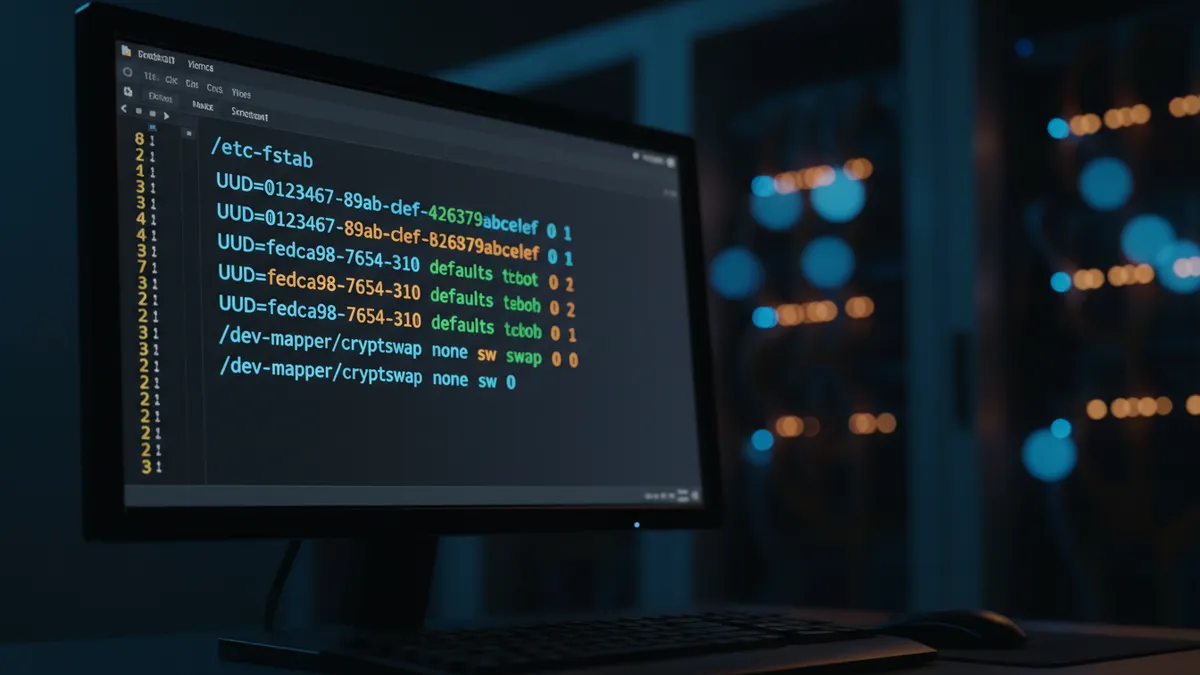
Quick answer: /etc/fstab is a plain-text configuration file that tells Linux which filesystems to mount at boot, where, and how. Each line has six whitespace-separated fields: device, mount point, filesystem type, options, dump, pass. Use UUIDs instead of /dev/sdX, always include nofail on non-essential drives, and run sudo mount -a before rebooting.
What Is /etc/fstab and Why Does It Matter?
The name fstab is short for “filesystem table.” It lives at /etc/fstab on every Linux distribution I’ve ever touched, from Slackware to Arch to whatever your favorite immutable distro is calling itself this week. It’s a static configuration file, plain text, and the kernel reads it during boot to figure out what to mount.
Without fstab, you’d have to manually run mount for every partition, every external disk, and every NFS share after every single reboot. That’s fine on a laptop you cold-boot once a week. It’s a nightmare on a server with twelve drives. Fstab is what makes “set it and forget it” possible — and it’s the same mechanism Linux uses to mount a disk in Linux manually, just automated at boot.
Here’s the catch though, and the reason this article exists: a misconfigured fstab is one of the most common causes of Linux boot failures. I learned this the hard way around 2015 when I added an external USB drive to my homelab server’s fstab without the nofail option. I unplugged the drive to use it on my laptop, rebooted the server a week later, and watched it drop straight into emergency mode. Couldn’t SSH in. Couldn’t do anything. I had to physically walk over with a keyboard and a flashlight.
That’s the kind of mistake fstab punishes you for. So we’re going to cover the recovery process too — because pretending it can’t happen to you is exactly how it happens to you.
The Six Fields of /etc/fstab (Explained Simply)
Every line in fstab has exactly six fields, separated by whitespace. Comments start with # and are ignored. Here’s a real entry from one of my homelab boxes, annotated:
# <device>                                  <mount point>  <type>  <options>                  <dump> <pass>
UUID=8f3a-1b2c-4d5e-6f7g-8h9i0j1k2l3m       /mnt/data      ext4    defaults,noatime,nofail    0      2
That’s it. Six fields. Let’s break each one down.
Field 1: The Device (fs_spec) — What You’re Mounting
This is the thing being mounted. It can be a block device path like /dev/sdb1, a UUID, a label, an NFS share like fileserver:/exports/media, or a special filesystem like tmpfs. If you’re working with traditional partitions you probably created with fdisk, you can partition your disk with fdisk first and then reference those partitions here. For LVM setups, you’ll see paths like /dev/mapper/vg0-home. Quick refresher on LVM logical volumes if that’s new to you.
UUIDs are strongly preferred — we’ll cover why in the next section.
Field 2: The Mount Point (fs_file) — Where to Mount It
The directory where the device becomes accessible. Has to exist before fstab tries to mount to it, otherwise the mount fails. Standard convention: data drives go in /mnt, removable media in /media, but honestly nobody will arrest you for putting a drive at /srv/photos.
Field 3: Filesystem Type (fs_vfstype) — ext4, xfs, btrfs, nfs, swap
What kind of filesystem is on the device. Common values:
- ext4 — the workhorse default for most Linux installs
- xfs — RHEL-family default, great for large files
- btrfs — copy-on-write with snapshots, used by openSUSE and Fedora workstation
- vfat / ntfs — for cross-platform USB drives
- nfs — network file system shares
- tmpfs — RAM-backed filesystem for fast temporary data
- swap — used for swap partitions or files, not a “real” filesystem
Field 4: Mount Options (fs_mntops) — The Most Important Field
Comma-separated list, no spaces. This is where you control how the filesystem behaves: read-only or read-write, whether binaries can execute, performance tweaks, security hardening, and (critically) whether a missing device should kill your boot. We’ll spend a whole section on this because it matters that much.
Fields 5 and 6: Dump and Pass — Usually Just 0 and 2
Field 5 (fs_freq) is the dump backup flag. The old dump utility used it. Almost nobody uses dump anymore — modern shops handle backups with rsync, restic, BorgBackup, or proper snapshot strategies. If you want a sane backup workflow, look at automatic backups in Linux instead. Set this to 0 and move on.
Field 6 (fs_passno) controls fsck check order at boot:
- 1 — root filesystem (checked first)
- 2 — other local filesystems (checked in parallel after root)
- 0 — don’t fsck (use for network mounts, tmpfs, swap)
According to the official fstab(5) Linux man page, this is exactly how the boot-time fsck pass logic was designed.
UUID vs. Device Name: Which Should You Use?
Always UUID. I’ll repeat that for the people in the back: always UUID. Here’s why this isn’t just dogma.
Why /dev/sdb1 Can Disappear (And Take Your Mount With It)
Device names like /dev/sda, /dev/sdb, /dev/sdc are assigned at boot based on hardware detection order. The kernel doesn’t promise any specific order. Plug in a new SATA drive, reseat a cable, swap a USB controller — and yesterday’s /dev/sdb1 is today’s /dev/sdc1. Your fstab entry then points at the wrong disk, or nothing at all.
“LABEL=<label> or UUID=<uuid> may be given instead of a device name. This is the recommended method, as device names are often a coincidence of hardware detection order, and can change when other disks are added or removed.”
— fstab(5) Linux Manual Page
The man page calling out “coincidence of hardware detection order” is one of my favorite bits of Linux documentation honesty.
How to Find Your UUID with blkid and lsblk
Two commands you should commit to muscle memory:
sudo blkid
# Output:
# /dev/sda1: UUID="abc123-..." TYPE="ext4"
# /dev/sdb1: UUID="def456-..." TYPE="xfs"

lsblk -f
# Tree view: shows every device with filesystem, label, UUID, and mount point
Now compare these two fstab entries:
# Fragile — breaks if you add another drive
/dev/sdb1   /mnt/data   ext4   defaults   0   2

# Solid — survives reboots, hardware changes, BIOS updates
UUID=def456-7890-...   /mnt/data   ext4   defaults,noatime,nofail   0   2
Labels (using LABEL=mydisk) are a distant second. They work, but two drives with the same label will collide and ruin your day. UUIDs are unique by design.
Essential Mount Options You Need to Know
This is the field that separates “I have a working fstab” from “I have an fstab that won’t break my boot when an external drive is unplugged.” Spend ten minutes here and save yourself two hours of recovery.
defaults — The Safe Starting Point
The defaults option is shorthand for: rw, suid, dev, exec, auto, nouser, async. Read-write, allow SUID, allow device files, allow execution, mount automatically at boot, only root can mount/unmount, and asynchronous I/O. For a normal data partition, this is fine.
noatime — A Free Performance Boost (Especially for SSDs)
By default, Linux updates the “last accessed” timestamp every time a file is read. Every. Single. Read. On a busy server or a workstation where you’re grepping through massive logs, that’s a lot of unnecessary writes. Sysadmin Bob Plankers documented this thoroughly in his noatime performance analysis by Bob Plankers, citing Ingo Molnar’s 2007 finding that atime updates were giving Windows a 20-30% I/O performance advantage over Linux.
Add noatime to your mount options. SSDs especially love this — fewer pointless writes means more longevity. The compromise option is relatime, which only updates atime if the file was modified since the last access. Use relatime if you actually rely on access times (mutt users, certain mail server setups, tmpwatch).
nofail — The Option That Saves Your Boot
This is the option my 2015-self didn’t know about. nofail tells the system: “if this device isn’t here at boot, don’t panic, just skip it.” Without nofail, a disconnected USB drive or unreachable NFS server at boot drops you straight into emergency mode.
Hard-won rule: Every non-root, non-essential mount in your fstab gets nofail. External drives. NAS shares. NFS mounts. USB backup disks. If your system can technically boot without that filesystem, mark it nofail. Future-you will thank present-you when a cable comes loose.
noexec, nosuid, nodev — Security Hardening
The security trio. Layer these on top of Linux file permissions for defense in depth:
- noexec: nothing on this filesystem can be executed as a binary. Great for
/tmp, user data partitions, and anywhere users can write. - nosuid: SUID and SGID bits are ignored. Stops a malicious binary from elevating privileges via that filesystem.
- nodev: device files on this filesystem are ignored. Prevents an attacker from sneaking in a fake
/dev/sda.
For external drives or NAS shares, my go-to options block is: defaults,nofail,x-systemd.device-timeout=5,noatime. The x-systemd.device-timeout bit tells systemd to give up waiting for the device after 5 seconds instead of the default 90, which keeps boot snappy when the NAS is offline.
Working with encrypted volumes? Encrypted partitions referenced in fstab are usually unlocked through crypttab first — see the guide on LUKS disk encryption for the full picture.
How to Add a New fstab Entry (Step-by-Step)
Time to actually do this. Suppose you’ve added a new drive to your machine, partitioned it, formatted it ext4, and you want it to mount at /mnt/projects on every boot. (If you haven’t partitioned yet, take a detour through the disk partitioning in Linux guide first.)
Pre-flight checklist:
- Drive is partitioned and has a filesystem on it
- You know which device it is (e.g.,
/dev/sdb1) - You have sudo access
- You’re prepared to test before rebooting
Step 1: Create the Mount Point Directory
sudo mkdir -p /mnt/projectsThe -p flag means “create parent directories if needed and don’t error if it already exists.” This directory has to exist before fstab can mount anything to it.
Step 2: Find the Device UUID with blkid
sudo blkid /dev/sdb1
# /dev/sdb1: UUID="9b1f2c4d-3a8e-4f5d-9c7b-1d2e3f4a5b6c" TYPE="ext4"
Copy that UUID. You’ll paste it into fstab in a second.
Step 3: Back Up Your fstab First
sudo cp /etc/fstab /etc/fstab.bakNon-negotiable. I do this even on systems I’m 100% sure I won’t mess up, because the day I skip the backup is the day I’ll need it. Recovery from a borked fstab is much faster when you can cp /etc/fstab.bak /etc/fstab and reboot.
Step 4: Add the Entry with the Correct Format
sudo nano /etc/fstabAdd a line at the bottom (use Tab between fields for readability — fstab accepts any whitespace):
UUID=9b1f2c4d-3a8e-4f5d-9c7b-1d2e3f4a5b6c /mnt/projects ext4 defaults,noatime,nofail 0 2Save and exit. Yes, I use nano sometimes. The vim/emacs holy war can wait.
Step 5: Test with mount -a Before Rebooting
This step has saved me more grief than I can count:
sudo mount -a
# (no output = success)

sudo systemctl daemon-reload
mount -a attempts to mount everything in fstab that isn’t already mounted. If you’ve made a typo, used a bad UUID, or forgotten the mount point exists — it fails right here, on a running system, where you can fix it. Not at boot, where you can’t. The systemctl daemon-reload step makes systemd re-read fstab so its generated mount units stay in sync.
Verify it worked:
df -h
lsblk
Both should show your new mount. For ongoing space monitoring, the guide on how to check disk usage covers du, ncdu, and friends in more depth.
What to Do When fstab Breaks Your Boot
Okay. Worst case scenario. You skipped the testing step (or you typoed something subtle that mount -a didn’t catch), you rebooted, and now you’re staring at “You are in emergency mode”. Don’t panic. This is fixable, and it’s why you backed up fstab.
Microsoft’s own Microsoft Azure’s fstab troubleshooting guide for their Linux VMs literally documents the exact same scenario — wrong UUID, bad option, syntax error → emergency mode. It happens to everyone, including the cloud providers.
Getting Into Recovery Mode via GRUB
If your system has GRUB (most do):
- Reboot. Hold Shift (BIOS) or tap Esc (UEFI) to bring up the GRUB menu.
- Select Advanced options for [your distro].
- Pick a kernel entry that says (recovery mode).
- From the recovery menu, choose root shell or drop to root prompt.
Remounting Root Read-Write and Fixing the File
In recovery mode, your root filesystem is mounted read-only. You can’t edit fstab until you fix that:
mount -o remount,rw /
nano /etc/fstab
# fix the bad line — comment it out with # if you're not sure
# save, exit
reboot
Common culprits I’ve seen (and personally caused):
- Typo in the UUID — one missing character
- Mount point directory doesn’t exist
- External drive entry without
nofailwhen the drive is unplugged - Wrong filesystem type (specified ext4 when the disk is actually xfs)
- Stray space inside the comma-separated options field
If GRUB recovery isn’t an option (some VMs, some servers), boot from a live USB, mount your root partition manually, and edit fstab from there. This is the “always have a USB stick with Ubuntu on it” school of system administration. For broader boot-issue debugging, the Linux boot problems guide covers initramfs failures, GRUB corruption, and more.
fstab for Common Use Cases
To wrap up, here are the three fstab patterns I use the most. Copy, adapt the UUIDs, and you’re 90% of the way there.
Mounting a Data Drive Permanently
UUID=abc123... /mnt/data ext4 defaults,noatime,nofail 0 2The bread-and-butter entry. Replace ext4 with xfs or btrfs as appropriate. Note the nofail — if the drive ever fails or gets pulled, your system still boots.
Adding Swap Space via fstab
UUID=def456... none swap sw 0 0Mount point is none (swap doesn’t have a mount point). Type is swap, options are just sw. Both pass fields are 0 because fsck doesn’t apply. For the full setup including creating the swap partition or file in the first place, see how to add swap space in Linux.
Auto-Mounting an NFS Share
fileserver.local:/exports/media /mnt/media nfs defaults,nofail,x-systemd.device-timeout=5 0 0Server name and export path go in field one. nofail is mandatory here — you do not want a temporarily unreachable NFS server to drop you into emergency mode. The x-systemd.device-timeout=5 caps how long systemd waits before giving up. If you’re standing up the NFS side too, the guide on how to set up an NFS server on Linux covers exports, firewalls, and permissions.
Frequently Asked Questions
Do I need to reboot after editing /etc/fstab?
No. Run sudo mount -a to mount any newly-added entries on the running system, then sudo systemctl daemon-reload so systemd picks up the changes. Reboot only if you want to verify the boot-time mount path actually works (which I recommend doing at least once on important systems).
What’s the difference between fstab and crypttab?
crypttab handles unlocking encrypted devices (LUKS) at boot. fstab handles mounting filesystems. For encrypted disks, crypttab unlocks first, exposing a /dev/mapper/X device, which fstab then mounts. They work together.
Can I use fstab to mount an SMB/CIFS share?
Yes. Install cifs-utils, then use type cifs with options like credentials=/etc/samba/creds,uid=1000,gid=1000,nofail. Always use a credentials file rather than putting username/password directly in fstab — fstab is world-readable.
Why does my fstab use /dev/disk/by-uuid/ instead of UUID=?
They’re equivalent — both reference the disk by UUID. UUID=xxx is the cleaner shorthand and what most distros generate by default. /dev/disk/by-uuid/xxx is the actual symlink path the kernel maintains. Pick one and be consistent.
What does the “0 2” at the end of an fstab line mean?
The first 0 is the dump flag (legacy backup utility — leave it 0). The 2 is the fsck pass — root is 1, other local filesystems are 2 (checked in parallel after root), and 0 means skip fsck (use for network mounts, swap, tmpfs).
Wrapping Up
Fstab isn’t scary once you understand the six fields and the handful of options that genuinely matter. Use UUIDs. Use nofail on anything non-essential. Use noatime on your SSDs. Always run mount -a before you reboot. Back up the file before you edit it. Do those five things and you’ll never see emergency mode for a fstab reason again.
If you found this useful, you’ll probably want to dig into related fundamentals: how to mount a disk in Linux manually for the foundations fstab automates, the disk partitioning in Linux guide for what comes before fstab, and the Linux boot problems walkthrough for everything else that can go wrong on the way to a login prompt.
Got a fstab horror story or a clever option combo you swear by? Hit me up — I keep a running list of community tips, and the next time someone breaks their boot at 2 AM, your hard-won wisdom might be the thing that fixes it. Until then: keep your backups, keep your terminals open, and BTW I use Arch.