How to Use Git on Linux: The Complete Sysadmin Guide
Learn how to use Git on Linux from scratch. Install, configure, commit, branch, and push code. Practical sysadmin workflows with real command examples.

In this article
I learned how to use Git on Linux the hard way. Back when I was still a junior sysadmin rocking Ubuntu 8.04 (yeah, I’m dating myself), I spent an entire Saturday tuning an Nginx reverse proxy config. Got it pixel-perfect. Then on Sunday morning, coffee in hand, I ran a sloppy sed one-liner to “clean things up” and blew the whole file away. No backup. No version control. Just me, a broken proxy, and a whole lot of regret.
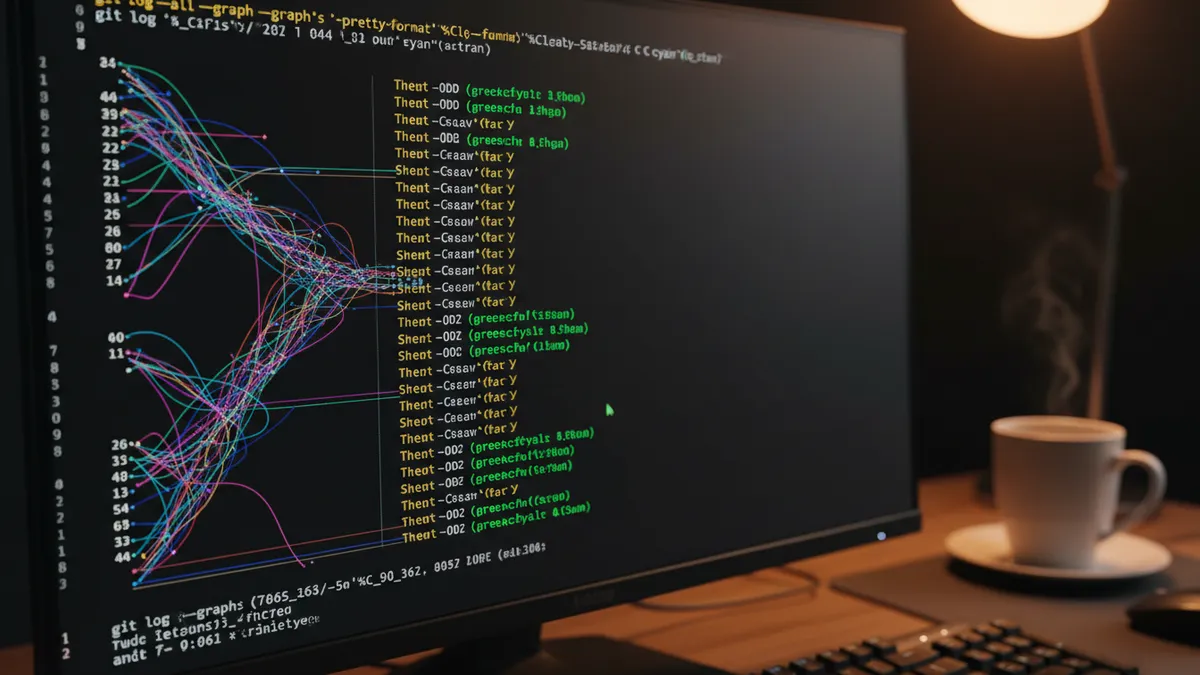
If I’d been using Git back then, it would have taken me exactly one command — git checkout HEAD~1 nginx.conf — to undo that mess. Instead I rebuilt the config from memory for three hours, fueled by increasingly desperate coffee.
Git isn’t just for developers pushing code to GitHub. For Linux sysadmins, it’s a safety net for config files, shell scripts, Ansible playbooks, and dotfiles. This guide walks you through everything from installation to real-world sysadmin workflows — the stuff I wish someone had sat me down and explained fifteen years ago.
According to Git development statistics, 93.87% of developers worldwide use Git as their primary version control system. If you work in Linux and you’re not one of them yet, today’s the day we fix that. Git also pairs beautifully with these terminal productivity hacks to build a fast, repeatable Linux workflow.
apt install git, dnf install git-all, or pacman -S git), set your identity with git config --global user.name and user.email, then run git init, git add, and git commit in any project folder. That’s the whole core loop. Everything else is refinement.
What Is Git and Why Every Linux Admin Should Know It
Git is a distributed version control system. That’s a mouthful, so let me break it down. It tracks every change you make to a set of files, lets you roll back to any previous state, and allows multiple people to work on the same code without stepping on each other’s toes.
Here’s the best part for sysadmins: Git works entirely offline. Every repository is complete on its own — full history, every commit, every branch. You can commit on a plane, on a disconnected server, in a bunker. It doesn’t care.
Linus Torvalds created Git in April 2005 in about ten days. He wrote it to manage the Linux kernel after the kernel community lost access to BitKeeper (a proprietary VCS they’d been using). The Linux kernel is enormous — thousands of contributors, millions of lines of code — so Git had to be fast, distributed, and stubbornly resistant to corruption from day one.
“The whole design of Git is designed around making it easy to copy, and every repository is the same and equal.” — Linus Torvalds, in an interview with Linus Torvalds reflecting on 20 years of Git
Git vs GitHub: They’re Not the Same Thing
This trips up so many beginners that I want to hammer it home early. Git is the software running on your Linux box. GitHub is a website owned by Microsoft that hosts Git repositories in the cloud. They are not the same thing.
You can use Git without ever touching GitHub. You can host your repositories on GitLab, Gitea (a fantastic self-hosted option I run in my homelab), Codeberg, a bare SSH server, or just a USB stick. GitHub is one popular option among many — don’t let the branding fool you into thinking it’s required. For what it’s worth, GitHub now hosts 180M+ developers and 420M+ repositories as of 2026, so it’s worth knowing even if you choose to self-host.
Why Sysadmins Need Version Control Too
Every sysadmin I know has a horror story like mine. The “oh no” moment when you realize you just clobbered a working config with a half-tested change. Version control is the difference between a five-second git revert and a three-hour rebuild from memory.
Here’s what I version-control as a sysadmin:
- /etc configs: Nginx, SSH, systemd units, anything under /etc worth keeping
- Shell scripts: every bash script that runs on my servers or in cron
- Ansible playbooks: infrastructure-as-code belongs in version control, period
- Dotfiles: .bashrc, .vimrc, .tmux.conf — my personal environment travels with me
- Documentation: runbooks, network diagrams in Markdown, you name it
How to Install Git on Linux
Installing Git is a one-liner on every modern Linux distribution. Git is available at the official Git website and comes pre-installed on many Linux distributions, but you’ll almost always want to use your distro’s package manager instead. Git 2.x is the current stable series — anything 2.40 or later is plenty modern.
Ubuntu and Debian
sudo apt update
sudo apt install git
Simple. The Ubuntu repos lag a minor version or two behind upstream, but that’s fine for 99% of sysadmin work.
RHEL, CentOS, and Fedora
sudo dnf install git-allThe git-all metapackage pulls in extras like git-gui and gitk. If you want a minimal install, use sudo dnf install git instead.
Arch Linux
sudo pacman -S git(BTW, I use Arch — couldn’t resist.) Arch ships the latest stable Git almost immediately, which I appreciate.
Whichever distro you’re on, verify the install:
git --versionYou should see something like git version 2.49.0. If you do, you’re ready to roll.
First-Time Git Configuration
Before your first commit, Git needs to know who you are. This takes about thirty seconds.
Set Your Identity (Name and Email)
git config --global user.name "Alexa Velinxs"
git config --global user.email "[email protected]"
The --global flag writes these settings to ~/.gitconfig, applying them to every repo on your machine. You can override them per-repo by dropping the flag inside a specific project directory.
Choose Your Default Editor and Branch Name
When Git needs you to write a commit message, it opens an editor. By default it uses whatever $EDITOR is set to — and that’s often nano or (on my machine) Vim. Set it explicitly:
git config --global core.editor vim
git config --global init.defaultBranch main
I use Vim because I’ve spent enough years inside it that my fingers just know the keys. If you’re newer to Vim, our Vim editor guide will get you up to speed. You can also point Git at VS Code with git config --global core.editor "code --wait" if you prefer a graphical editor.
Git also reads a handful of environment variables like GIT_EDITOR and GIT_AUTHOR_NAME if you need to override behavior for a single command or automation script.
Verify your configuration:
git config --listOr just crack open ~/.gitconfig in your editor. It’s plain INI-style text — I edit mine directly half the time.
Core Git Workflow: Init, Stage, Commit
Every Git session revolves around three states: the working tree (files you’ve edited), the staging area (changes marked for the next commit), and the repository (committed history). Getting comfortable with these three is 80% of using Git effectively.
Initialize a Repository with git init
mkdir my-scripts
cd my-scripts
git init
That git init command creates a hidden .git directory. That folder is the repo’s brain — it stores every commit, every branch, every reference. Don’t delete it, don’t move it, don’t mess with it unless you really know what you’re doing.
Stage Files with git add
git add deploy.sh
git add .                   # stage everything
git add -p                  # interactive staging (my favorite)
The -p flag is a sysadmin’s secret weapon. It walks you through each hunk of changes and asks whether to stage it. Perfect for when you’ve made twelve changes in one file and only want to commit half of them.
Save Changes with git commit
git commit -m "Add nginx reload to deploy script"Keep your subject line under 50 characters. Use the imperative mood: “Add firewall rule” not “Added firewall rule.” Git itself uses imperative mood in its automated messages, so matching that style reads consistently.
Good commit messages explain why, not what. The diff already shows what changed. Your commit message should answer: why did I change it? What problem does this solve? Future-you at 2am will thank past-you.
Run git status constantly. It’s the single most-executed Git command on the planet — roughly 95% of developers run it daily. It’s your dashboard.
Connecting to Remote Repositories
A remote is just another copy of your repository on another machine. It might live on GitHub, GitLab, a self-hosted Gitea instance, or a bare SSH server in your homelab. I run all three, because why not.
Clone an Existing Repository
git clone https://github.com/user/repo.git     # HTTPS
git clone [email protected]:user/repo.git         # SSH
For sysadmin work, I strongly prefer SSH. No password prompts in cron jobs or automation, and key-based authentication is more secure than HTTPS tokens sitting in environment variables. For SSH setup, see our guide on how to generate an SSH key on Linux and pair it with this walkthrough on securing your SSH configuration.
Push and Pull Changes
If you started locally with git init and want to push to a remote you just created:
git remote add origin [email protected]:you/repo.git
git push -u origin main
After that, git push sends your commits to the remote and git pull fetches and merges changes from the remote into your local branch. Roughly 70% of developers run git pull at the start of every session — it’s muscle memory. Good muscle memory.
git pull is just a shortcut for git fetch followed by git merge. If you want to see what changed on the remote before merging it in, run git fetch first, poke around with git log origin/main, and merge manually when you’re ready.
Branching and Merging
Branches let you experiment without touching the main line of work. Broke something in a feature branch? Delete the branch. Main is still clean.
Create and Switch Branches
git branch firewall-hardening          # create
git switch firewall-hardening          # switch to it (modern)
git checkout firewall-hardening        # switch to it (legacy)
git switch -c firewall-hardening       # create AND switch
git branch -a                          # list all branches
The git switch command was introduced in Git 2.23 specifically to replace the overloaded git checkout. A lot of older guides still show git checkout -b — it still works, but git switch -c is the modern, clearer way. Your future teammates reading your shell history will appreciate it.
Merge Branches and Clean Up
git switch main
git merge firewall-hardening
git branch -d firewall-hardening       # delete after merge
One rule I live by on any shared repo: never commit directly to main. Every change — even a one-line typo fix — goes through a branch and a merge. It sounds pedantic until the day someone’s hotfix saves your bacon because it was isolated from the rest of your work-in-progress.
Essential Git Commands You’ll Use Every Day
Here’s the short list of commands I probably type a hundred times a week.
View Changes: git diff, git log, git status
git status                             # current state
git diff                               # unstaged changes
git diff --staged                      # staged changes
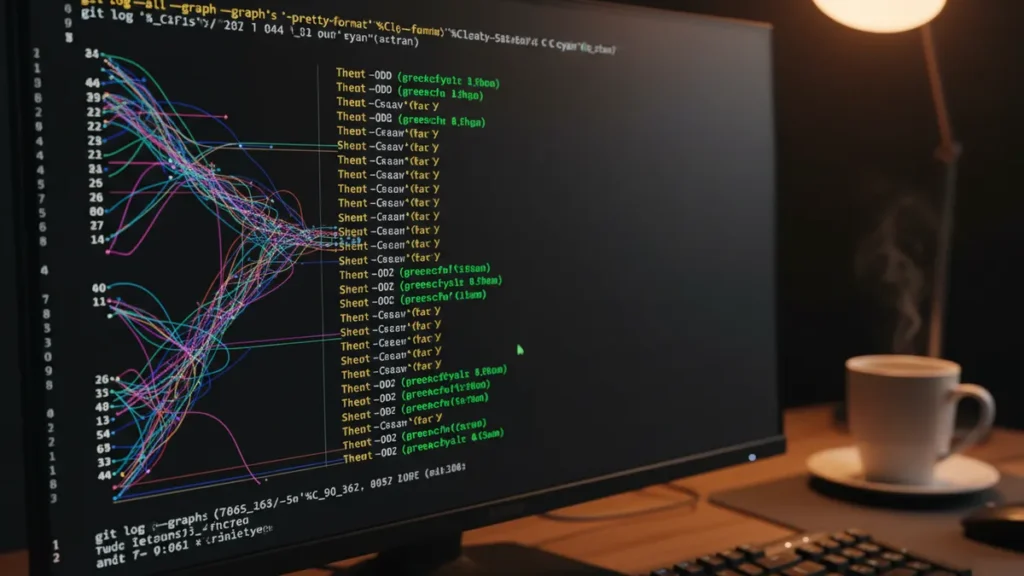
git log --oneline --graph --decorate   # pretty history
That last one — git log --oneline --graph --decorate — is gold. It gives you a compact visualization of your branch history. I have it aliased to git lg in my .gitconfig because my fingers got tired of typing it.
The git diff command works a lot like the standard Linux diff command. If you know one, you’ll feel right at home with the other.
For big repos, combine git log with fzf for fuzzy-searchable commit history. Piping commits through fzf is one of my favorite terminal tricks — it turns searching history into instant gratification.
Stash Work in Progress
git stash push -m "halfway through firewall rules"
git stash list
git stash pop
Always name your stashes with -m. I learned this after ending up with seventeen unnamed stashes on a client project and absolutely no idea what was in any of them. Named stashes save future-you from past-you.
Undo Mistakes the Right Way
git reset HEAD~1          # undo last commit, keep changes staged
git revert HEAD           # create a new commit that undoes the last
git show abc1234          # inspect a specific commit
Here’s the critical distinction: reset rewrites history, revert adds to it. On your own local branches, reset is fine. On anything shared with other people, always use revert — rewriting history that other people have already pulled is how teams end up in a bad place on a Friday afternoon.
Real-World Linux Sysadmin Use Cases for Git
Now for the stuff most Git tutorials skip. This is where version control turns from “thing developers do” into “thing that saves your job.”
Track /etc Config Files with etckeeper
My favorite sysadmin trick: etckeeper. It’s a wrapper that puts /etc into a Git repo and auto-commits every change — package upgrades, your manual edits, config tool writes. It’s genuinely magical.
sudo apt install etckeeper
sudo etckeeper init
sudo etckeeper commit "Initial commit"
After setup, etckeeper hooks into apt (or dnf, or pacman) and commits automatically whenever a package modifies a file in /etc. The first time I enabled this on a production server and watched it log a security update to sshd_config, I wondered how I’d lived without it. For sensitive /etc contents, consider pairing this with LUKS disk encryption so the history is protected at rest.
Version Your Dotfiles and Shell Scripts
My dotfiles have traveled with me across probably twenty machines over the last decade. The pattern is simple:
- Create
~/dotfilesandgit initit - Move your real dotfiles (.bashrc, .vimrc, .tmux.conf) into that folder
- Symlink them back:
ln -s ~/dotfiles/.bashrc ~/.bashrc - Commit and push to a private repo
New machine? Clone and symlink. My custom bash aliases follow me everywhere, and I can recover my entire shell environment in about ninety seconds. It’s the most satisfying part of a fresh install.
The same pattern works for your Bash scripts and Ansible on Linux playbooks. Every script I’ve written in the last decade lives in a Git repo. When something breaks in production, I can instantly see what I changed last Tuesday, and that alone has probably saved me fifty late-night debugging sessions.
Wrapping Up
That covers the core of how to use Git on Linux — from apt install through etckeeper. The commands are simple individually; the real skill is weaving them together into daily habits. Commit often. Branch for everything. Write commit messages your future self can read at 2am without swearing.
A few next steps worth your time: run long Git operations inside tmux so SSH disconnects don’t kill your clones, set up that SSH key if you haven’t yet, and start versioning at least one piece of your system this week. Pick one config file today, put it in a Git repo, and make a commit. That single act will save you from a future Sunday-morning disaster, exactly like the one that made me a Git convert all those years ago.
Happy committing. And remember: git status is your friend. Run it early, run it often.