How to Configure AppArmor on Linux: Profiles, Modes, and Real Fixes
Learn how to configure AppArmor on Linux—check status, create custom profiles, switch between modes, and harden your system with real command examples.


In this article
If you’ve ever wondered how to configure AppArmor on Linux — or worse, you’ve been bitten by it without realizing it was even running — you’re not alone. I spent two of my early Linux years thinking AppArmor was someone else’s problem until a MySQL install on a fresh Ubuntu box quietly refused to use my custom data directory. No errors. No warnings. Just a daemon that wouldn’t start, while I burned through coffee trying to figure out why. The fix took 30 seconds once I knew where to look. In this guide, I’ll save you those two hours.

AppArmor is the default Linux Security Module on Ubuntu, Debian, and SUSE. It’s already running on your system right now, deciding what your nginx, MySQL, and CUPS daemons can and can’t touch. Once you understand it, it becomes one of the most powerful tools in your hardening toolkit. We’ll cover status checks, modes, profile creation, troubleshooting, and a real nginx confinement example you can copy-paste.
Quick answer: Run sudo aa-status to see loaded profiles, use sudo aa-complain /path/to/binary for testing and sudo aa-enforce for production. Profiles live in /etc/apparmor.d/ and reload with sudo apparmor_parser -r.
What Is AppArmor (And Why It Ships Enabled by Default)
AppArmor is a Linux Security Module that implements Mandatory Access Control (MAC). That’s the formal name, but here’s the plain English version: traditional Linux permissions (the Linux file permissions system) control which users can access which files. AppArmor controls what programs can do — even when they’re running as root.
That distinction matters more than it sounds. If an attacker compromises your nginx process, normal Discretionary Access Control (DAC) — your chmod command rules — only stops them from things root can’t do. Which is approximately nothing. AppArmor, on the other hand, tells nginx: “You can read these specific files, write to these specific log paths, and bind to port 443. That’s it. No /etc/shadow for you, no matter who you think you are.”
According to Qualys Threat Research Unit (March 2026), over 12.6 million enterprise Linux instances run AppArmor by default. SELinux is the equivalent on RHEL, Rocky, and Fedora — different implementation, same goal. AppArmor uses path-based rules (more human-readable); SELinux uses inode labels (more granular, much harder to learn).
Back to my MySQL story: that fresh Ubuntu server, my carefully prepared /mnt/data/mysql directory, and a daemon that refused to start. I checked MySQL’s own logs — nothing useful. Checked syslog — nothing screaming. Finally ran sudo aa-status and there it was: MySQL’s AppArmor profile, in enforce mode, blocking access to a path it didn’t know about. The fix? One line added to the profile. Two hours of debugging for a 30-second edit. That’s the lesson — always know where to check.
Check AppArmor Status and Install the Tools
Check if AppArmor Is Running
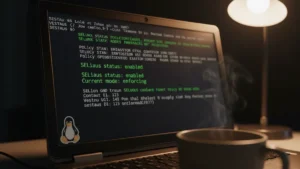
The first command you’ll memorize is aa-status. It shows every loaded profile, what mode it’s in, and which processes are currently confined.
sudo aa-status
sudo systemctl status apparmor
You’ll see output telling you how many profiles are loaded, how many are in enforce mode, how many in complain, and which PIDs are confined. If you see “apparmor module is loaded” — you’re in business.
Install apparmor-utils
The core AppArmor module ships in the kernel, but the helper tools (aa-genprof, aa-logprof, etc.) live in a separate package. Install it:
- Ubuntu/Debian:
sudo apt install apparmor-utils - openSUSE:
sudo zypper install apparmor-utils - Arch (yes, I use Arch btw):
sudo pacman -S apparmor— though most Arch users go SELinux-free and run AppArmor opt-in
That single package gives you the entire interactive toolkit. Without it, you can still read profiles and use apparmor_parser, but you’ll be flying blind when it comes to generating new ones.
AppArmor Modes: Complain, Enforce, and Disabled
AppArmor profiles operate in one of three states, and knowing the difference is half the battle.
Complain Mode
The profile is loaded and watching, but it doesn’t block anything. Every violation gets logged to syslog or dmesg, but the action proceeds. This is the safe mode you use when developing or testing a profile — you let the app run, collect every denial, and use those logs to build out the rule set.
sudo aa-complain /usr/sbin/nginxEnforce Mode
Now AppArmor is the wall. Violations get logged and blocked. This is what you want on production systems. Don’t push to enforce until you’ve spent some real time in complain mode running realistic workloads.
sudo aa-enforce /usr/sbin/nginxSwitching Between Modes
Disabled means the profile is unloaded from the kernel entirely. The app runs with no AppArmor constraint at all.
sudo aa-disable /etc/apparmor.d/usr.sbin.nginxMy rule of thumb: always start in complain mode, never the other way around. The number of times I’ve seen sysadmins flip a profile straight to enforce on a production box and then wonder why the service won’t start… let’s just say it’s a rite of passage I’d rather you skip.
Managing Existing AppArmor Profiles
Where Profiles Live
Every active profile lives in /etc/apparmor.d/ as a plain text file. The naming convention mirrors the binary’s full path, with slashes replaced by dots. So /usr/sbin/nginx becomes usr.sbin.nginx. Once you know that, finding profiles becomes obvious.
Distros also ship pre-written profiles in /usr/share/apparmor/ or /usr/share/doc/apparmor-profiles/. To activate one, symlink or copy it into /etc/apparmor.d/ and reload AppArmor.
List and Inspect Profiles
sudo aa-status is still your friend here. It groups profiles by mode and lists confined PIDs. To inspect an individual profile, just open it with your editor of choice (mine’s Vim — I know, I know, the wars are eternal).
Load, Reload, and Remove Profiles
After editing a profile, reload it without restarting the service:
sudo apparmor_parser -r /etc/apparmor.d/usr.sbin.nginxTo remove (unload) a profile from the kernel:
sudo apparmor_parser -R /etc/apparmor.d/usr.sbin.nginxLowercase -r reloads, uppercase -R removes. I have managed to mix these up at 2 AM more than once. Aliases help.
How to Create a Custom AppArmor Profile
Here’s where AppArmor goes from “system thing I sort of understand” to “tool I actually wield.” You have two ways to write a profile: let the wizard do it, or write it by hand.
Method 1: aa-genprof (Automated)
aa-genprof is the interactive profile generator. You run it against a binary, then exercise the application in another terminal — start it, hit its endpoints, trigger every behavior you can think of. Then come back to aa-genprof, press S to scan the logs, and for each violation it found you choose Allow, Deny, or Glob (generalize the path).
sudo aa-genprof /usr/bin/yourappPress F when you’re done. The wizard switches the new profile to enforce and writes it to /etc/apparmor.d/. This is by far the friendliest way to start, especially for custom applications or anything daemon-shaped that you might launch as a systemd service.
Method 2: Write One from Scratch
Sometimes you want full control. AppArmor profiles are just text files. Here’s the skeleton:
#include <tunables/global>

/usr/bin/myapp {
  #include <abstractions/base>
  #include <abstractions/nameservice>

  capability net_bind_service,
  network inet stream,

  /etc/myapp/** r,
  /var/log/myapp/** rw,
  /run/myapp.pid rw,
}
AppArmor Profile Syntax Basics
The syntax looks intimidating at first, but it’s tiny. Here’s what you’ll use 95% of the time:
- File rules:
/path/to/file rwx,— permissions are r=read, w=write, x=execute, m=mmap, k=lock, l=link, a=append - Capabilities:
capability net_bind_service,— grants a specific POSIX capability (binding privileged ports, for example) - Network rules:
network inet stream,— allow TCP over IPv4. Pair this with knowing how to check listening ports so you know what your app actually needs - Includes:
#include <abstractions/base>— pulls in common base rules (ld.so, libc, etc.) - Globs:
/var/log/myapp/** rw,— recursive match for everything under that directory
For the full spec, the AppArmor profile quick reference and the apparmor.d man page are your two main references. Don’t memorize — bookmark.
Using aa-logprof to Refine Profiles After Deployment
This is the tool I wish I’d known about during my MySQL incident. aa-logprof scans audit logs for AppArmor denials and walks you through each one interactively.
sudo aa-logprofFor each denial, you get the same Allow / Deny / Glob options as aa-genprof. The workflow that works for me:
- Set the profile to complain mode
- Run the app under a realistic workload — let it serve actual requests for a few hours
- Run
sudo aa-logprofand process every denial - Flip the profile back to enforce
If your logs live somewhere unusual, point at them directly: sudo aa-logprof -f /var/log/syslog. This is the single best way to discover what a real production application actually needs versus what you think it needs.
Real-World Example: Confining Nginx with AppArmor
Ubuntu ships a default AppArmor profile for nginx. Let’s enforce it and walk through the most common breakage.
sudo aa-enforce /etc/apparmor.d/usr.sbin.nginx
sudo systemctl reload nginx
The classic denial: nginx can’t read your TLS private keys. The default profile is conservative and doesn’t grant access to /etc/ssl/private/ (where most folks keep their certs generated with openssl in Linux). Check /var/log/nginx/error.log and dmesg — you’ll see the denial.
The fix is one line. Edit /etc/apparmor.d/usr.sbin.nginx and add:
/etc/ssl/private/** r,Reload the profile:
sudo apparmor_parser -r /etc/apparmor.d/usr.sbin.nginx
sudo systemctl reload nginx
Done. Nginx can now read its certs, and nothing else has changed about its confinement. This is the AppArmor pattern in a nutshell: read the denial, add the minimum rule, reload.
Troubleshooting AppArmor Denials
Reading the Denial Logs
Two places to look:
sudo dmesg | grep apparmor
sudo grep apparmor /var/log/syslog
A denial line looks like a wall of fields, but it’s actually quite structured. You’ll see operation= (what was attempted — file_mmap, open, exec, socket), profile= (which profile blocked it), name= (the path or resource), pid=, comm= (the process name), and requested_mask= / denied_mask= (the permissions involved). Once you can read those five fields, every denial becomes a one-line fix.
The Right Fix vs the Quick Fix
Warning: The quick fix — flipping a profile to aa-complain in production — is a security regression hiding as a solution. Do it for two minutes of triage, then go fix the actual rule.
The right fix is always: identify the specific resource, add the narrowest rule that allows it, reload the profile. sudo aa-logprof automates most of this if you let it.
One more thing — keep AppArmor patched. The Canonical’s AppArmor security patches covering the CrackArmor disclosures (CVE-2026-23268 through CVE-2026-23411) landed in March 2026. Qualys put it bluntly: “Don’t let the absence of a CVE number downplay the significance. If you’re running affected versions, treat this advisory seriously and update accordingly.” Running unattended-upgrades on Ubuntu? You’re probably fine. Custom builds? Check your version.
AppArmor vs SELinux: Which Should You Use?
The honest answer: use whichever ships with your distro. Fighting your distro on its default LSM is a long, painful road.
- Ubuntu, Debian, SUSE: AppArmor. It’s already installed, profiles exist for common services, and the syntax is human-readable.
- RHEL, Rocky, AlmaLinux, Fedora: SELinux. If that’s your stack, see my companion guide on how to configure SELinux on Linux — same goal, different mental model.
Don’t try to run both. They conflict at the LSM stacking layer and you’ll have a bad time. And remember: MAC doesn’t replace DAC. You still need correct sudoers file hygiene, sane SSH config file settings, and locked-down file permissions. AppArmor is one layer.
Where AppArmor Fits in a Hardened Stack
AppArmor handles per-application confinement. It does not handle:
- Network filtering: use nftables firewall rules or firewalld on Linux for port-level control
- Brute-force protection: pair with fail2ban on Linux for failed-auth banning
- Data-at-rest encryption: LUKS disk encryption for the storage layer
- Secrets and signing: GPG in Linux for verifying packages and encrypting sensitive files
Stack those properly and a single compromised process has nowhere to go. That’s defense in depth — and AppArmor is one of the cheapest, most effective layers you can add today, because it’s already running on your system. You just have to use it.
Wrapping Up
If you take three commands away from this guide, take these: sudo aa-status to see what’s loaded, sudo aa-complain for testing, and sudo aa-logprof for refining. Everything else builds from there. Start with the default profiles your distro ships, get comfortable reading denial logs, then graduate to writing custom profiles for your own services.
If you’re building out a full hardened Linux setup, check out the broader best Linux security tools roundup for 2026, and start working through the layered defense pieces one by one. AppArmor is a great first move because the cost is so low — the protection is already there. You just have to turn it on.
Got questions or a weird denial you can’t figure out? Drop a comment on any of my guides — I read all of them, and odds are I’ve hit the same issue at 2 AM on a Sunday at some point.