Best Linux File Manager in 2026: 6 I Tested on My Homelab
I tested 6 Linux file managers in 2026 — from blazing-fast Yazi to classic Midnight Commander. Here's which GUI and TUI tools actually belong on your system.

In this article
The best Linux file manager in 2026 isn’t the one that ships with your distro by default. I learned that the hard way last year when Nautilus on my Proxmox management VM started choking every time I opened a folder with a few thousand log files. So I went on a small crusade — installing, testing, and ranking the file managers that real Linux users actually rely on. Six made the cut. Two are GUI tools you’d run on a desktop, four are terminal-based powerhouses you can SSH into from across the house (or across the country).
This isn’t a regurgitated spec sheet. Every tool here lived on my homelab for at least a week. I broke things. I fixed them. I learned which one I’d never give up — and there’s one I now install on every server I touch before I do anything else. We’ll get to that.
Quick Answer: For desktop power users in 2026, install Dolphin (KDE) or Thunar (XFCE/lightweight). For the terminal, Yazi is the new king — fast, async, with native image previews. Keep Midnight Commander on every server you manage. It’s the most reliable SSH fallback that exists.
Why Your Default File Manager Might Be Holding You Back
Here’s the thing nobody tells you when you switch to Linux: the file manager that ships with your desktop environment is rarely the best one available. It’s just the default. And defaults exist for a reason — sane fallbacks, broad compatibility, simple onboarding. But “sane” and “best” are not the same word.
My wake-up call came on a Tuesday morning, coffee in hand, trying to clean up a directory of Proxmox backup logs. Nautilus sat there spinning for nearly fifteen seconds before showing me a folder. I ran ls in a terminal — instant. That mismatch told me everything. The data was right there. The file manager was the bottleneck.
Linux file managers split into two camps: TUI (terminal user interface) and GUI (graphical user interface). Both matter, and serious users keep at least one of each installed. TUI managers run inside your terminal — perfect over SSH on a headless server, scriptable, ridiculously fast, no graphical environment required. GUI managers give you mouse-driven folder browsing, drag-and-drop, thumbnails, the whole familiar experience. If you want the most flexible setup, pair a great best Linux shell in 2026 with one TUI manager and one GUI manager, depending on context.
TUI vs GUI: Which Type of Linux File Manager Do You Actually Need?
If you can’t decide, install both. They serve different jobs. But knowing which is right for which job will save you hours of friction.
TUI (Terminal) File Managers — Best for Sysadmins and Remote Work
TUI file managers live inside your terminal. That single fact gives them superpowers. They work over any SSH connection without needing X11 forwarding or a graphical environment. They start in milliseconds. They drop you back into a shell exactly where you were browsing. They pair beautifully with a tmux guide for multi-pane workflows where you have a file manager in one pane and an editor in another.
Because TUI managers run inside the terminal, you’ll want a solid terminal application underneath them. If you haven’t picked one yet, start with my guide to the best Linux terminal emulator — modern terminals like Kitty and Ghostty unlock features (image previews, GPU rendering) that older terminals can’t deliver.
GUI File Managers — Best for Desktop Linux Users
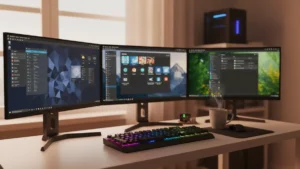
GUI file managers shine on the desktop. They’re tied closely to desktop environments — Dolphin ships with KDE, Thunar with XFCE, Nautilus with GNOME. Each one inherits the look, feel, and shortcut conventions of its parent environment. If you’re still picking a DE, my best Linux desktop environments guide breaks down what comes with what.
GUI managers handle thumbnails, drag-and-drop, network shares, and bulk visual operations more naturally than TUI tools. The trade-off is speed and resource usage. They’re heavier. They depend on graphical libraries. And they can’t help you when you SSH into a server.

Best TUI Linux File Managers
I tested four TUI file managers seriously. All four are still worth installing in 2026, but they shine in different situations. Here’s the order I’d recommend trying them.
1. Yazi — The Fastest TUI File Manager in 2026 (Written in Rust)
Yazi is what happens when somebody rewrites a category from scratch with modern tools. Released in 2023, it took off in 2024 and 2025, and by 2026 it’s the file manager I’d recommend to anyone starting fresh. Built in Rust with async, non-blocking I/O, it stays responsive even when you cd into a directory with 10,000+ files. Ranger — written in Python — would freeze for several seconds in that same scenario. Yazi just works.
What makes Yazi special isn’t a single killer feature. It’s the combination:
- Native image previews: Supports the Kitty Graphics Protocol, Sixel, iTerm2 inline images, and Ghostty natively — no Uberzug hacks.
- Lua plugin system: Extend it however you want without recompiling.
- Vim-style keybindings: If you’ve used Vim, you already know how to navigate Yazi.
- Multi-tab navigation: Switch between project directories without losing your place.
- Fuzzy search built in: Jump anywhere fast.
“Yazi features a built-in Lua scripting engine for customization, with multi-tab navigation, fuzzy search, and file previews supporting text, images, video and more — all included out of the box.” — Yazi official documentation
Check the project on Yazi on GitHub — releases drop frequently and the project is healthy. If you’re new to Vim-style keybindings, my Vim editor guide covers the navigation patterns Yazi reuses.
2. Midnight Commander (mc) — The Sysadmin’s Battle-Tested Classic
Midnight Commander has been around since 1994. It’s older than some of the people writing about it. And it’s still my single most-installed package on every server I touch. The first thing I do on a fresh VPS is sudo apt install mc or sudo pacman -S mc. It costs almost nothing, and the day a config file goes sideways at 2am, you’ll be glad it’s there.
mc gives you a dual-panel layout — left side and right side — and you copy or move files between them with a single keystroke. But the killer feature is its virtual filesystem (VFS). With mc, you can browse remote SSH or FTP servers as if they were local folders, dive into tar/zip archives without extracting them, and do it all without leaving the dual-panel interface.
“Midnight Commander can be used with almost any of the common shells and remote terminals through SSH. MC can connect to remote systems over FTP or SSH and display the remote directory in a panel, letting you copy files across machines.” — Red Hat Sysadmin Editorial Team
Red Hat’s sysadmin team explicitly endorses it as a replacement for GUI managers on headless servers. For deeper config tips, the Arch Wiki: Midnight Commander page is the most thorough reference I know — it covers VFS over SSH setup in detail. The official site at Midnight Commander official site hosts source releases, and the Midnight Commander on Wikipedia entry does a nice job covering its long history.
If you’re transferring files between machines, pair mc with a solid SCP workflow — my SCP command guide covers the patterns that complement mc’s VFS feature.
3. Ranger — Best for Vim Lovers
Ranger was my daily driver for years before Yazi appeared. Written in Python, it offers a three-pane Vim-inspired view: parent directory on the left, current directory in the middle, preview of the highlighted file on the right. For someone living in Vim all day, the muscle memory transfer is instant.
The downside in 2026 is exactly what made it loveable in 2018: it’s Python. Python is elegant, and Ranger’s source code is unusually readable, but the architecture is older. In directories with tens of thousands of files, Ranger can stall while Yazi flies. The plugin and theme ecosystem is mature and widely documented, so if you’ve already invested in your Ranger setup, there’s no shame in keeping it. But for a new install, Yazi is the modern pick.
4. nnn — Ultra-Lightweight with Serious Plugin Power
nnn is the minimalist’s TUI file manager. Written in C, it has a tiny memory footprint and starts almost instantly. Its philosophy: keep the core minimal, extend with plugins. Out of the box, it doesn’t have inline image previews. With plugins, it has nearly everything Yazi has. The trade-off is configuration time.
I keep nnn around for resource-constrained boxes — old Raspberry Pis, tiny VPS instances, recovery environments. It pairs naturally with fzf fuzzy finder for fast file searching. If you live in scripts and want a file manager that gets out of the way, nnn is your tool.
Best GUI Linux File Managers
Two GUI file managers stand out in 2026. They serve opposite ends of the desktop spectrum — one wants to do everything, the other wants to do less but do it fast.
5. Dolphin (KDE) — The Most Configurable GUI File Manager
Dolphin is KDE’s flagship file manager and, in my opinion, the most feature-complete GUI file manager available for Linux in 2026. The headline feature is the embedded terminal panel — you can drop a real terminal into the bottom of your file browser and it tracks the directory you’re viewing. Want to run a quick command in the folder you’re looking at? Just type. No alt-tab, no cd, no friction.
Beyond that, Dolphin gives you:
- Split view: Two panels side by side for drag-and-drop file moves.
- Bulk rename: Powerful pattern-based renaming without leaving the GUI.
- Advanced search: File content search baked in.
- Network share integration: SMB, NFS, SFTP — browse them like local folders.
- File previews everywhere: Images, videos, PDFs, source code.
Dolphin can run on non-KDE desktops, but it pulls in a lot of KDE library dependencies. If you’re not on KDE, weigh whether you want those libraries on your system or whether Thunar fits your needs better.
6. Thunar (XFCE) — Lightweight, Fast, and Surprisingly Powerful
Thunar is the file manager for everyone who wants speed, stability, and just enough features. It’s XFCE’s default, but it doesn’t require XFCE — it’ll run cleanly under any desktop environment. On low-RAM systems or older hardware, Thunar is the file manager I install first.
Don’t mistake “lightweight” for “limited.” Thunar’s Custom Actions system lets you add right-click menu items that run any command on the selected file. I have one that opens any folder in Yazi inside a new terminal window. Another converts selected images to WebP. It’s underrated and incredibly powerful once you start using it.
Slant.co’s community rankings consistently put Thunar above Nautilus for general-purpose file management — Thunar typically ranks 2nd, Dolphin 3rd, Nautilus further down. The criticism of Nautilus is fair: limited customization, fewer power-user features.
Honorable mentions: Nautilus (GNOME default, fine for beginners but limited customization) and Nemo (Cinnamon’s fork of Nautilus, with more features and a better power-user feel). If you’re on Linux Mint, Nemo is a respectable choice.
Quick Comparison: All 6 Linux File Managers at a Glance
Here’s the entire list compared side by side. I built this table after a week of switching between them on the same machine.
| Tool | Type | Language | Best For | SSH-Friendly | Install Size |
|---|---|---|---|---|---|
| Yazi | TUI | Rust | Speed + modern UX | Yes | Small |
| mc | TUI | C | Sysadmins, SSH work | Yes | Tiny |
| Ranger | TUI | Python | Vim users | Yes | Medium |
| nnn | TUI | C | Minimal footprint | Yes | Tiny |
| Dolphin | GUI | C++/Qt | Power desktop users | No | Large |
| Thunar | GUI | C/GTK | Lightweight desktop | No | Small |
One pattern that jumps out: every TUI option here is SSH-friendly. That’s the practical reason I always have at least one TUI file manager installed on every box, even desktops. The day you have to recover a system from a TTY login, you’ll thank yourself. For pure file-search tasks (no browsing needed), the classic Linux find command still beats every file manager — sometimes the right tool isn’t a file manager at all.
My Pick: Which Linux File Manager Should You Actually Install?
Recommendations are easy if you stop pretending one tool fits everyone. Here’s how I think about it, broken down by your actual situation:
- Server / SSH work: Install mc on every server. It’s tiny, it’s everywhere, and its VFS makes remote browsing painless. Once your terminal supports image protocols, add Yazi for richer local work.
- Vim user on the desktop: Ranger still works fine, but Yazi is the modern choice. Same vim keybindings, dramatically faster.
- Desktop Linux on KDE: Dolphin. Don’t overthink this one.
- Desktop Linux on anything else / low-resource: Thunar. Fast, stable, surprisingly powerful with Custom Actions.
- Minimal or scripted environments: nnn. Pair with fzf and you’re flying.
My personal workflow in 2026: Yazi as my daily TUI driver, Dolphin on my main KDE desktop, mc on every server I manage. That trio handles 99% of what I need. The fourth slot — Thunar — lives on my smaller machines and a recovery USB I keep in a drawer.
For bulk file operations and synchronization tasks that go beyond what any file manager handles cleanly, drop into the shell and use rsync for file transfers. A file manager browses; rsync moves mountains.
Where to Go From Here
Picking a file manager is one piece of a productive Linux setup. If you want to keep leveling up, my terminal productivity hacks guide is the natural next read — it covers the keybindings, aliases, and tools that turn a competent terminal user into a fast one. Pair what you learn there with whichever file manager you settle on, and you’ll never miss the GUI equivalents from Windows or macOS.
Try at least two of the tools above this week. Use Yazi for your home directory. Install mc on your home server. See what sticks. Linux gives you choice for a reason — defaults are starting points, not destinations. The right file manager is whichever one gets out of your way when you have work to do.