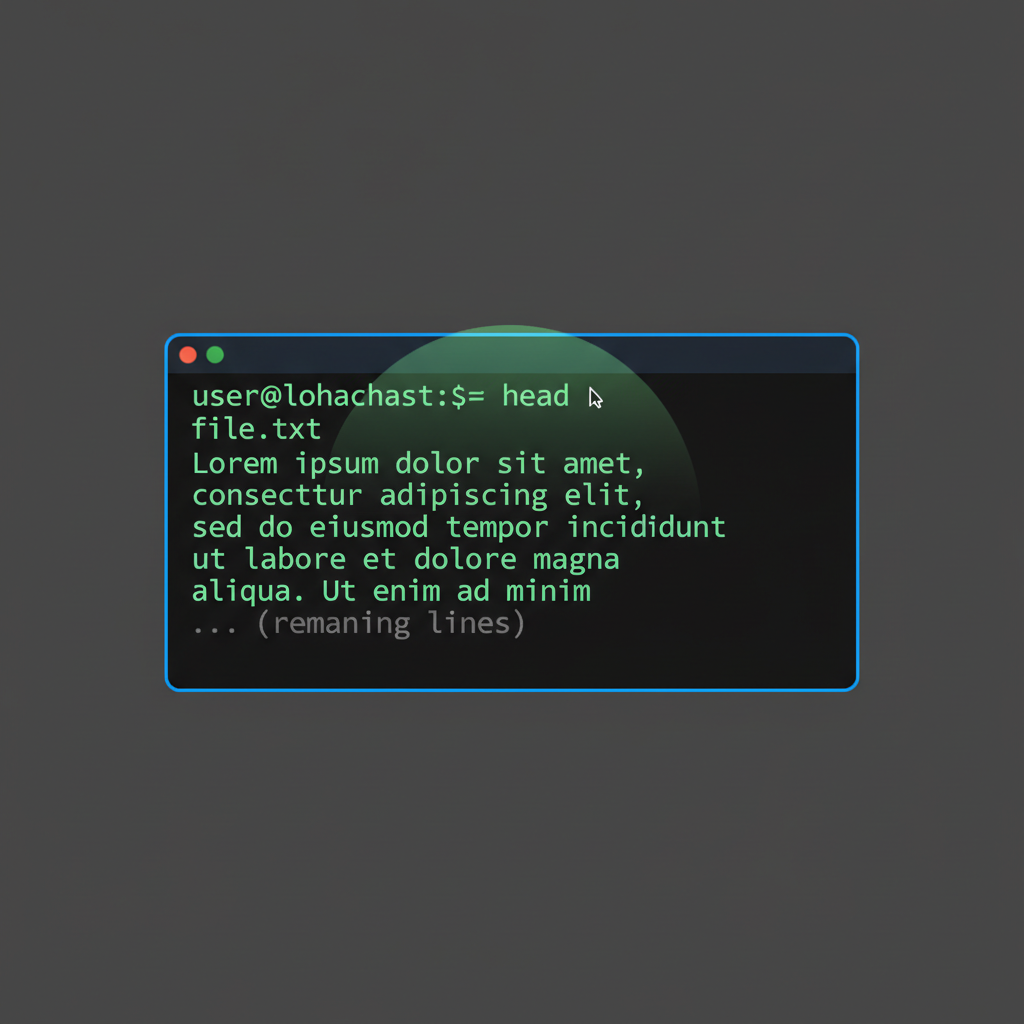
You know that moment when you ssh into a server and need to check a log file, but you know it’s hundreds of megabytes? Opening it in vim would lock your terminal for ages. Cat-ing the whole thing would flood your screen with useless output. This is where head becomes your best friend.
I’ve been using the head command for over a decade, and it’s one of those tools that seems almost too simple to write about. But here’s the thing: the simple tools are often the most powerful when you really understand them.
What is the head Command in Linux?
The head command displays the first N lines of a file. That’s it. By default, it shows the first 10 lines and prints them to stdout. It’s part of GNU coreutils, which means it’s available on every Linux distribution out of the box.
Think of it as a quick peek through a keyhole before opening the door. You get just enough information to know what you’re dealing with, without the overhead of loading an entire file.
Why head Matters for System Administration
Here’s what makes head indispensable for sysadmins:

- Performance: It doesn’t load the entire file into memory. When you’re dealing with gigabyte-sized logs, this matters.
- Quick inspection: See file headers, check CSV columns, verify configuration formats instantly.
- Pipeline integration: Combine it with other commands to build powerful one-liners.
- Resource limiting: Prevent runaway output from exhausting your terminal or disk space.
I use head in monitoring scripts all the time. When you’re pulling process lists or directory sizes, you usually only care about the top offenders. That’s where head shines.
head vs tail: When to Use Which
People often confuse head and tail command functionality. Here’s the quick breakdown:
- head: Shows the beginning of files. Use it for headers, initial log entries, or the first N items of sorted output.
- tail: Shows the end of files. Use it for recent log entries or real-time monitoring with
tail -f.
One critical thing: head -f does not exist. If someone tells you to use it for real-time log monitoring, they’re thinking of tail -f. Head reads a fixed snapshot and exits. It’s not for live monitoring.
Basic head Command Syntax and Options
The syntax is refreshingly simple:
head [OPTIONS] [FILE]If you don’t specify a file, head reads from stdin. This makes it perfect for pipelines.
Understanding the Default Behavior
Run head filename.txt without any options, and you get the first 10 lines. That default is surprisingly well-chosen. Ten lines is usually enough to see:
- CSV or data file headers
- Configuration file structure
- Recent log entries (when combined with log rotation)
- The start of documentation or README files
The command reads from the file, outputs to standard streams (stdin, stdout, stderr), and exits. Clean, simple, reliable.
The Most Important Options You’ll Actually Use
I’m going to skip the obscure flags and focus on what you’ll actually type in production:
-n NUMBER: Show a specific number of lines. Example:head -n 20 file.txt-c BYTES: Show the first N bytes instead of lines. Useful for binary file inspection.-q: Quiet mode. Suppresses headers when viewing multiple files.-v: Verbose mode. Always prints filename headers, even with one file.
Here’s something that trips people up: the old syntax head -20 file.txt still works, but it’s deprecated. Use head -n 20 file.txt instead. Better to write scripts using the modern syntax according to the head man page.
Essential head Examples You’ll Use Daily
Let me show you the real-world commands I type constantly. These aren’t textbook examples. They’re from actual work.
Viewing Specific Number of Lines
Need more than the default 10 lines?
head -n 20 /var/log/syslogThis gives you the first 20 lines of the syslog. Perfect for checking what happened at boot or after a service restart.
Want to see just the first 100 bytes of a file?
head -c 100 mystery_file.binThis is handy when you’re not sure if a downloaded file is text or binary. The first few bytes usually tell you what you’re dealing with.
Working with Multiple Files at Once
You can pass multiple files to head in one command:
head /etc/passwd /etc/groupHead will show the first 10 lines of each file with a header indicating which file you’re looking at. Add -q if you want to suppress those headers:
head -q /etc/passwd /etc/groupNow you just get the raw output without separators.
Using head with Pipes and Redirects
This is where head gets really powerful. It’s a natural fit for Unix pipelines.
List files and show only the first 5:
ls -lh /var/log | head -n 5Read from stdin using redirection:
head -n 5 < /etc/servicesCombine with grep command to filter before viewing:
grep "error" /var/log/apache2/error.log | head -n 20This searches for errors in the Apache log, then shows only the first 20 matches. Much cleaner than scrolling through thousands of lines.
Real-World head Use Cases for Sysadmins
Here’s where I show you the commands I actually use when managing production systems.
Log File Analysis Without Opening Huge Files
Check recent syslog entries without opening a massive file:
head -n 50 /var/log/syslogWhen you’re troubleshooting, you often want to see what happened at the start of a session or after a reboot. The beginning of the log file is where you look. For more recent entries, use tail. For analyzing patterns across the entire log, check out journalctl for system log analysis.
Finding Top Resource Consumers
This is one of my favorite uses of head in production. Want to see the top 10 CPU-hogging processes?
ps aux --sort=-%cpu | head -n 11Why 11 and not 10? Because the first line is the header row. You want to keep that header for context. Learn more about process monitoring with the ps command.
Top memory consumers:
ps aux --sort=-%mem | head -n 11Find the 20 largest directories on your system:
du -ah /var | sort -rh | head -n 20This pipeline is pure gold. The du command calculates directory sizes, sort command orders them by size (largest first), and head shows only the top 20. I’ve used this to troubleshoot disk space issues more times than I can count.
Quick Configuration File Checks
Preview user accounts:
head /etc/passwdThis shows the first 10 user entries. Usually that’s the system accounts plus the first few real users. Great for a quick sanity check.
Check CSV headers before processing:
head -n 1 data.csvThis shows exactly one line – the column headers. Before you run a 30-minute data processing job, you should always verify the file format. One line tells you everything you need to know about the structure.
Advanced head Techniques: Combining with Other Commands
Once you’re comfortable with basic head usage, these advanced patterns will level up your command-line game.
Building Powerful Pipelines
Extract specific line ranges by combining head and tail:
head -n 50 /var/log/syslog | tail -n 10This shows lines 41-50. Head grabs the first 50 lines, then tail takes the last 10 of those. It’s a simple way to extract a middle section of a file.
Find large files in your home directory:
find ~ -type f -exec du -h {} + | sort -rh | head -n 20This finds all files, gets their sizes, sorts by size, and shows the top 20. When your home directory is mysteriously full, this finds the culprits fast.
Combine with awk for advanced text processing:
ps aux | awk '{print $2, $3, $11}' | head -n 10This extracts just the PID, CPU percentage, and command name from the process list, then shows the first 10. Clean, focused output.
Extracting Specific Line Ranges
Here’s a GNU head feature that not everyone knows about. Use a negative number to show all lines except the last N:
head -n -5 file.txtThis displays everything except the final 5 lines. It’s the opposite of tail -n 5. Useful when you want to strip footer information from a file.
Pair it with sed command for complex text manipulation:
head -n 100 access.log | sed -n '/ERROR/p'This grabs the first 100 log lines, then sed filters for only lines containing “ERROR”. When you’re debugging, limiting the search scope speeds up your investigation.
Common head Command Mistakes (and How to Avoid Them)
Let me save you some headaches by pointing out the mistakes I see people make:
Using deprecated syntax: head -20 file.txt works, but use head -n 20 file.txt instead. Scripts using the old syntax might break in future versions.
Expecting real-time updates: Head reads the file once and exits. It’s not like tail -f. If you need to monitor a log file in real time, use tail, not head.
Confusing -n and -c: The -n flag counts lines. The -c flag counts bytes. If you use head -c 10 on a text file, you might cut a line in half after the 10th byte. Know which one you need.
Using head on binary files: While head -c works on binary files, the output might mess up your terminal. If you’re inspecting unknown files, consider using file command first to check the type.
Performance assumptions: Head is fast because it stops reading after N lines. But if you use it on a file with extremely long lines (like a minified JSON file), those lines still need to be read into memory. For truly huge files with long lines, consider byte-based limits instead.
head Command Quick Reference
Here’s a cheat sheet for the commands you’ll actually use:
| Command | What It Does |
|---|---|
head file.txt | Show first 10 lines |
head -n 20 file.txt | Show first 20 lines |
head -c 100 file.txt | Show first 100 bytes |
head -n -5 file.txt | Show all except last 5 lines (GNU) |
command | head | Show first 10 lines of command output |
head file1 file2 | Show first 10 lines of each file |
head -q file1 file2 | Same, but suppress filename headers |
When to use what:
- head: View the beginning of files, limit command output, inspect file headers
- tail: View the end of files, monitor logs in real time with
-f - cat: Display entire file contents or concatenate multiple files
- less: Interactive file viewing with search and navigation
For complete technical details, the GNU Coreutils head documentation is your authoritative source.
The head command is one of those tools that seems almost too simple to matter. But that simplicity is its strength. It does one thing well: show you the first part of a file without the overhead of loading everything.
I use it dozens of times a day. Checking logs, limiting output, previewing data files, building monitoring scripts—head is always part of the solution. Master this tool along with the other text processing commands, and you’ll navigate Linux systems with a speed and efficiency that makes you wonder how you ever worked without it.