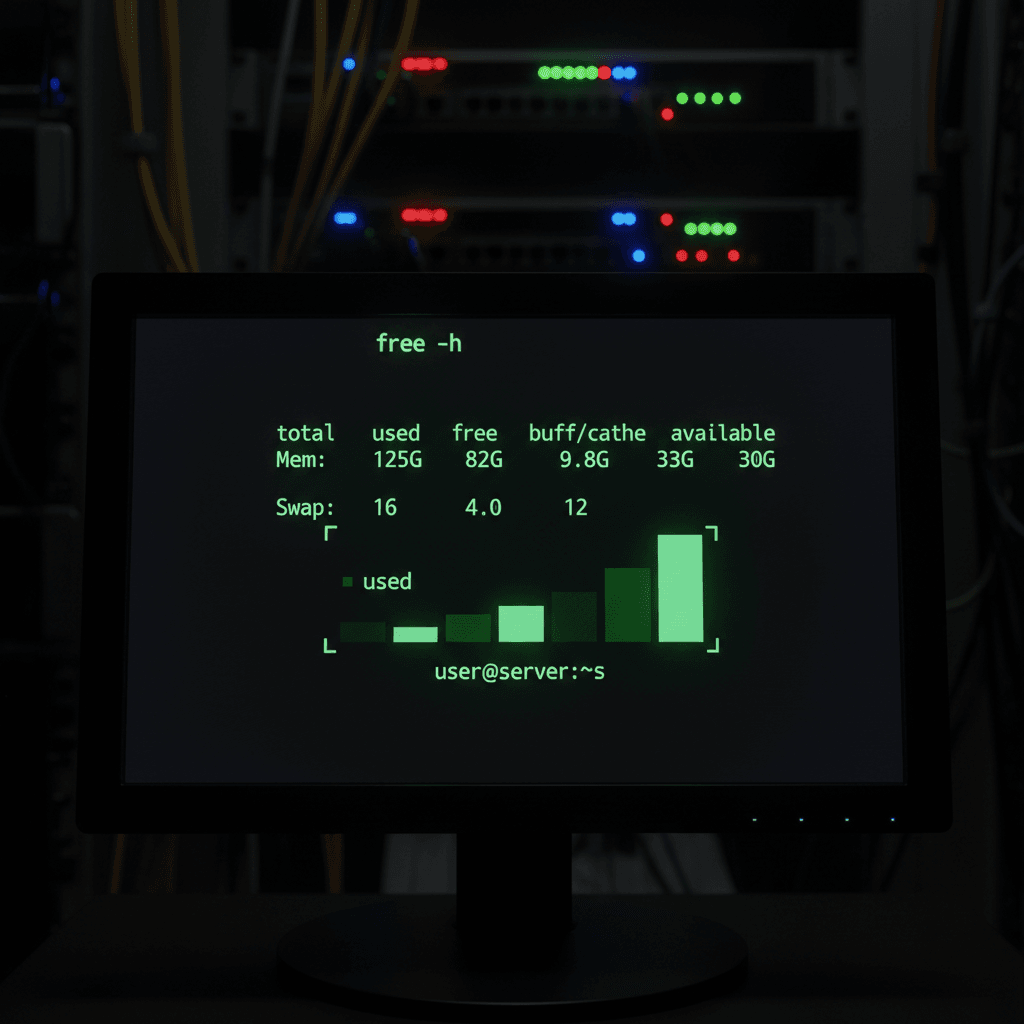
Ever stared at a server dashboard, watched the “free” memory column approach zero, and felt your pulse spike? I’ve been there. Three AM, production server, memory looking critically low. My finger hovered over the restart button before I realized I was looking at the wrong number entirely.
Here’s the thing most Linux tutorials won’t tell you upfront: that “free” column in the free command output? It’s probably not the number you should be watching. The Linux kernel is smarter than most of us give it credit for.
In this guide, I’ll walk you through everything you need to know about the free command in Linux. You’ll learn what each column actually means, which metrics matter for real-world monitoring, and how to avoid the panic that comes from misreading memory stats. For a broader overview of all memory checking methods, see our comprehensive guide to checking memory usage in Linux.
What is the free Command in Linux?
The free command displays the amount of free and used physical memory and swap space on your system. It’s one of the most common commands sysadmins reach for when troubleshooting performance issues or checking system health.
Think of it as a quick snapshot of your system’s RAM situation. No frills, no real-time updates. Just a clean, parseable output that tells you where your memory stands right now. For official syntax and all available options, check the official free command manual page.

Get a VPS from as low as $11/year! WOW!
How free Reads /proc/meminfo
Under the hood, the free command doesn’t do anything fancy. It simply reads and formats data from /proc/meminfo. This virtual file is maintained by the kernel and contains real-time memory statistics.
You can actually see the raw data yourself:
cat /proc/meminfo | head -10The free command parses this file and presents the information in a more digestible format. If you want to dive deeper into how this works, the kernel documentation on the /proc filesystem explains everything in detail.
Why free Matters for System Administrators
Memory issues are sneaky. A server can run fine for months, then suddenly start swapping and grinding to a halt. The free command gives you a baseline. Run it periodically, and you’ll start recognizing what “normal” looks like for your systems.
It’s also incredibly useful for:
- Pre-deployment checks: Verifying you have headroom before launching new services
- Troubleshooting slowdowns: Quick sanity check when users complain about performance
- Capacity planning: Tracking memory trends over time
- Scripted monitoring: Parsing output for alerting systems
free vs Other Memory Monitoring Tools
The free command is purpose-built for one thing: showing you memory stats quickly. It’s not trying to be a comprehensive monitoring solution. Need real-time updates? That’s what top command for real-time monitoring handles. Need per-process breakdowns? Reach for the ps command for process-specific memory.
Use free when you want a quick answer to “how’s my memory looking?” Use other tools when you need more context.
Understanding free Command Output: The Critical Part Most Guides Skip
Let’s run the command and actually look at what we’re seeing:
free -h
              total        used        free      shared  buff/cache   available
Mem:           31Gi        12Gi       1.2Gi       892Mi        18Gi        17Gi
Swap:          8.0Gi       256Mi       7.7Gi
That 1.2Gi “free” column looks concerning, right? But look at “available”: 17Gi. That’s a massive difference. Understanding why requires knowing how Linux handles memory.
The Available Column: What You Should Actually Watch
The available column is the number that actually matters for most use cases. It estimates how much memory is available for starting new applications, without swapping.
According to Red Hat’s technical analysis of the free command, modern Linux distributions (RHEL 7/8+) specifically added this column because the old output format confused too many people.
Understanding Buffers vs Cache
You’ll see these lumped together in the “buff/cache” column. Here’s the quick breakdown:
- Buffers: Memory used for temporary storage of raw disk blocks. Think of it as a staging area for disk I/O operations.
- Cache (page cache): Memory used to cache files and directories read from disk. This speeds up repeated access to the same data.
Both of these can be reclaimed when applications need memory. That’s why they contribute to the “available” calculation.
Why Free Memory Isn’t What You Think
Here’s the Linux philosophy that trips people up: free memory is wasted memory.
The kernel actively uses “spare” RAM to cache frequently accessed files. This makes your system faster. When an application needs that memory, the kernel simply evicts the cache and gives the RAM to the application.
So when you see low “free” memory but high “available” memory, your system is actually running efficiently. The kernel is doing its job.
Modern Output Changes (RHEL 7/8+)
If you’re looking at older documentation, you might see references to a “-/+ buffers/cache” line. That’s gone in modern distributions. The output format changed to be more intuitive:
- The confusing buffers/cache adjustment line was removed
- The “available” column was added to show usable memory directly
- Column headers are now clearer
If you’re managing both old and new systems, be aware that the output format differs. Scripts written for older formats may need updating.
Essential free Command Options You’ll Actually Use
The free command has several options, but you’ll use the same handful 90% of the time. Here’s what matters.
Human-Readable Output (-h)
This is probably the option you’ll use most. It automatically scales units to KB, MB, GB, or TB based on the values:
free -hThe output becomes immediately readable without mental math. Instead of “31758428” you see “31Gi”.
Continuous Monitoring (-s)
Need to watch memory over time? The -s option updates the display at specified intervals:
free -h -s 2This refreshes every 2 seconds. Combined with the watch command, you get even more flexibility for monitoring.
Wide Mode for Modern Systems (-w)
The -w option separates buffers and cache into distinct columns:
free -hw
              total        used        free      shared     buffers       cache   available
Mem:           31Gi        12Gi       1.2Gi       892Mi       1.8Gi        16Gi        17Gi
This gives you more granular visibility into how memory is being used for caching operations.
Display Totals (-t)
Add a total row combining RAM and swap:
free -htUseful when you want to see your total memory pool at a glance.
free -hwt -s 2 during troubleshooting sessions. It gives me human-readable output, separated buffer/cache columns, totals, and continuous updates every 2 seconds.Practical Examples for System Administrators
Let’s get into real scenarios. These are patterns I use regularly when managing production systems.
Quick Memory Health Check
The simplest check. Just want to know if memory is okay?
free -hLook at the “available” column for Mem. If it’s reasonably above zero (I start paying attention when it drops below 10-15% of total), you’re fine.
Continuous Monitoring with watch
During load testing or deployment, I keep this running in a terminal:
watch -n 2 free -hOr use the built-in option:
free -h -s 2 -c 30The second command runs 30 iterations (one minute of monitoring at 2-second intervals).
Identifying Memory Pressure
Warning signs to watch for:
- Available memory approaching zero: The system will start swapping soon
- Swap usage increasing: The system is actively using swap, which is much slower than RAM
- High swap usage + active swapping: Significant performance degradation likely
Check swap activity specifically:
free -h | grep SwapIf swap used is consistently climbing during normal operations, you may need more RAM or need to investigate what’s consuming memory. When memory issues lead to application crashes, analyzing system logs with journalctl can help identify the culprit.
Monitoring Memory During Application Deployment
Before deploying a new service, capture baseline memory:
free -h > /tmp/memory_before.txtDeploy your application, wait for it to stabilize, then compare:
free -h > /tmp/memory_after.txt
diff /tmp/memory_before.txt /tmp/memory_after.txt
This gives you a clear picture of your application’s memory footprint.
Scripting with free for Alerting
Need to parse free output for monitoring scripts? Here’s how to extract specific values:
# Get available memory in MB
free -m | grep Mem | awk '{print $7}'

# Get swap used in MB
free -m | grep Swap | awk '{print $3}'

# Get percentage of memory available
free | grep Mem | awk '{printf "%.1f%%\n", $7/$2 * 100}'
A simple alert script might look like:
#!/bin/bash
AVAILABLE=$(free -m | grep Mem | awk '{print $7}')
THRESHOLD=1024  # 1GB in MB

if [ "$AVAILABLE" -lt "$THRESHOLD" ]; then
    echo "WARNING: Available memory is ${AVAILABLE}MB" | mail -s "Low Memory Alert" admin@example.com
fi
Common Mistakes and How to Avoid Them
I’ve seen these mistakes countless times. Some I’ve made myself. Save yourself the trouble.
This is the big one. Low free memory is normal and good. It means Linux is using your RAM efficiently for caching. Watch the “available” column instead.
Mistake 2: Manually clearing cache/buffers
You might have seen this command floating around:
echo 3 > /proc/sys/vm/drop_cachesDon’t run this in production. Yes, it will make the “free” column go up. It will also destroy your cache, meaning the next file reads hit disk instead of memory. Performance tanks. The kernel will rebuild the cache anyway. The only legitimate use is specific testing scenarios where you need a cold cache.
Mistake 3: Ignoring the “available” column
Old habits die hard. If you learned Linux before the available column existed, retrain yourself to look there first.
Mistake 4: Not monitoring swap usage
When swap starts getting used heavily, performance suffers dramatically. A system with 1GB of RAM and active swapping is slower than a system with 512MB and no swapping. Watch for swap thrashing: swap used climbing, available memory near zero, system responsiveness degrading.
Mistake 5: Comparing free output to top without understanding differences
The memory numbers in top and free measure slightly different things. Don’t expect them to match exactly. Use both tools, but understand their purposes differ.
When to Use free vs Other Memory Tools
Choosing the right tool saves time. Here’s my decision tree:
Use free when:
- You need a quick memory snapshot
- You’re scripting memory checks for automation
- You want to monitor memory trends over a short period
- You’re doing basic capacity checks
Use top when:
- You need real-time, continuously updating information
- You want to see which processes are consuming memory
- You need to sort and interact with process lists
Use ps when:
- You need detailed memory breakdown for specific processes
- You want to see RSS, VSZ, and other per-process metrics
- You’re investigating a specific application’s memory usage
Use vmstat when:
- You need virtual memory statistics over time
- You want to see page-in/page-out rates
- You’re diagnosing complex memory pressure scenarios
Memory monitoring is just one piece of the performance puzzle. Once you’ve got memory handled, you might want to look at monitoring CPU usage for a complete picture of system health.
Final Thoughts
The free command in Linux is deceptively simple. The output looks straightforward, but understanding what those numbers actually mean separates experienced sysadmins from beginners.
Remember these key points:
- Watch the available column, not free
- Low free memory is normal and efficient
- High swap usage is the real warning sign
- Don’t manually clear caches in production
- Combine
free -hwithwatchfor continuous monitoring
Now go check your servers. Run free -h and actually look at that available column. Chances are, your memory situation is healthier than you thought.